Documentation: Get Object State Node
Overview
The Get Object State node is an action node that retrieves the current state of an object from the platform. It queries the Driver Hub for the object's state and additional properties, making that data available in the Output of the node. Downstream nodes can use this output to make decisions, send notifications, or trigger other actions based on the object's current state.
When to Use This Node
Use this node when you need to:
- Read the current state of an object (e.g. a door, sensor, switch) within the automation flow
- Use object state or properties in later nodes (conditions, messages, API calls)
- Check state after a delay or after another action, before continuing
- Pass object data (domain, state, additional properties) to external systems or notifications
Node Configuration
The node has two configuration views: Form and JSON Editor. You select the object whose state you want to retrieve.
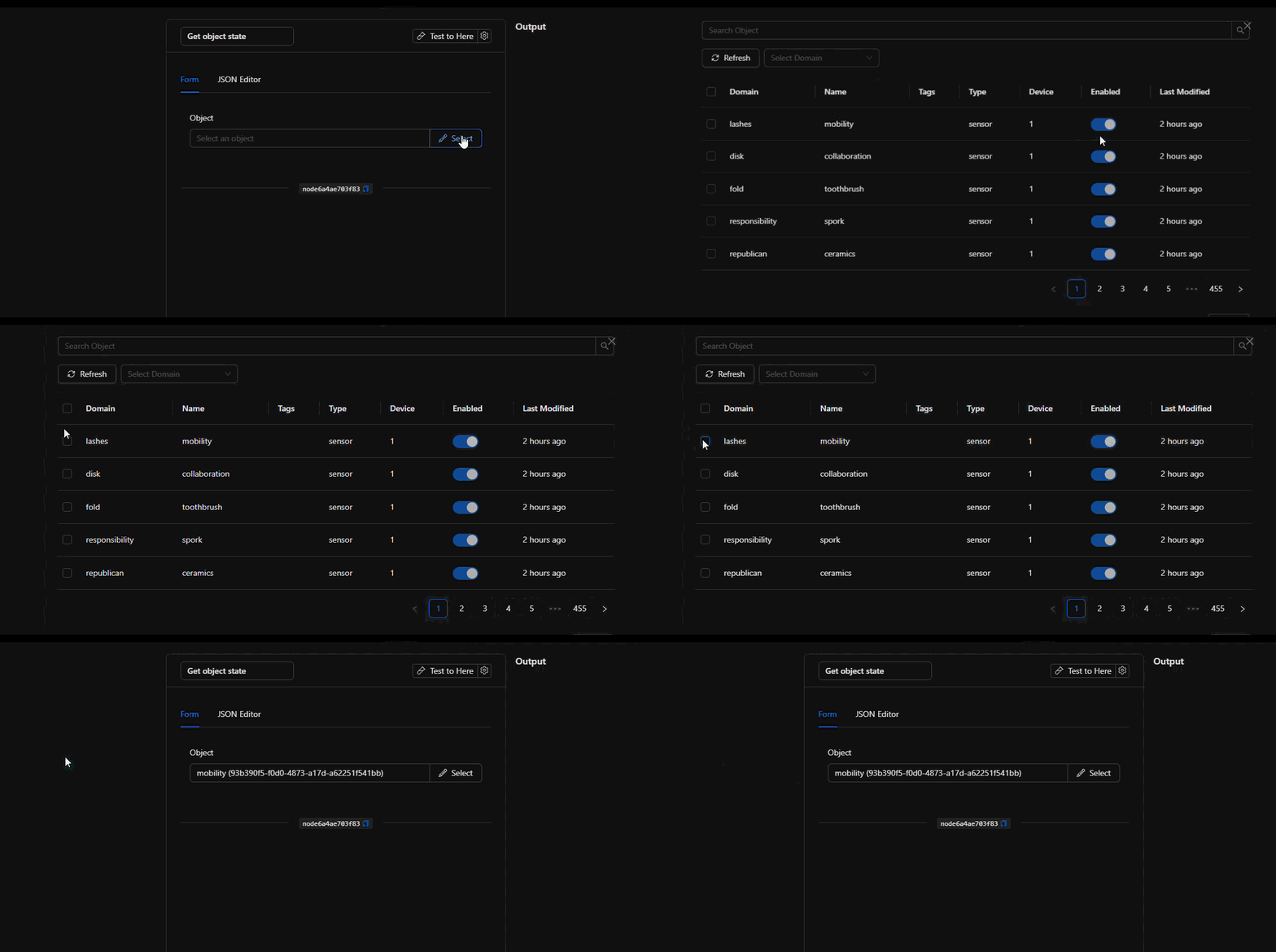
Form View
Object
- In the "Object" section, click "Select" to open the object picker
- Choose the object whose state you want to get
- The selected object's ID is stored as
objectIdin the node configuration
Note
You can use a static object or reference a value from a previous node (e.g. via the JSON Editor with a template expression such as {{trigger.object_id}}).
JSON Editor View
Switch to the JSON Editor tab to view or edit the configuration as JSON, or to use template expressions for objectId.
JSON Structure (Input Parameters)
{
  "objectId": "93b390f5-f0d0-4873-a17d-a62251f541bb"
}
Required Fields
| Field | Type | Description |
|---|---|---|
objectId |
string | ID of the object whose state you want to get |
The objectId can be a fixed UUID or a template expression that resolves at runtime (e.g. {{trigger.object_id}}).
Output: Where the Node Data Comes From
The main purpose of this node is to provide output data for the rest of the flow. When the node runs successfully, the Output section of the node (and the automation context) contains the following data, which you can use in subsequent nodes via template expressions.
Output Fields
| Field | Type | Description |
|---|---|---|
id |
string | Object ID |
object_id |
string | Object ID (same as id) |
domain |
string | Object's domain |
datetime |
string | Last update time (RFC3339) |
state |
object | State and additional properties |
state.state |
string | Main state value (e.g. on, off, open, closed) |
state.state_additional_properties |
object | Additional state properties (e.g. brightness, temperature) |
Example Output
{
  "id": "93b390f5-f0d0-4873-a17d-a62251f541bb",
  "object_id": "93b390f5-f0d0-4873-a17d-a62251f541bb",
  "domain": "devices",
  "datetime": "2025-02-04T12:00:00Z",
  "state": {
    "state": "on",
    "state_additional_properties": {
      "brightness": "80",
      "color_temp": "4000"
    }
  }
}
Using the Output in Later Nodes
Reference the output using the node's key (NodeKey) in the automation. Examples:
{{node_key.state.state}}
{{node_key.state.state_additional_properties.brightness}}
{{node_key.domain}}
{{node_key.datetime}}
Replace node_key with the actual key assigned to the Get Object State node in your flow.
Usage Examples
Example 1: Read Door State Before Sending Notification
Use case: Get the current state of a door and include it in a notification message.
Configuration:
- Object: Select the door object (or set
objectIdin JSON).
JSON:
{
  "objectId": "93b390f5-f0d0-4873-a17d-a62251f541bb"
}
In a later node (e.g. Send Notification), use: Door state: {{get_object_state_node.state.state}}
Example 2: Dynamic Object from Trigger
Use case: Get the state of the object that triggered the automation (e.g. state change trigger).
JSON:
{
  "objectId": "{{trigger.object_id}}"
}
The node will resolve trigger.object_id at runtime and fetch that object's state. The output is then available for subsequent nodes.
Example 3: Use Additional Properties in a Condition or Message
Use case: Read a sensor's state and its extra properties (e.g. temperature) for a conditional branch or message.
After the Get Object State node runs, use in an IF node or in a message body:
- Main state:
{{getstate_node.state.state}} - Property:
{{getstate_node.state.state_additional_properties.temperature}}
Validation and Errors
The node checks that:
- The
objectIdparameter is present. - The
objectIdvalue is not empty.
If validation fails or the Driver Hub request fails, the node returns an error and the message is available in the result (e.g. Success: false, Error field).
Common Errors
| Condition | Typical cause / solution |
|---|---|
Missing objectId |
Ensure the node has an object selected or objectId in JSON. |
Empty objectId |
Do not leave the object field empty; use a valid ID or expression. |
| Driver Hub unreachable | Check that the Driver Hub service is running and reachable. |
| HTTP 4xx/5xx | Object may not exist or ID may be wrong; verify object ID. |
Best Practices
- Name the node clearly (e.g. "Get door state") so you can easily reference its output as
node_keyin templates. - Use template expressions when the object depends on the trigger or previous nodes (e.g.
{{trigger.object_id}}). - Handle errors in the flow if the object might be missing or the Driver Hub might be unavailable (e.g. conditional branch on success/error).