Documentation: Send WhatsApp Message (Wassender API)
Overview
The Send WhatsApp Message (Wassender) node is an action node that sends WhatsApp messages via the Wassender API. It supports four content types: text, multimedia (image, video, audio, document), location, and buttons/poll. Optionally it can wait for a reply from the recipient (text or button click).
One message type at a time
You cannot send everything at once. Only one message type is sent per execution. Priority when deciding the type is: location > multimedia > buttons/poll > text.
When to Use This Node
Use this node when you need to:
- Send WhatsApp messages from automations using Wassender (not Twilio)
- Send text, images, videos, audio, documents, locations, or polls/buttons
- Wait for recipient response (text or button click) before continuing the flow
- Send to one or multiple recipients in a single action
Obtaining credentials (apiToken and accessToken)
The node requires apiToken and accessToken from WasenderApi. They are obtained separately:
apiToken
- Create an account at WasenderApi: https://wasenderapi.com/register.
- Log in and go to Settings → Tokens: https://wasenderapi.com/settings/tokens.
- Generate a token on that page. That value is your apiToken (use it in the node's
apiTokenfield).
accessToken
- With your account created, go to Create WhatsApp session/instance: https://wasenderapi.com/whatsapp/create.
- Create a new WhatsApp session (instance).
- Link the device: on the WhatsApp app on your phone, go to Settings → Linked devices → Link a device and scan the QR code shown by WasenderApi.
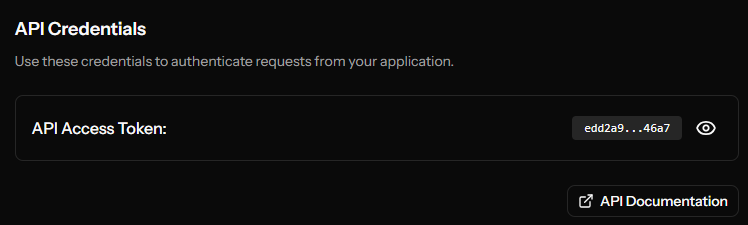
- Once the device is linked successfully, the same session page will show API Credentials, where you can view and copy the API Access Token. That value is your accessToken (use it in the node's
accessTokenfield).
Example of where the accessToken appears after linking the device:
Message types
| Type | Condition in input | Description |
|---|---|---|
| Location | latitude and longitude defined |
Sends a location (optional: name and address). |
| Multimedia | mediaUrl or mediaFile defined |
Sends image, video, audio, or document per mediaType; body as caption. |
| Buttons / Poll | buttons not empty |
Sends a poll: body = question, button texts = options. |
| Text | Otherwise (only body) |
Sends text only. |
Only one of these modes applies per send; do not combine location + media + buttons in the same configuration.
Forms by message type
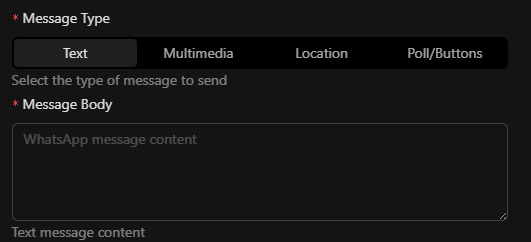
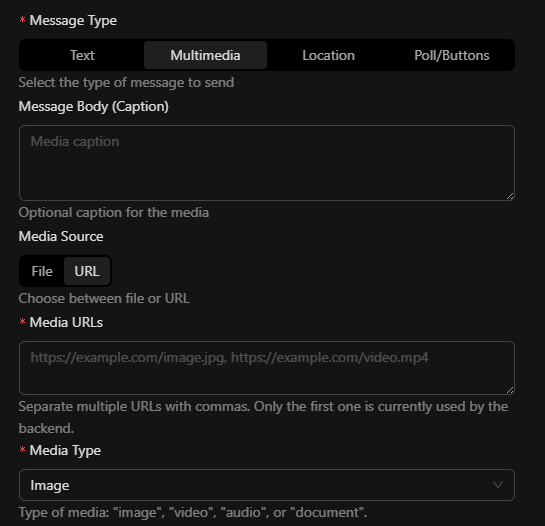
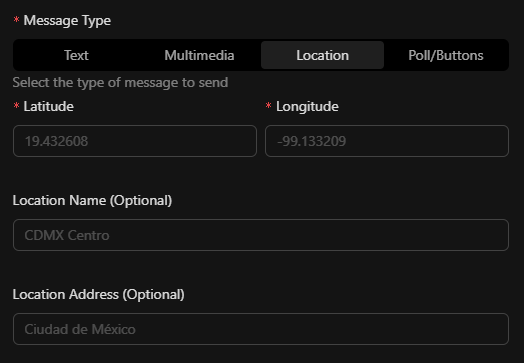
Depending on the selected message type, the node shows a different form:
Text
Multimedia
Location
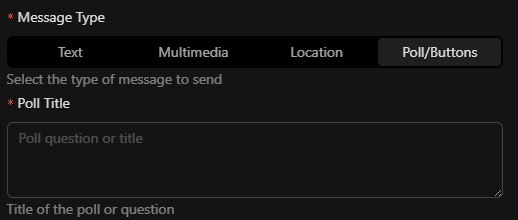
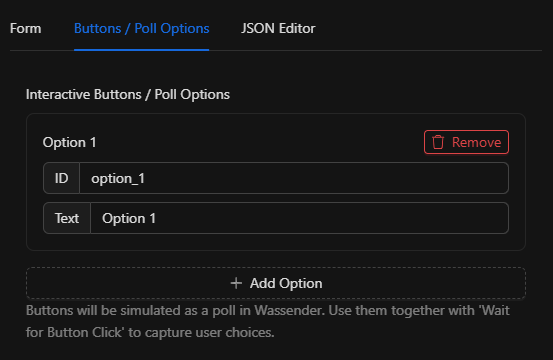
Buttons / Poll
Main form (poll question or title):
Poll options or buttons (tab "Buttons / Poll Options"):
Node Configuration
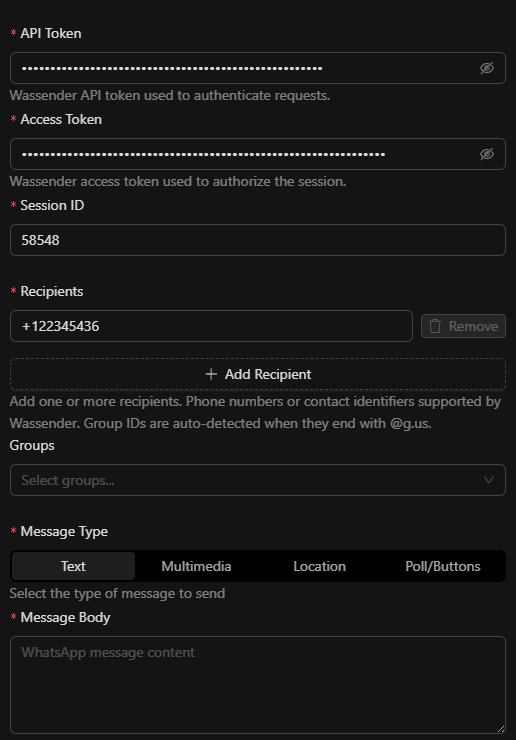
Required fields
| Field | Type | Description |
|---|---|---|
apiToken |
string | Wassender API token (non-empty). |
accessToken |
string | Access token for sending messages (non-empty). |
sessionId |
string | WhatsApp session ID. Must be connected and validated. |
to |
string or []string | Recipient(s). Single number/phone or list; cannot be empty. |
Message content (choose only one type)
Text: use only body. Do not set mediaUrl/mediaFile, latitude/longitude, or buttons.
Multimedia: mediaUrl (URL or list; if array, first is used) or mediaFile (path/DriverHub); not both. Optional: mediaType (default "image"), body (caption). Types: image, video, audio, document.
Location: latitude and longitude (both required). Optional: locationName, locationAddress.
Buttons (poll): buttons (list of { "id", "text" }). body is the poll question.
Optional fields
| Field | Type | Default | Description |
|---|---|---|---|
body |
string | — | Message text, media caption, or poll question. |
mediaUrl |
string or []string | — | Media URL(s). If array, first is used. |
mediaFile |
string | — | File path/DriverHub. Do not use together with mediaUrl. |
mediaType |
string | "image" |
Type: image, video, audio, document. |
latitude |
number | — | Latitude (-90 to 90). Must be used with longitude. |
longitude |
number | — | Longitude (-180 to 180). Must be used with latitude. |
locationName |
string | — | Place name. |
locationAddress |
string | — | Place address. |
buttons |
[]{ "id", "text" } | — | Buttons (sent as poll options in the API). |
waitResponse |
bool | false |
If true, waits for reply from first successful recipient. |
waitTime |
int (seconds) | 30 |
Max wait time when waitResponse is true. Must be > 0. |
waitForButton |
bool | false |
If true, waits for button click instead of text message. |
Warning
mediaUrl and mediaFile cannot be used together. latitude and longitude: if you send one, the other is required.
Node output
The result is exposed in the node output:
| Field | Type | Description |
|---|---|---|
total_recipients |
int | Total number of recipients. |
success_count |
int | Recipients to whom the message was sent successfully. |
failure_count |
int | Recipients with failed send. |
results |
[]MessageResult | Result per recipient. |
response |
ResponseData (optional) | Reply received if waitResponse was enabled. |
MessageResult (per recipient)
| Field | Type | Description |
|---|---|---|
to |
string | Recipient JID. |
success |
bool | Whether the send succeeded. |
msgId |
string | Message ID (if returned by the API). |
timestamp |
int64 | Send timestamp. |
error |
string | Error message if it failed. |
ResponseData (when waitResponse: true)
| Field | Type | Description |
|---|---|---|
received |
bool | Whether a reply was received. |
message_id |
string | Received message ID. |
from |
string | Sender JID. |
text |
string | Reply text. |
timestamp |
int64 | Timestamp. |
button_response |
ButtonResponse | If waiting for button click. |
ButtonResponse
| Field | Type | Description |
|---|---|---|
selected |
bool | Whether a button was selected. |
button_id |
string | Button ID. |
button_text |
string | Button text. |
JSON structure
Base example (empty fields; in real use you must set credentials, to, and content according to message type):
{
  "apiToken": "",
  "accessToken": "",
  "sessionId": "",
  "to": ["1223"],
  "body": "",
  "mediaUrl": [],
  "mediaFile": "",
  "mediaType": "image",
  "locationName": "",
  "locationAddress": "",
  "buttons": [],
  "waitResponse": false,
  "waitTime": 30,
  "waitForButton": false
}
Usage examples
Example 1: Text message
{
  "apiToken": "{{secrets.wassender_api_token}}",
  "accessToken": "{{secrets.wassender_access_token}}",
  "sessionId": "{{trigger.session_id}}",
  "to": "5215512345678",
  "body": "Hello, this is a test message."
}
Example 2: Image with caption (multimedia)
{
  "apiToken": "{{secrets.wassender_api_token}}",
  "accessToken": "{{secrets.wassender_access_token}}",
  "sessionId": "main-session",
  "to": ["5215512345678", "5215598765432"],
  "mediaUrl": "https://example.com/image.png",
  "mediaType": "image",
  "body": "See attachment."
}
Example 3: Location
{
  "apiToken": "{{secrets.wassender_api_token}}",
  "accessToken": "{{secrets.wassender_access_token}}",
  "sessionId": "main-session",
  "to": "5215512345678",
  "latitude": 19.4326,
  "longitude": -99.1332,
  "locationName": "Head office",
  "locationAddress": "Mexico City"
}
Example 4: Buttons (poll) and wait for response
{
  "apiToken": "{{secrets.wassender_api_token}}",
  "accessToken": "{{secrets.wassender_access_token}}",
  "sessionId": "main-session",
  "to": "5215512345678",
  "body": "Do you confirm the appointment?",
  "buttons": [
    { "id": "yes", "text": "Yes" },
    { "id": "no", "text": "No" }
  ],
  "waitResponse": true,
  "waitTime": 60,
  "waitForButton": true
}
The user's reply will be in Output.response.button_response (e.g. button_id, button_text).
Waiting for reply (waitResponse)
- Only applies when waitResponse is
true. - The first successfully sent message (first recipient) is used to wait for the reply.
- waitTime (seconds): maximum wait; default 30. Must be > 0.
- waitForButton: if
true, waits for a button click (poll response); otherwise for a text message. - The reply result (if received) is returned in
Output.response; if the wait fails, the node does not fail entirely.
Validation
- apiToken, accessToken, sessionId, and to are required and non-empty.
- to: non-empty string or array of strings with at least one valid element.
- mediaUrl and mediaFile cannot be used together.
- latitude and longitude: if one is sent, the other is required; lat ∈ [-90, 90], lon ∈ [-180, 180].
- If waitResponse is
true, waitTime must be > 0. - sessionId is validated against the SessionManager (session must exist and be connected).
If validation fails, the node does not send messages.
Recipient resolution (JID)
- to values (phone numbers) are converted to WhatsApp JID via a contacts database associated with the session.
- Default database path:
public/uploads/wassender_contacts.json. - If a recipient cannot be resolved, the send to that recipient fails and is reflected in
resultswithsuccess: falseanderror.
Troubleshooting
Error: invalid credentials or session
Cause: apiToken, accessToken, or sessionId empty or incorrect; session not connected.
Fix: ensure the Wassender session is connected and tokens are valid. Use secrets or variables to avoid exposing credentials in the front end.
Error: mediaUrl and mediaFile together
Cause: both fields were set.
Fix: use only one: mediaUrl (URL) or mediaFile (path/DriverHub).
Error: incomplete location
Cause: latitude set without longitude or vice versa.
Fix: always include both with values in range (lat -90..90, lon -180..180).
Recipient does not receive the message
Cause: the number could not be resolved to a JID (not in contacts database or wrong format).
Fix: check results[].error for that recipient and the session's contacts database.
Best practices
- Do not expose apiToken and accessToken in the front end; use secrets or environment variables.
- Send one message type per node: do not mix text + media + location + buttons in the same configuration.
- "Buttons" in the Wassender API are sent as a poll; the node's button structure is translated to poll options.
- You can use templating in the input (e.g.
{{trigger.field}},{{node_key.output_field}}). - HTTP request timeout to the API: 30 seconds.