The simplest way to install Netsocs on Windows is through Docker.
Requirements
- Install Docker
- Windows
Installation Steps
-
Ensure that Docker Engine is running. To do this, in the lower left corner of the screen, you will see a text indicating that Docker is running.

-
Download the zip or tar.gz file of the version you want to install directly from our releases page. There you will find all available versions for download. Once you locate the version you want to install, download it.
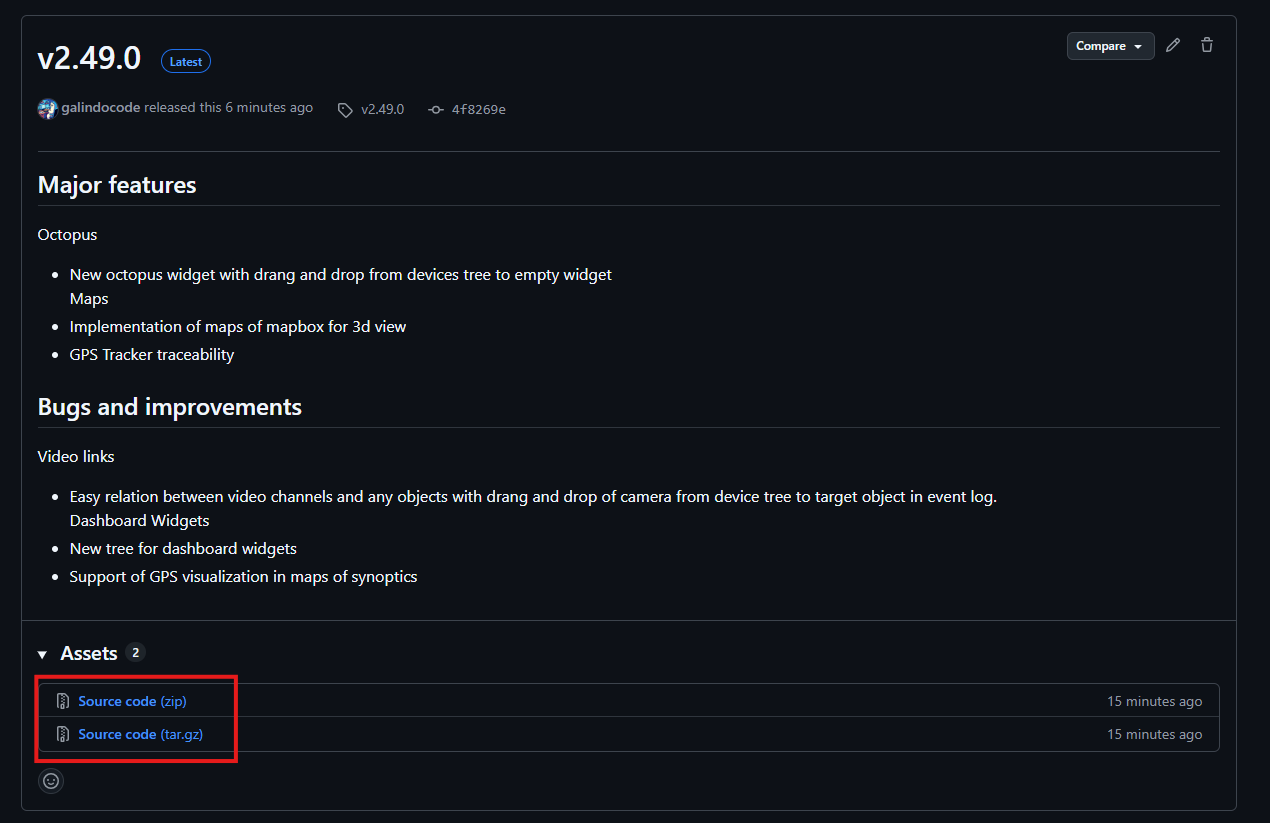
-
Once the file is downloaded, extract the folder containing the compressed file and open the file called
.env. This file contains the different configurations you can make for your installation. The minimum configuration is the IP address or domain name of your server. You can open the file with any text editor like Windows Notepad.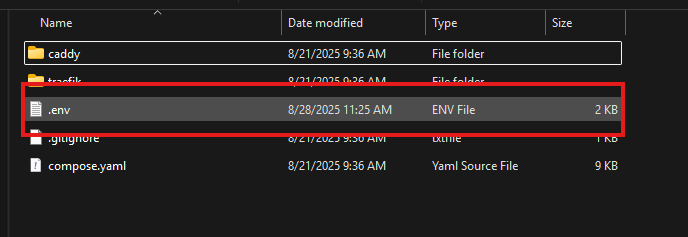
Help articles: - How to get your server's IP address
-
In the first line of the
.envfile, you can configure your server's domain name in theHTTP_HOSTNAMEvariable. The default value ishttps://192.168.1.100. Make sure to keep thehttps://at the beginning.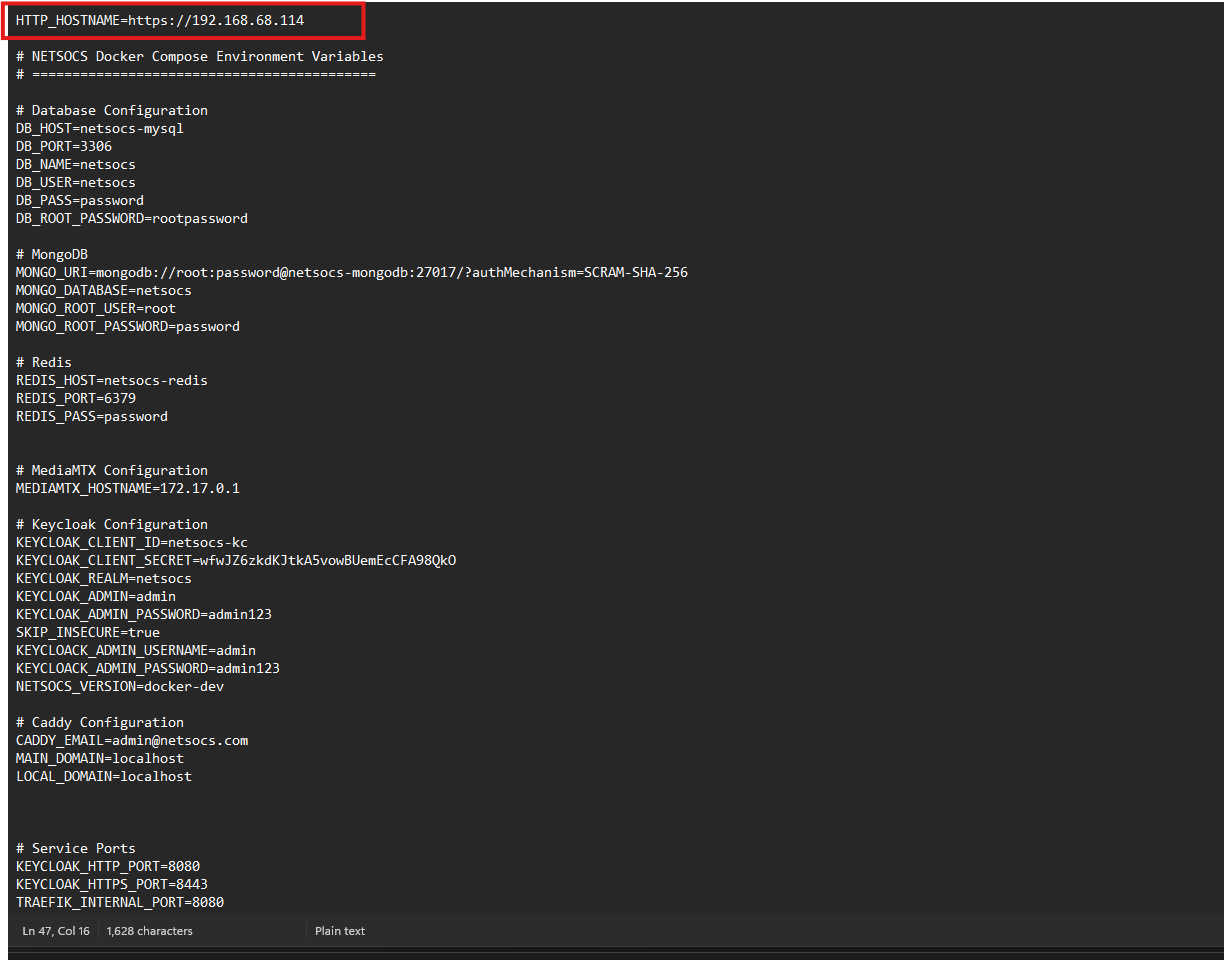
Do not use localhost or 127.0.0.1
It is important that you do not use
localhostor127.0.0.1as the value for theHTTP_HOSTNAMEvariable as Netsocs will not work correctly. -
In the root folder of the extracted files, locate the
install.batfile.
-
Double-click on
install.batto start the installation process. A console window will open showing the progress.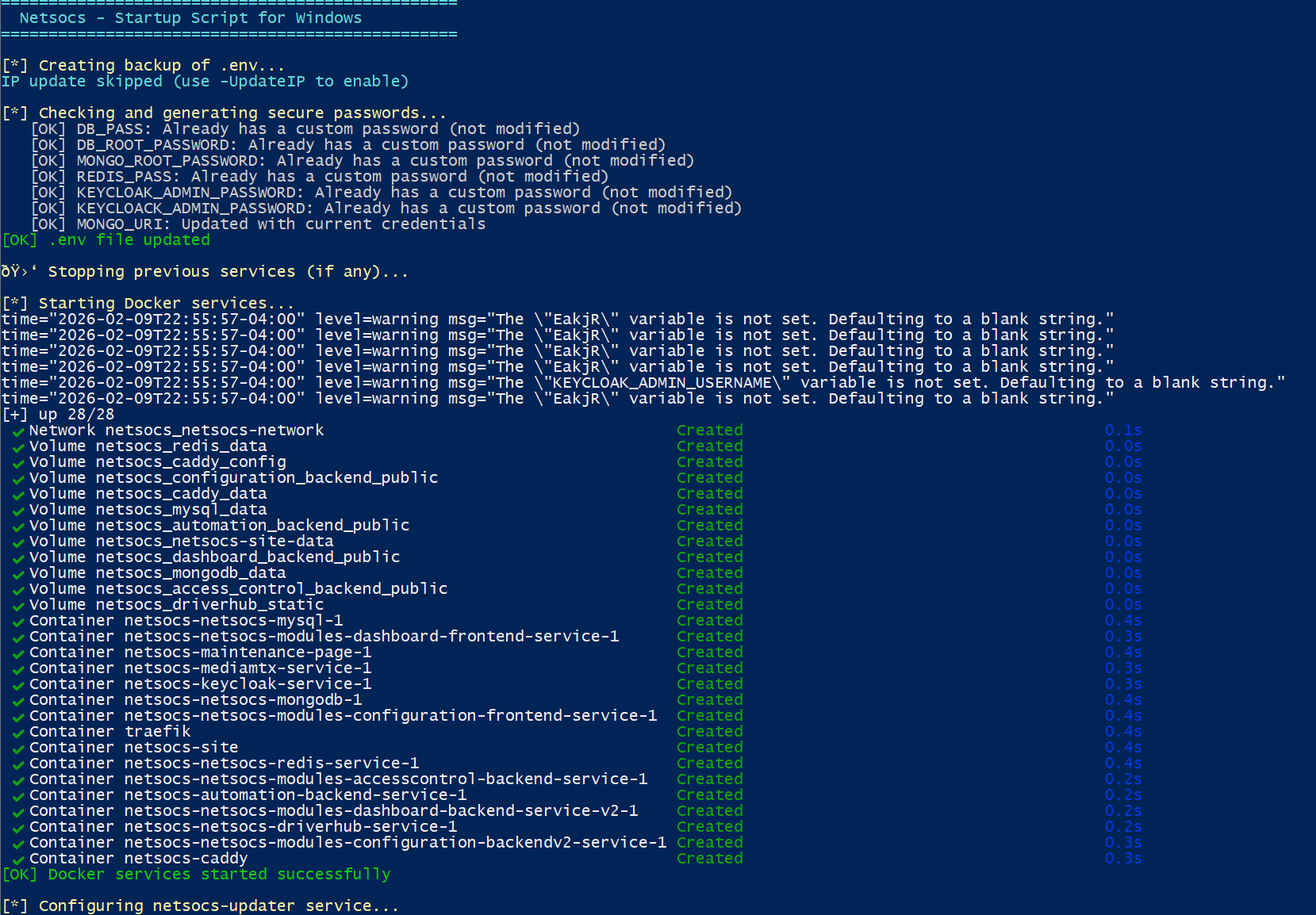
-
When the installation completes successfully, you will see a success message with the following information:
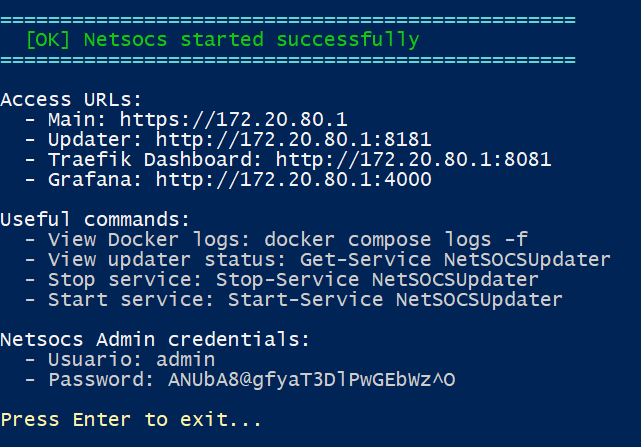 - Access point: The main Netsocs URL is shown under "Access URLs" (e.g.,
 Main: https://172.20.80.1). PressCtrl + Clickon the URL to open it in your browser. - Credentials: The Netsocs Admin credentials are displayed at the bottom — usernameadminand a randomly generated password for your installation. -
Before finishing, you must accept the self-generated certificate. When you first access the Netsocs URL in your browser, a security warning will appear because the certificate is self-signed. Accept the certificate to proceed and complete the setup.
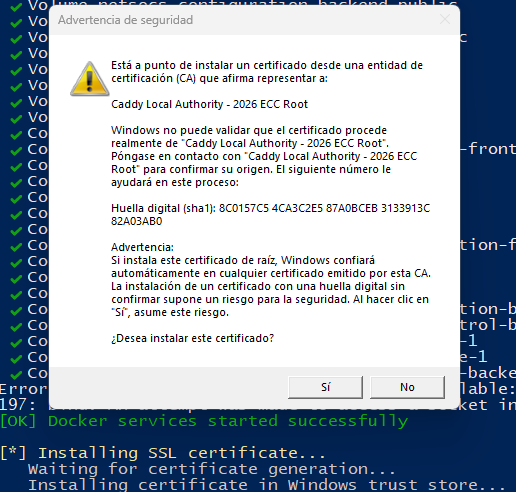
Hostname change requires certificate reinstall
If you change the
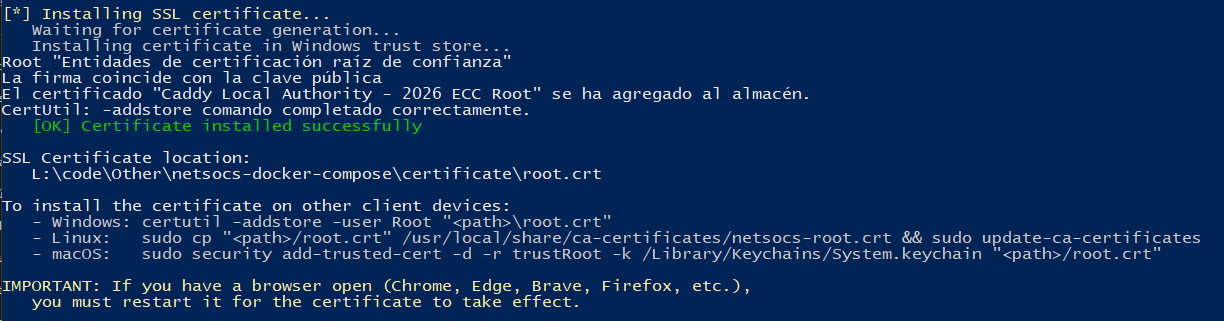
HTTP_HOSTNAMEvariable after installation, you must reinstall the certificate on this machine and on any other clients that had it installed.At the end, instructions will be displayed on how to install the certificate on other clients (other PCs) so they can access Netsocs without security warnings.
- Add your first device
Add your first device to Netsocs.
- Configure a remote site
Configure a remote site to access Netsocs from anywhere.
Common Issues
Error response from daemon: ports are not available
If when starting the containers, the following error appears:
Error response from daemon: ports are not available
This means that port 80 or 443 is already in use by another program. You must ensure that no other program is using these ports.