User Guide: User Interface Settings
Table of Contents
- Introduction
- Accessing Configuration
- Available Settings
- Step-by-Step Guide
- Detailed Description of Each Setting
- Use Cases
- Frequently Asked Questions
- Troubleshooting
Introduction
The User Interface Settings panel allows you to customize the appearance and behavior of the NetSocs Dashboard according to your preferences. These settings enable you to hide interface elements you don't need, optimize your workspace, and control certain functionalities.
What are these settings for?
- Maximize space: Hide elements you don't use frequently
- Simplify interface: Reduce visual complexity according to your needs
- Customize experience: Adapt the dashboard to your specific workflow
- Control functionalities: Enable or disable features according to your preferences
Accessing Configuration
Access Path
To access user interface settings, follow these steps:
Step 1: Open the Dashboard Configuration Panel
From the main dashboard, click the gear icon (⚙️) located in the top right corner.
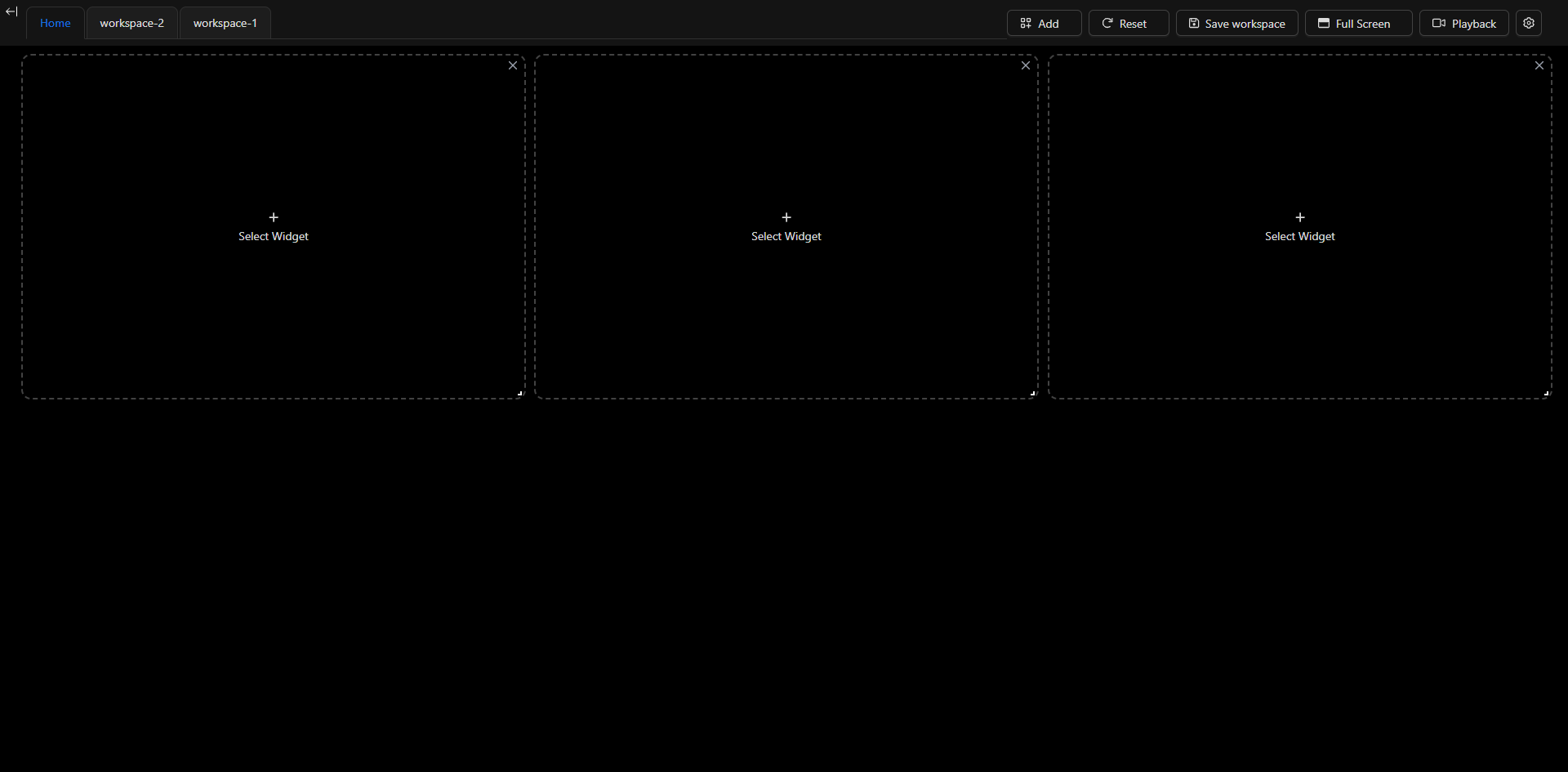
Location: Top bar → Gear button (last button on the right)
Step 2: Open the Options Menu
A panel with layout controls will appear. Click the horizontal bars button (☰) to open the dropdown menu.
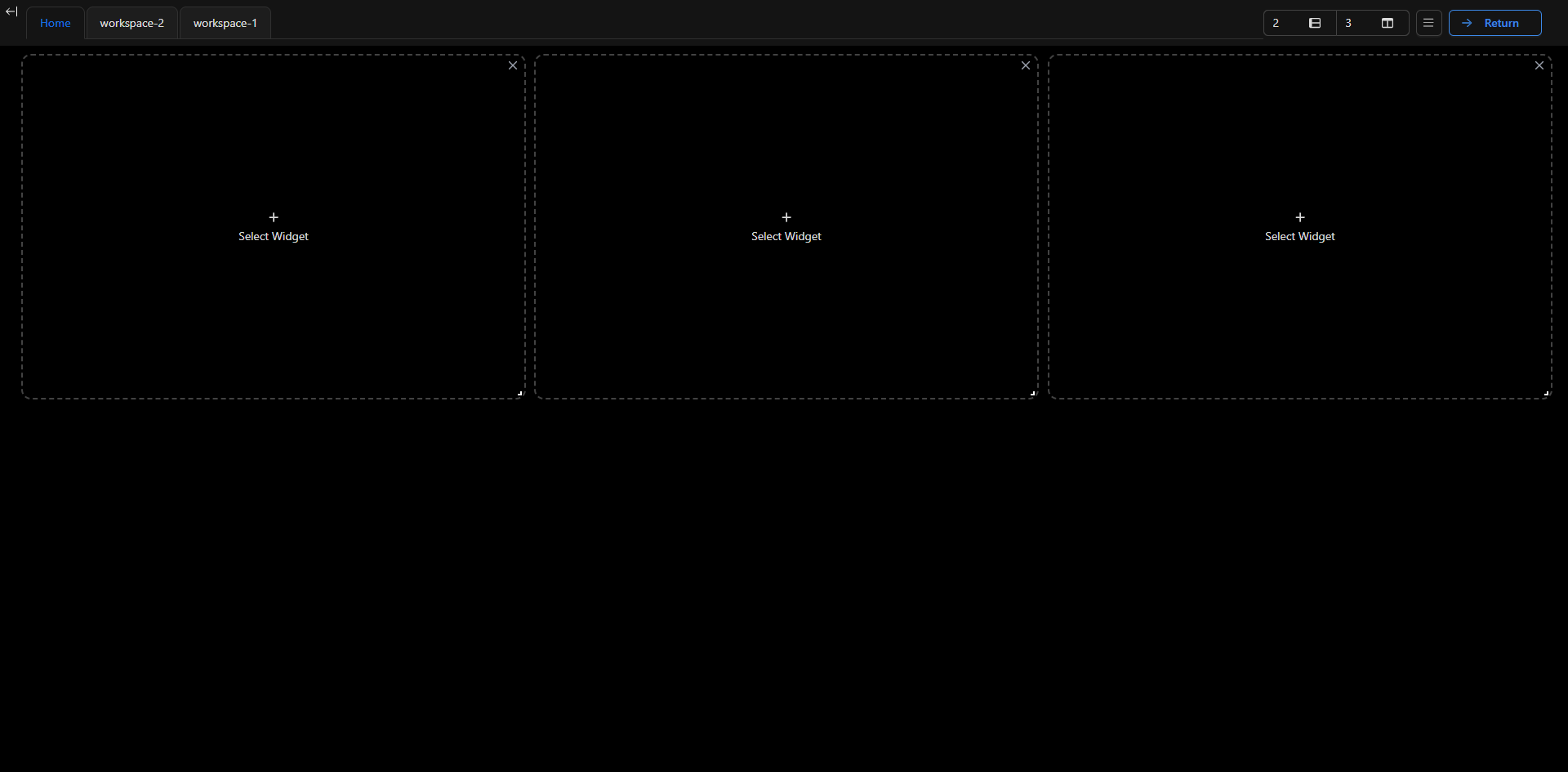
Location: Configuration panel → Button with three horizontal bars
Step 3: Select "View settings"
A menu with several options will drop down. Click "View settings".
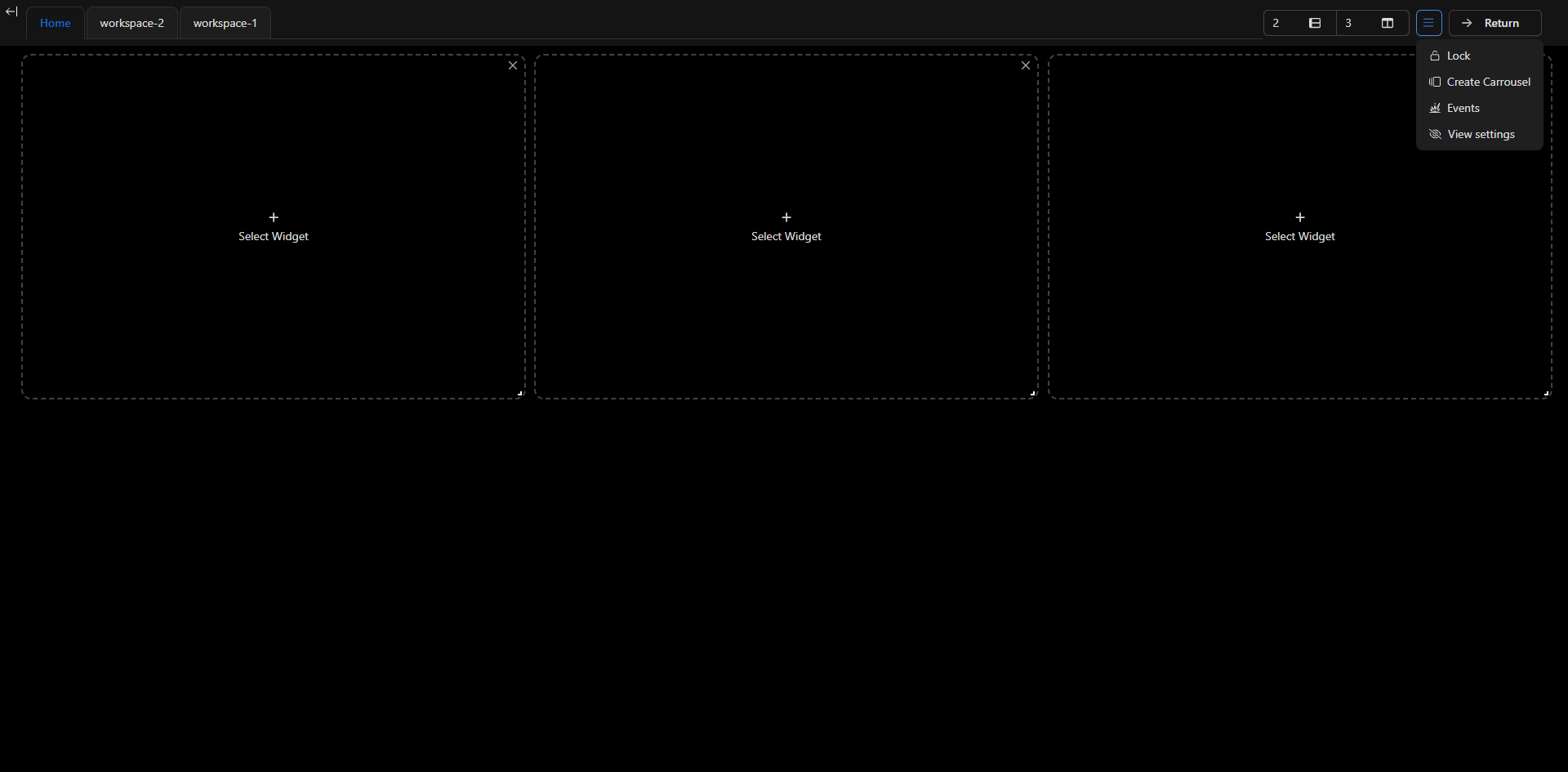
Menu options:
- 🔓 Lock / Unlock - Lock/Unlock dashboard
- 📽️ Create Carrousel - Create dashboard carousel
- 💥 Events - Event configuration
- 👁️ View settings - View settings (This option!)
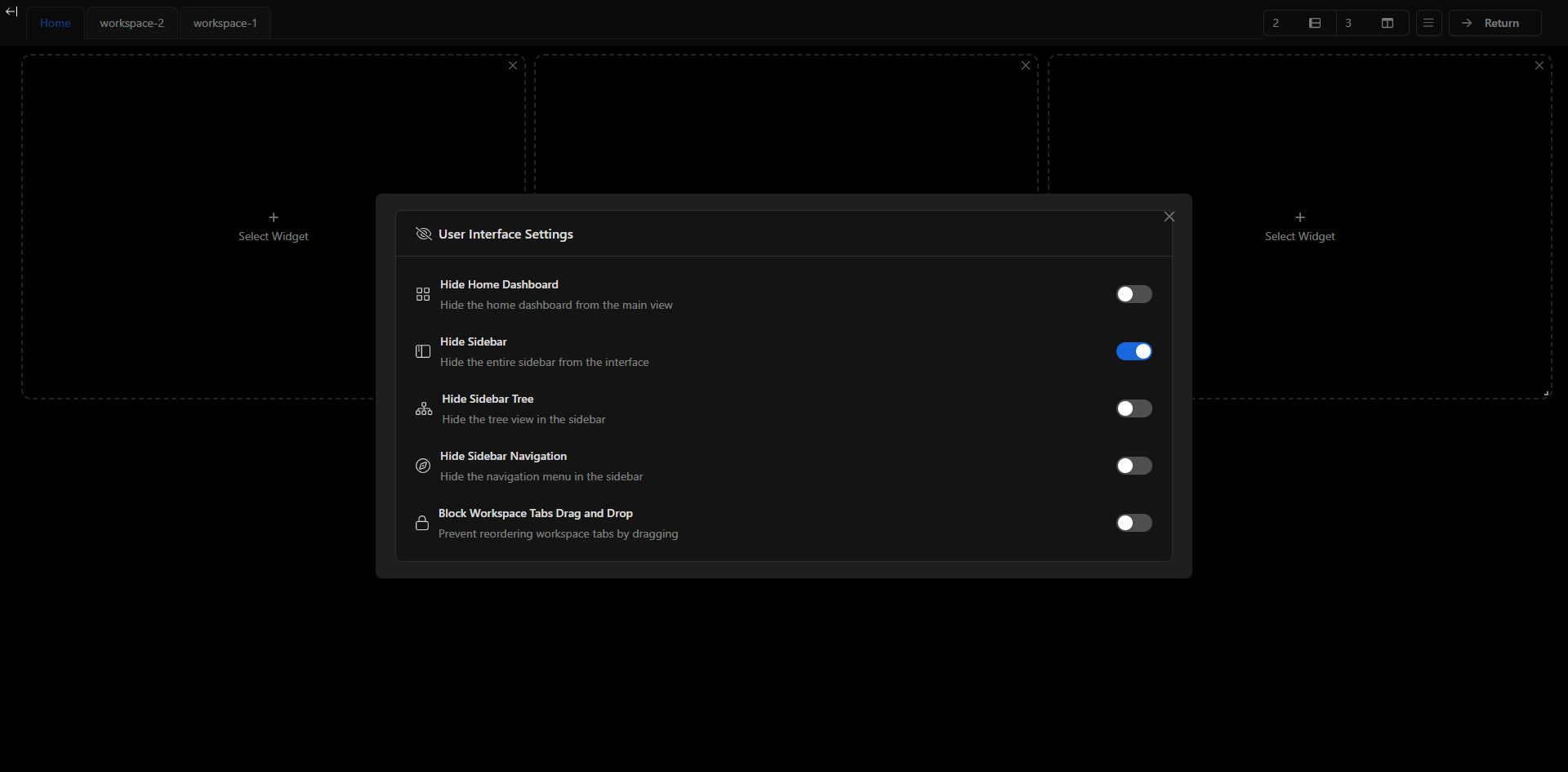
Step 4: Configuration Modal
A modal titled "User Interface Settings" will open with all available configuration options.
Available Settings
The User Interface Settings panel includes the following options:
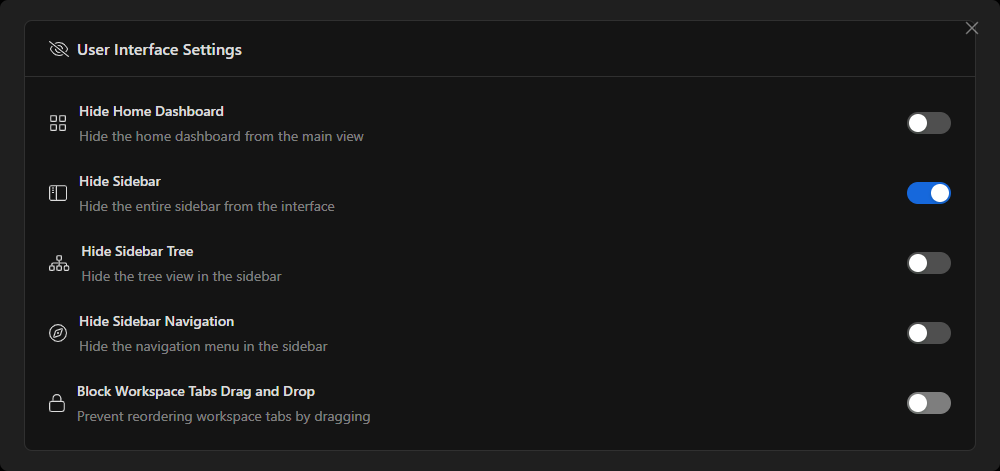
| Setting | Icon | Description | Default State |
|---|---|---|---|
| Hide Home Dashboard | 🏠 | Hides the main dashboard from view | ❌ Disabled |
| Hide Sidebar | 📱 | Hides the entire interface sidebar | ❌ Disabled |
| Hide Sidebar Tree | 🌲 | Hides the tree view in the sidebar | ❌ Disabled |
| Hide Sidebar Navigation | 🧭 | Hides the navigation menu in the sidebar | ❌ Disabled |
| Block Workspace Tabs Drag and Drop | 🔒 | Prevents tab reordering by dragging | ❌ Disabled |
Step-by-Step Guide
How to Modify a Setting
1. Access the Configuration Panel
Follow the steps described in the Accessing Configuration section to open the User Interface Settings modal.
2. Locate the Desired Setting
Settings are organized in a vertical list with:
- Identifier icon on the left
- Setting name in bold
- Brief description below the name
- Switch (toggle) on the right
3. Enable or Disable the Setting
Click the corresponding switch to change its state:
- Switch to the left (gray): ❌ Setting disabled
- Switch to the right (blue): ✅ Setting enabled
4. Change Confirmation
When making a change, you will see a success notification in the top right corner:
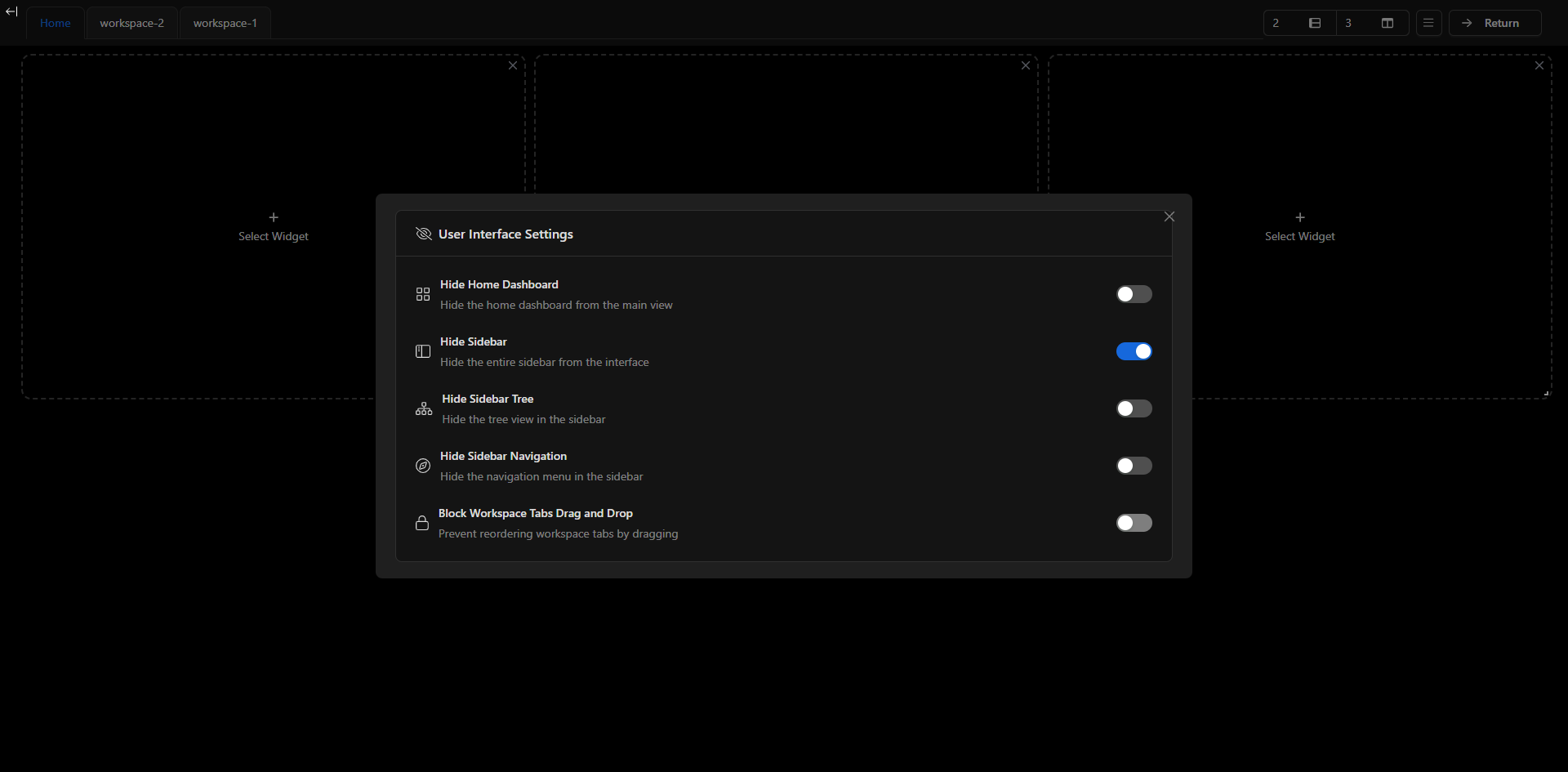
Message: "Settings updated successfully"
5. Changes Apply Immediately
- Automatic save: No need to click "Save"
- Immediate effect: Changes are reflected in the interface instantly
- Persistence: Configuration is maintained between sessions
6. Close the Modal
Click the X in the top right corner of the modal or click outside the modal to close it.
Detailed Description of Each Setting
1. 🏠 Hide Home Dashboard
Full name: Hide Home Dashboard Description: Hide the home dashboard from the main view
What does it do?
Hides the main dashboard (Home) from view, allowing you to focus directly on your custom workspaces without going through the home page.
When to use:
✅ Enable this option if:
- You don't use the Home dashboard and prefer to work only in your workspaces
- You want to save space in the tabs
- Your workflow starts directly in a specific workspace
- You manage multiple workspaces and Home is redundant
❌ Keep disabled if:
- You use Home as a starting point for your daily work
- You need quick access to the dashboard overview
- You're new to the system and still exploring
Effects:
- Enabled: The "Home" tab disappears from the tab bar
- Enabled: When logging in, automatically loads the first available workspace
- Disabled: The "Home" tab is visible and is the default destination
2. 📱 Hide Sidebar
Full name: Hide Sidebar Description: Hide the entire sidebar from the interface
What does it do?
Completely hides the left sidebar of the dashboard, providing more space for widgets and main content.
When to use:
✅ Enable this option if:
- You work on small screens and need to maximize space
- You already know the system structure and don't need constant navigation
- You prefer a minimalist interface
- You mainly use dashboard widgets without navigating much
❌ Keep disabled if:
- You need frequent access to navigation
- You regularly use the object tree view
- You're new to the system
- You work with multiple dashboard sections
Effects:
- Enabled: The complete sidebar is hidden
- Enabled: There may be a button to show it temporarily (depending on implementation)
- Disabled: The sidebar is visible at all times
💡 Note:
This option hides the entire sidebar, including:
- Navigation
- Object tree view
- Any other elements in the sidebar
3. 🌲 Hide Sidebar Tree
Full name: Hide Sidebar Tree Description: Hide the tree view in the sidebar
What does it do?
Specifically hides the object tree view in the sidebar, keeping other sidebar elements visible.
When to use:
✅ Enable this option if:
- You don't work with the system's object hierarchy
- You prefer to access objects in other ways (search, widgets, etc.)
- The tree view takes up a lot of space you could use otherwise
- Your role doesn't require navigating the object structure
❌ Keep disabled if:
- You need to explore the object hierarchy frequently
- You work with many devices organized in folders
- You use the tree view to quickly locate resources
Effects:
- Enabled: Only the tree view is hidden (sidebar remains)
- Enabled: Other sidebar elements remain visible (navigation, etc.)
- Disabled: The complete tree view is available in the sidebar
Difference with "Hide Sidebar":
- Hide Sidebar: Hides the ENTIRE sidebar
- Hide Sidebar Tree: Hides ONLY the tree view within the sidebar
4. 🧭 Hide Sidebar Navigation
Full name: Hide Sidebar Navigation Description: Hide the navigation menu in the sidebar
What does it do?
Hides the main navigation menu in the sidebar, but keeps other elements like the tree view visible.
When to use:
✅ Enable this option if:
- You already know all sections and don't need the menu constantly
- You prefer to navigate using workspace tabs
- You want to simplify the sidebar keeping only the object tree
- Your workflow is repetitive and you don't navigate between sections
❌ Keep disabled if:
- You need quick access to different dashboard sections
- You're new to the system
- Your work requires moving between multiple areas frequently
Effects:
- Enabled: The navigation menu is hidden from the sidebar
- Enabled: Other sidebar elements remain visible
- Disabled: The complete navigation menu is available
💡 Difference between Sidebar settings:
┌─────────────────────────────────────────┐
│ HIDE SIDEBAR (Hides ALL)               │
│   ├─ Navigation ❌                      │
│   ├─ Tree view ❌                       │
│   └─ Other elements ❌                  │
└─────────────────────────────────────────┘

┌─────────────────────────────────────────┐
│ HIDE SIDEBAR TREE (Tree only)          │
│   ├─ Navigation ✅                      │
│   ├─ Tree view ❌                       │
│   └─ Other elements ✅                  │
└─────────────────────────────────────────┘

┌─────────────────────────────────────────┐
│ HIDE SIDEBAR NAVIGATION (Nav only)     │
│   ├─ Navigation ❌                      │
│   ├─ Tree view ✅                       │
│   └─ Other elements ✅                  │
└─────────────────────────────────────────┘
5. 🔒 Block Workspace Tabs Drag and Drop
Full name: Block Workspace Tabs Drag and Drop Description: Prevent reordering workspace tabs by dragging
What does it do?
Locks the drag and drop functionality for workspace tabs, preventing accidental changes to tab order.
When to use:
✅ Enable this option if:
- You already have an optimal tab order and don't want to change it
- You share your device with other users
- You tend to move tabs accidentally
- You work in an environment where configuration changes should be minimal
- You prefer stability over flexibility
❌ Keep disabled if:
- You reorganize your workspaces frequently
- You're experimenting with different configurations
- Your workflow changes regularly
- You prefer to have full control over organization
Effects:
When ENABLED:
- ❌ Cannot drag workspace tabs
- 🖱️ Cursor shows normal icon over tabs (not "move" icon)
- 🔒 Tabs maintain their fixed position
- ✅ Can still click to switch between workspaces
When DISABLED:
- ✅ Can drag and drop tabs freely
- ✋ Cursor shows "move" icon over tabs
- 🔄 Can reorganize order according to preference
- 💾 New order is saved automatically
📖 Reference:
For more information about the Workspace Tabs Drag and Drop functionality, see the Workspace Tabs Drag and Drop Guide.
Use Cases
Case 1: Control Center Operator
Profile: Maria works in a control center monitoring multiple areas.
Needs:
- Maximize space for monitoring widgets
- Stable interface without accidental changes
- Doesn't need constant navigation
Recommended configuration:
- ✅ Hide Sidebar - Maximizes space for widgets
- ✅ Block Workspace Tabs Drag and Drop - Prevents accidental changes
- ❌ Hide Home Dashboard - Maintains quick access to overview
Result: More space for camera and sensor visualization, without distractions.
Case 2: System Administrator
Profile: Juan configures and manages the system regularly.
Needs:
- Full access to all functions
- Navigation between multiple sections
- Object hierarchy exploration
Recommended configuration:
- ❌ Hide Sidebar - Needs access to navigation
- ❌ Hide Sidebar Tree - Frequently uses tree view
- ❌ Hide Sidebar Navigation - Constantly navigates between sections
- ❌ Block Workspace Tabs Drag and Drop - Reorganizes as needed
Result: Complete interface with all tools available.
Case 3: User with Small Screen
Profile: Ana works from a laptop with a 13-inch screen.
Needs:
- Maximize display space
- Simplified interface
- Focus on specific workspaces
Recommended configuration:
- ✅ Hide Sidebar - Gains significant horizontal space
- ✅ Hide Home Dashboard - Goes directly to her main workspace
- ❌ Block Workspace Tabs Drag and Drop - Maintains flexibility
Result: Better use of limited screen space.
Case 4: Experienced User
Profile: Carlos has 2 years using the system and knows all functionalities.
Needs:
- Minimalist interface
- Quick navigation via shortcuts
- No redundant elements
Recommended configuration:
- ✅ Hide Sidebar - Doesn't need visual navigation
- ✅ Hide Home Dashboard - Uses workspaces directly
- ❌ Block Workspace Tabs Drag and Drop - Adjusts as needed
Result: Clean interface focused on productivity.
Case 5: Shared Station
Profile: Computer shared by multiple operators in shifts.
Needs:
- Consistent configuration for everyone
- Prevent accidental changes
- Standardized interface
Recommended configuration:
- ❌ Hide Sidebar - All operators need access
- ✅ Block Workspace Tabs Drag and Drop - Maintains standard order
- Configuration defined by shift supervisor
Result: Consistent experience for the entire team.
Frequently Asked Questions
Are changes saved automatically?
A: Yes, all changes are automatically saved the moment you enable or disable a switch. You will see a confirmation notification "Settings updated successfully" after each change.
Do settings affect other users?
A: No, these settings are personal and specific to your user account. Each user can have their own customized configuration without affecting others.
Can I revert changes?
A: Yes, simply access the User Interface Settings panel again and disable the options you previously enabled. Changes apply immediately.
What if I hide the sidebar and then need it?
A: If you hide the sidebar and then need to access it, you can:
- Return to the configuration panel
- Disable the "Hide Sidebar" option
- The sidebar will reappear immediately
Alternatively, depending on the implementation, there may be a button to temporarily show the sidebar.
Can I hide only specific parts of the sidebar?
A: Yes, the system offers granular options:
- Hide Sidebar: Hides ALL the sidebar
- Hide Sidebar Tree: Hides only the tree view
- Hide Sidebar Navigation: Hides only the navigation menu
You can combine these options to customize exactly which sidebar elements you want to see.
Is the configuration maintained if I log out?
A: Yes, all settings are persistent and maintained even after logging out. When you log back in, you will see the dashboard with your customized settings.
What if I enable "Hide Home Dashboard" but don't have other workspaces?
A: If you enable "Hide Home Dashboard" without having configured workspaces, the system will try to load it anyway or may show a message indicating you need to create a workspace first. It's recommended to have at least one workspace before hiding Home.
Can I use keyboard shortcuts to access configuration?
A: Keyboard shortcuts depend on the system implementation. Generally, you must access via the gear icon in the interface. Check with your administrator about available keyboard shortcuts.
Is there a limit on how many times I can change the configuration?
A: There is no limit. You can change your settings as many times as you need without restrictions.
Do settings affect the mobile version of the dashboard?
A: Settings apply to the user session, so they could also affect the mobile version. However, the mobile interface may have automatic adaptations different from desktop.
Troubleshooting
Problem: I can't find the gear icon
Symptom: I don't see the configuration icon in the top bar.
Possible causes and solutions:
-
Insufficient permissions
- ✅ Solution: Contact your administrator to verify you have permissions to modify user settings
-
Collapsed interface or small screen
- ✅ Solution: Scroll right in the top bar or expand the browser window
-
Configuration hidden by administrator
- ✅ Solution: Consult with your system administrator
Problem: The configuration modal doesn't open
Symptom: I click "View settings" but the modal doesn't appear.
Possible causes and solutions:
-
Pop-up blocker
- ✅ Solution: Check your browser settings and allow pop-ups for this site
-
JavaScript error
- ✅ Solution: Open the browser console (F12) and look for errors. Reload the page with Ctrl+F5
-
Corrupted cache
- ✅ Solution: Clear browser cache and reload the page
Problem: Changes are not saved
Symptom: I enable an option but when reloading the page it returns to its previous state.
Possible causes and solutions:
-
Server connection error
- ✅ Solution: Check your internet connection. Review the browser console (F12) for network error messages
-
Expired session
- ✅ Solution: Log out and log back in. Try again
-
Insufficient permissions
- ✅ Solution: Contact your administrator to verify you can modify your user configuration
-
Server error
- ✅ Solution: If the problem persists, contact technical support with the console error message
Problem: I don't see the success notification
Symptom: I change a setting but the "Settings updated successfully" message doesn't appear.
Possible causes and solutions:
-
Notifications are disabled
- ✅ Solution: Check browser notification settings
- ✅ The change might have been saved anyway, verify by reloading the page
-
Content blocker
- ✅ Solution: Temporarily disable content blocking extensions
-
Silent error
- ✅ Solution: Reload the page to verify if the change was applied. If not, check the console
Problem: The interface looks broken after changing settings
Symptom: After enabling some option, the interface doesn't display correctly.
Possible causes and solutions:
-
Configuration conflict
- ✅ Solution: Return to the configuration panel and disable all options one by one to identify the conflict
-
Rendering error
- ✅ Solution: Reload the page with Ctrl+F5 to force a complete reload
-
CSS/JavaScript problem
- ✅ Solution: Clear browser cache and reload
Problem: The switch doesn't respond to clicks
Symptom: I click a switch but it doesn't change state.
Possible causes and solutions:
-
Load in progress
- ✅ Solution: Wait a few seconds, the system may be processing a previous change
-
Configuration locked by administrator
- ✅ Solution: Some settings may be locked by company policies. Contact your administrator
-
JavaScript error
- ✅ Solution: Reload the page and try again. If it persists, report the problem with console details (F12)
Problem: I hid the sidebar and now I don't know how to show it
Symptom: I enabled "Hide Sidebar" and now I can't access navigation.
Step-by-step solution:
-
Access the configuration panel again:
- Click the gear icon (⚙️) in the top right corner
- Click the horizontal bars button (☰)
- Select "View settings"
-
Disable the option:
- Disable "Hide Sidebar"
- The sidebar will reappear immediately
-
Alternative: Look for a hamburger button (☰) somewhere in the interface that allows you to show/hide the sidebar temporarily
Tips and Best Practices
💡 General Tips
-
Experiment gradually: Don't enable all options at once. Try one at a time to understand the effect of each.
-
Consider your workflow: Before hiding elements, think if you'll need them in the near future.
-
Save screenshots: If you configure a perfect layout, take screenshots to remember which options you enabled.
-
Review periodically: Your needs may change over time. Review your configuration every month to optimize it.
-
Use on different devices: Configure each device according to its characteristics (large screen vs. laptop).
🎯 Recommendations by Screen Type
Large Screen (>24")
- ❌ Keep all options disabled
- Take advantage of space to see all information
Medium Screen (15"-24")
- ✅ Consider hiding less-used elements
- Balance between functionality and space
Small Screen (<15")
- ✅ Hide Sidebar recommended
- ✅ Hide Home Dashboard if you don't use it
- Maximize space for widgets
📊 Recommended Combinations
Minimalist Configuration:
✅ Hide Sidebar
✅ Hide Home Dashboard
✅ Block Workspace Tabs Drag and Drop
Balanced Configuration:
❌ Hide Sidebar
✅ Hide Home Dashboard
❌ Block Workspace Tabs Drag and Drop
Complete Configuration (No restrictions):
❌ Everything disabled
Glossary of Terms
| Term | Meaning |
|---|---|
| Dashboard | Main system panel with widgets and visualizations |
| Workspace | Customized workspace with specific layouts |
| Sidebar | Left sidebar with navigation and object tree |
| Switch | On/off toggle to enable/disable options |
| Modal | Pop-up window that appears over main content |
| Tree View | Hierarchical view of objects in tree form |
| Drag and Drop | Drag and drop elements with the mouse |
| Layout | Visual arrangement and organization of elements |
Quick Summary
Quick Access
⚙️ Gear → ☰ Bars → 👁️ View settings
Available Options
- 🏠 Hide Home Dashboard
- 📱 Hide Sidebar
- 🌲 Hide Sidebar Tree
- 🧭 Hide Sidebar Navigation
- 🔒 Block Workspace Tabs Drag and Drop
Important Reminders
- ✅ Changes are saved automatically
- ✅ Settings are personal (don't affect other users)
- ✅ Changes apply immediately
- ✅ Settings persist between sessions
- ✅ You can revert any change at any time
Additional Support
Need more help?
If you experience problems not covered in this guide:
-
Check the browser console: Press F12 and review the "Console" tab for error messages
-
Document the problem:
- What setting were you trying to change
- What did you expect to happen
- What actually happened
- Screenshots of the problem
-
Contact technical support with:
- Browser and version used
- Operating system
- Steps to reproduce the problem
- Error messages (if any)
Related Documentation
- Workspace Tabs Drag and Drop Guide
- Workspaces Guide (if available)
- Widgets Guide (if available)
Documentation generated for NetSocs Dashboard v2.0.0 Last updated: December 2025