User Guide: Workspace Tab Reordering via Drag and Drop
Table of Contents
- Introduction
- Main Features
- How to Use Drag and Drop
- User Configuration
- Use Cases
- Frequently Asked Questions
- Troubleshooting
Introduction
The Netsocs Dashboard now includes tab reordering functionality via drag and drop. This feature allows you to customize the order of your workspaces visually and intuitively, organizing them according to your preference or workflow.
What are workspace tabs?
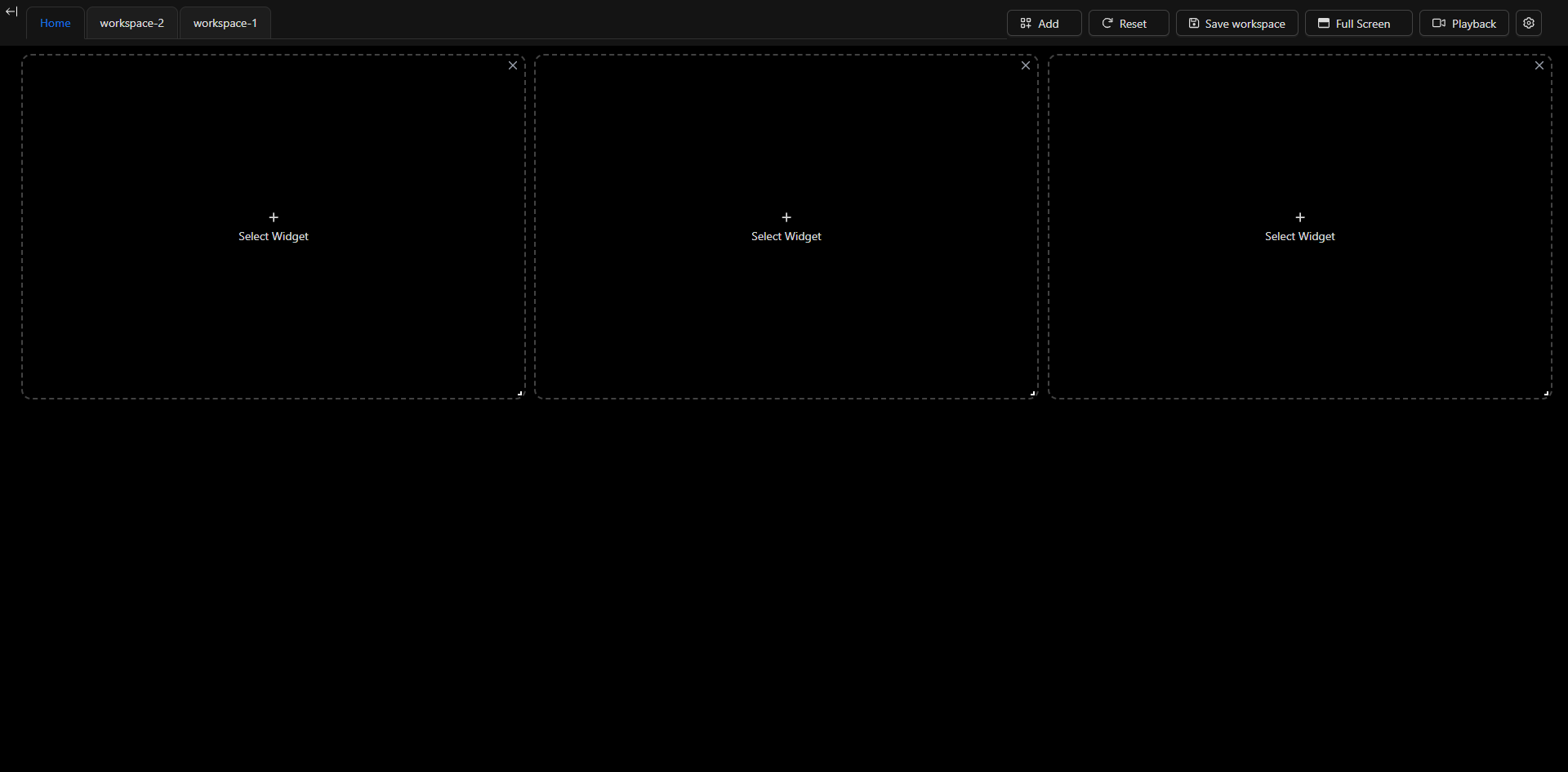
Workspace tabs are the tabs located at the top of the dashboard that allow you to navigate between different workspaces. Each workspace can contain widgets, configurations, and custom views.
Main Features
✨ Functionalities
- Visual Reordering: Drag and drop tabs to reorganize them
- Automatic Synchronization: The new order is automatically saved to the backend
- Fixed Home Tab: The "Home" tab remains fixed and cannot be moved
- Visual Feedback: Visual indicators during the drag process
- Persistence: The order is maintained between sessions
- User Control: Option to lock/unlock drag and drop
🎯 Benefits
- Improved Productivity: Organize your workspaces in the order that suits you best
- Customization: Adapt the interface to your specific workflow
- Efficiency: Access your most-used workspaces more quickly
How to Use Drag and Drop
Step 1: Identify the Workspace Tabs
At the top of the dashboard, you will see the workspace tabs:

- Home: Main dashboard tab (CANNOT be moved)
- workspace-2, workspace-1, etc.: Your custom workspaces (CAN be moved)
Step 2: Drag a Tab
-
Position the cursor over the tab you want to move
- The cursor will change to a "move" icon (✋) indicating the tab is draggable
-
Click and hold the left mouse button on the tab
-
Drag the tab left or right to the desired position
- You will see a visual animation showing the movement
- Other tabs will automatically reorganize
Step 3: Drop the Tab
- Release the mouse button when the tab is in the desired position
- The tab will be placed in its new position
- You will see a "Reordering..." message indicating the change is being saved
- The new order will automatically synchronize with the server
Visual Example of the Process
Initial State:
┌──────┬─────────────┬─────────────┐
│ Home │ workspace-2 │ workspace-1 │
└──────┴─────────────┴─────────────┘

User drags "workspace-1" to the left:
┌──────┬─────────────┬─────────────┐
│ Home │ workspace-2 │ [workspace-1] →
└──────┴─────────────┴─────────────┘

Final State:
┌──────┬─────────────┬─────────────┐
│ Home │ workspace-1 │ workspace-2 │
└──────┴─────────────┴─────────────┘
⚠️ Important Note: "Home" Tab
The "Home" tab is fixed and CANNOT be moved. This is by design, as Home is the main dashboard and must always remain in the first position to facilitate navigation.
Visual indicators of the Home tab:
- Normal cursor (does not change to "move" icon)
- Does not respond to drag attempts
- Always remains in the first position
User Configuration
Accessing Configuration
To access configuration options related to tabs:
-
Click the menu button (three-bar icon ☰) located in the top right corner of the dashboard
-
Select "View settings" from the dropdown menu
-
The User Configuration panel will open
Option: Lock Workspace Tabs Drag and Drop
In the configuration panel, you will find the following option:
🔒 Block Workspace Tabs Drag and Drop
Description: Prevent reordering workspace tabs by dragging
Location: User configuration panel → "Block Workspace Tabs Drag and Drop" section
How it works:
- Disabled (default): Tabs are draggable and can be freely reordered
- Enabled: Tabs are locked and cannot be moved
When to use this option?
✅ Enable locking if:
- You have a specific order and don't want accidental changes
- You share your device with other users
- You prefer a static and consistent layout
- You work in an environment where changes are not desirable
❌ Keep locking disabled if:
- You need to frequently reorganize your workspaces
- You are experimenting with different configurations
- Your workflow changes regularly
How to Enable/Disable Locking
-
Access the User Configuration panel (see previous section)
-
Locate the "Block Workspace Tabs Drag and Drop" option
- You will see a lock icon (🔒) next to the title
- Description: "Prevent reordering workspace tabs by dragging"
-
Click the switch to toggle between:
- Enabled (switch to the right, active color): Drag and drop locked
- Disabled (switch to the left, gray color): Drag and drop enabled
-
The change is saved automatically and applied immediately
-
Close the configuration panel
Effect of Locking
When locking is enabled:
- The cursor over tabs shows the normal icon (not the "move" icon)
- Tab dragging cannot be initiated
- Tabs maintain their fixed position
- Existing order is preserved
When locking is disabled:
- The cursor over tabs shows the "move" icon (✋)
- Tabs can be dragged and dropped freely
- Reordering works normally
Use Cases
Case 1: Organization by Priority
Scenario: Maria works with 5 different workspaces and wants the most important ones at the beginning.
Solution:
- Maria drags "Main Monitoring" to the second position (after Home)
- Places "Alarms" in the third position
- Less-used workspaces remain at the end
Result: Quick access to critical workspaces without needing to scroll or search.
Case 2: Organization by Workflow
Scenario: Juan follows a sequential process in his daily work.
Solution:
- Organizes workspaces in chronological order of use:
- Home
- "Morning Review"
- "Operations"
- "Daily Closing"
Result: Natural navigation following the day's workflow.
Case 3: Organization by Department
Scenario: Ana manages multiple areas and wants to group by department.
Solution:
- Groups related workspaces:
- Home
- "Security - Access"
- "Security - Alarms"
- "Operations - Logistics"
- "Operations - Maintenance"
Result: Logical organization that facilitates management of multiple areas.
Case 4: Locking for Shared Environment
Scenario: A control center has an optimal configuration that should not change.
Solution:
- The administrator organizes workspaces in optimal order
- Activates the "Block Workspace Tabs Drag and Drop" option
- All operators see the same consistent order
Result: Prevention of accidental changes and team consistency.
Frequently Asked Questions
Why can't I move the "Home" tab?
A: The "Home" tab is designed to always remain in the first position as the dashboard's main reference point. This ensures you always have a known and consistent starting point.
Is the new order automatically saved?
A: Yes, every time you reorganize tabs, the new order is automatically saved to the server. You will see a "Reordering..." message during the save process.
Is the order maintained if I log out?
A: Yes, the tab order is persistent and maintained between sessions. When you log back in, you will see the tabs in the same order you left them.
What happens if multiple users share the same account?
A: Each user has their own tab order associated with their profile. If you share an account, the last saved order will be what all users of that account see.
Can I undo an order change?
A: You can reorganize tabs as many times as you want. Simply drag the tab back to its previous position.
Does drag and drop work on touch devices?
A: The functionality is primarily optimized for mouse use. On touch devices, it may work with drag gestures, but the experience may vary depending on the device.
What happens if there's an error saving the order?
A: If a network or server error occurs when saving the order, the system automatically reverts the tabs to their previous order and displays an error message in the console. You can try reorganizing again when the connection is restored.
Is there a limit to the number of tabs I can have?
A: There is no strict limit imposed by the drag and drop functionality, but a very large number of tabs may affect interface usability.
Can I reorganize tabs on mobile devices?
A: The interface is primarily designed for desktop use. On mobile devices, it is recommended to use the dashboard in landscape mode for a better experience.
Troubleshooting
Problem: The cursor doesn't change to "move" icon
Possible causes and solutions:
-
The "Home" tab is selected
- ✅ Solution: The Home tab is not draggable by design. Try with other tabs.
-
Drag and drop is locked
- ✅ Solution: Check in user configuration if the "Block Workspace Tabs Drag and Drop" option is enabled. Disable it if you want to enable dragging.
-
Browser cache issue
- ✅ Solution: Reload the page with Ctrl+F5 (Windows) or Cmd+Shift+R (Mac)
Problem: The tab returns to its original position after dropping it
Possible causes and solutions:
-
Server connection error
- ✅ Solution: Check your internet connection and try again
-
Server error when saving
- ✅ Solution: Check the browser console (F12) for error messages. Contact the administrator if it persists.
-
Insufficient permissions
- ✅ Solution: Verify that your account has permissions to modify workspace configuration.
Problem: The "Reordering..." message remains visible indefinitely
Possible causes and solutions:
-
Network issue
- ✅ Solution: Reload the page. If the problem persists, check your internet connection.
-
Server error
- ✅ Solution: Wait a few seconds and reload the page. The order should reflect the last successfully saved state.
Problem: Tabs appear in different order on another device
Possible causes and solutions:
-
Pending synchronization
- ✅ Solution: Reload the page on the other device to get the most recent configuration.
-
Different accounts
- ✅ Solution: Verify you are using the same user account on both devices.
Problem: I can't find the configuration option
Possible cause and solution:
- Cannot locate the configuration menu
- ✅ Solution: Look for the button with three-bar icon (☰) in the top right corner of the dashboard. Click and select "View settings".
Need more help?
If you continue experiencing problems:
-
Check browser logs: Press F12 to open developer tools and review the "Console" tab for error messages.
-
Clear browser cache: Sometimes, old cached data can cause unexpected behaviors.
-
Contact the system administrator: Provide specific details about the problem, including:
- Browser and version used
- Steps to reproduce the problem
- Error messages (if any)
- Screenshots of the problem
Summary of Keys and Actions
| Action | Method |
|---|---|
| Move a tab | Click + Drag |
| Cancel drag | Release outside the tab area |
| Access configuration | Menu (☰) → "View settings" |
| Lock drag and drop | Configuration → Toggle "Block Workspace Tabs Drag and Drop" |
| Reload page | Ctrl+R (Windows) / Cmd+R (Mac) |
| Reload without cache | Ctrl+F5 (Windows) / Cmd+Shift+R (Mac) |
Technical Notes
Browser Compatibility
Drag and drop functionality is supported in:
- ✅ Chrome 90+
- ✅ Firefox 88+
- ✅ Edge 90+
- ✅ Safari 14+
Requirements
- Active internet connection to save changes
- Adequate user permissions
- JavaScript enabled in the browser
Performance
- Reordering is optimistic: UI updates immediately
- Server synchronization happens in the background
- If there's a network error, order is automatically reverted
Conclusion
The drag and drop functionality for workspace tabs provides you with complete control over organizing your interface in Netsocs Dashboard. Use this feature to optimize your workflow and improve your daily productivity.
Remember:
- 🏠 The "Home" tab always remains fixed
- 💾 Changes are automatically saved
- 🔒 You can lock drag and drop if needed
- 🔄 Order persists between sessions
Documentation generated for Netsocs Dashboard v2.0.0 Last updated: December 2025