Action: S3 / Cloud Storage (s3_api)
This node allows an automation to read, write, delete, or manage files and folders in an S3 bucket (Amazon S3 or any compatible service such as MinIO, Wasabi, Backblaze B2, etc.). Use it to save evidence, download configuration files, archive recordings, or any workflow that requires interaction with cloud storage.
When to use it?
- When an automation must upload evidence or snapshots (camera photos, event logs) to an S3 bucket.
- When you need to download a configuration file or template from S3 to process it within the flow.
- When you want to archive video recordings or access reports in external storage.
- When an audit flow requires deleting expired files from a retention bucket.
- When you need to list or search for files to make dynamic decisions within the flow.
- When using MinIO or another S3-compatible service installed on-premise at the site.
If you need to send the file by email, combine this node with the Action: Send Email node. If the file comes from a camera or sensor URL, first use an HTTP node to fetch it, then upload it with this node.
How to configure it
Step 0) Open the parameter form
- On the automations canvas, double-click the S3 API node.
- A modal opens with two tabs: Form and JSON Editor. Use Form unless you are an advanced user.

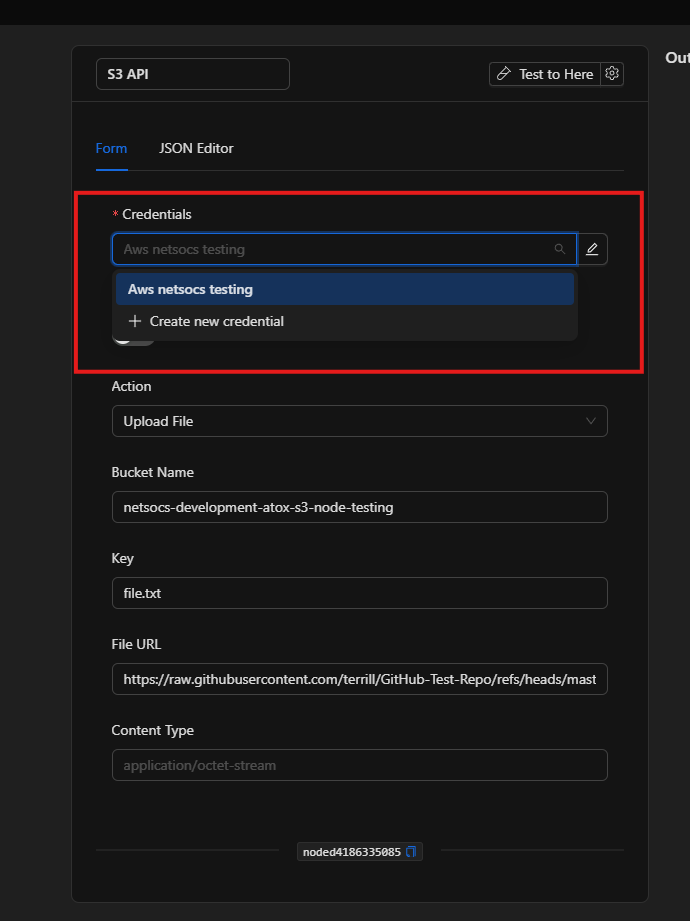
Step 1) Configure AWS credentials
The node requires credentials of type AWS to connect to the bucket.
- Use the credential selector to choose an existing credential or create a new one.
- Credentials securely store:
| Field | Description | Example |
|---|---|---|
| Access Key ID | Access key for AWS or the compatible S3 service | AKIAIOSFODNN7EXAMPLE |
| Secret Access Key | Corresponding secret key | wJalrXUtnFEMI/K7MDENG/... |
| Region | Bucket region (for AWS) or any value (for S3-compatible services) | us-east-1, eu-west-1 |
| Endpoint | S3 server URL (required only for compatible services) | https://minio.installation.com |
For official Amazon S3, leave the Endpoint field empty — the system uses the standard AWS URL. For MinIO or other S3-compatible services, the Endpoint is required.
Step 2) Force Path Style (S3-compatible services only)
The Force Path Style switch changes the URL format the node uses to access the bucket.
| State | Generated URL | When to use |
|---|---|---|
| Off | https://my-bucket.s3.amazonaws.com/file.jpg |
Standard Amazon S3 |
| On | https://minio.host.com/my-bucket/file.jpg |
MinIO, Backblaze, Wasabi, Cloudflare R2 |
- Off by default (compatible with AWS).
- Enable it if you use a custom S3 server (MinIO, etc.).
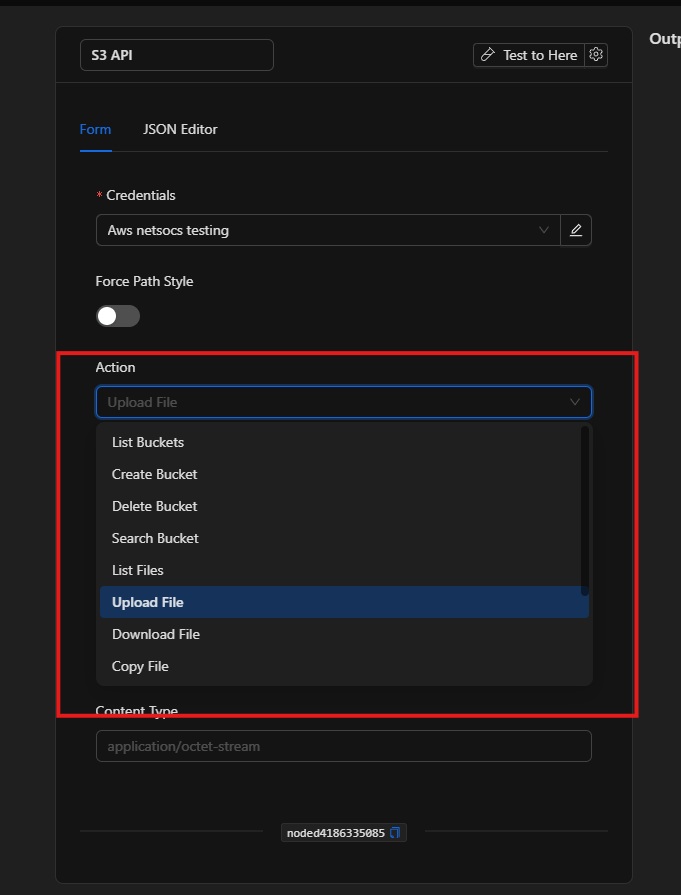
Step 3) Choose the action
The Action field defines what operation the node performs on the bucket. There are 12 available operations:
Bucket Operations
| Action | What it does | Additional required fields |
|---|---|---|
List Buckets |
Lists all buckets accessible with the credentials | None |
Create Bucket |
Creates a new bucket with the specified name | Bucket Name |
Delete Bucket |
Deletes a bucket (must be empty) | Bucket Name |
Search Bucket |
Searches buckets whose name contains the specified term | Search Term |
File Operations
| Action | What it does | Additional required fields |
|---|---|---|
List Files |
Lists files inside a bucket (with optional prefix) | Bucket Name, Prefix (optional), Max Results |
Upload File |
Uploads a file from a URL to a bucket | Bucket Name, Key, File URL, Content Type |
Download File |
Downloads a file from the bucket (passes it to the next node) | Bucket Name, Key |
Copy File |
Copies a file from one bucket/path to another | Source Bucket, Source Key, Dest Bucket, Dest Key |
Delete File |
Deletes a file from the bucket | Bucket Name, Key |
Folder Operations
| Action | What it does | Additional required fields |
|---|---|---|
List Folders |
Lists folders inside a bucket with a given prefix | Bucket Name, Prefix (optional), Max Results |
Create Folder |
Creates a "folder" (empty object with / at the end of the name) |
Bucket Name, Prefix |
Delete Folder |
Deletes a folder and its contents | Bucket Name, Prefix |
Step 4) Fill in the fields based on the action
Fields appear and disappear automatically based on the selected action.
Common fields
| Field | Description | Example |
|---|---|---|
| Bucket Name | Exact name of the bucket being operated on | camera-evidence-2024 |
| Key | Path and filename of the object inside the bucket | north-zone/cam01-20240506.jpg |
| Prefix | Prefix to filter files or folders (acts as a folder path) | recordings/january/ |
| Max Results | Maximum number of results in listings (0 = no limit) | 500 |
Upload-specific fields
| Field | Description | Example |
|---|---|---|
| File URL | Public or reachable URL of the file to upload | https://cam01.local/snapshot.jpg |
| Content Type | MIME type of the file (important for correct browser download behavior) | image/jpeg, application/pdf |
Copy-specific fields
| Field | Description | Example |
|---|---|---|
| Source Bucket | Origin bucket | evidence-raw |
| Source Key | Path of the file to copy | north-zone/event-001.mp4 |
| Dest Bucket | Destination bucket | archived-evidence |
| Dest Key | Path of the copied file in the dest | 2024/may/north-zone-001.mp4 |
Search-specific field
| Field | Description | Example |
|---|---|---|
| Search Term | Text to search for in bucket names | cameras-north |
Best practices
- Use minimum-privilege credentials: if the node only uploads files, the credential does not need delete or bucket-creation permissions.
- Name keys with folder structure:
zone/date/event.jpgis easier to audit thanfile123.jpg. - Set Content Type correctly: in
Upload File, an incorrectcontent_typemay prevent files from opening in the browser or reporting system. - Use Max Results to limit large listings: in buckets with thousands of files, an unlimited listing can slow down the flow.
- For on-premise MinIO: always enable Force Path Style and configure the Endpoint with the internal server URL.
- Do not use the same bucket for temporary files and long-term retention: separate by retention type into different buckets.
- Test credentials first with
List Buckets: it is the safest operation to verify the connection works.
Troubleshooting (common issues)
- Node fails with authentication error (403)
- Verify that the Access Key ID and Secret Access Key are correct.
- Make sure the AWS credential has permissions for the operation being executed.
-
Confirm that the Region matches the bucket region in AWS.
-
Node fails with "No such bucket" or "Bucket not found"
- Check that the Bucket Name is spelled exactly right (case-sensitive).
-
Verify that the credential has access to that specific bucket.
-
Cannot connect to server (timeout or connection refused)
- For S3-compatible services (MinIO), verify that the Endpoint is reachable from the automation server.
- Check that Force Path Style is enabled if using MinIO or another compatible service.
-
Verify that the endpoint uses
https://orhttp://as appropriate. -
File uploads but cannot be opened correctly
-
Check the Content Type field. For JPEG images use
image/jpeg, for PDF useapplication/pdf. -
List Filesreturns empty results but the bucket has files - If a Prefix is configured, verify that it matches the actual file path.
-
A prefix
north-zone/only lists files whose path starts exactly withnorth-zone/. -
Delete Bucketfails with "BucketNotEmpty" error - The bucket must be empty before deleting it. Delete the files first or use
Delete Filein a loop.
Advanced configuration (JSON Editor) — expert users only
The JSON Editor tab allows you to view and directly edit the node structure. Useful for copying configurations between flows or instances.
Full input structure
{
  "endpoint": "https://minio.installation.com",
  "region": "/**$credential(\"region\", 1)**/",
  "access_key_id": "/**$credential(\"access_key_id\", 1)**/",
  "secret_access_key": "/**$credential(\"secret_access_key\", 1)**/",
  "force_path_style": false,
  "action": "upload_file",
  "bucket_name": "camera-evidence",
  "key": "north-zone/cam01-20240506.jpg",
  "file_url": "https://cam01.local/snapshot.jpg",
  "content_type": "image/jpeg",
  "search_term": "",
  "source_bucket": "",
  "source_key": "",
  "dest_bucket": "",
  "dest_key": "",
  "prefix": "",
  "max_results": 0
}
All fields table
| Field | Type | Required by | Description |
|---|---|---|---|
endpoint |
string |
S3-compatible (MinIO, etc.) | S3 server URL. Empty for official Amazon S3 |
region |
string |
Always | Bucket region (credential reference) |
access_key_id |
string |
Always | Access key (credential reference) |
secret_access_key |
string |
Always | Secret key (credential reference) |
force_path_style |
boolean |
S3-compatible | true for MinIO and other S3-compatible services |
action |
string |
Always | One of the 12 available actions |
bucket_name |
string |
Most actions (except search, copy, list_buckets) | Bucket name |
search_term |
string |
search_bucket |
Text to search in bucket names |
key |
string |
upload_file, download_file, delete_file |
Full path of the file in the bucket |
source_bucket |
string |
copy_file |
Origin bucket for the copy |
source_key |
string |
copy_file |
Path of the file to copy |
dest_bucket |
string |
copy_file |
Destination bucket for the copy |
dest_key |
string |
copy_file |
Path of the file in the destination |
file_url |
string |
upload_file |
URL of the file to upload to the bucket |
content_type |
string |
upload_file |
MIME type of the file (e.g.: image/jpeg) |
prefix |
string |
get_many_files, create_folder, delete_folder, get_many_folders |
Folder prefix/path |
max_results |
number |
get_many_files, get_many_folders |
Results limit. 0 = no limit |
The
access_key_id,secret_access_key,region, andendpointfields are credential references when configured from the form. Do not put plain-text keys in the JSON.
JSON examples by use case
Upload an image to the evidence bucket
{
  "endpoint": "",
  "region": "/**$credential(\"region\", 5)**/",
  "access_key_id": "/**$credential(\"access_key_id\", 5)**/",
  "secret_access_key": "/**$credential(\"secret_access_key\", 5)**/",
  "force_path_style": false,
  "action": "upload_file",
  "bucket_name": "security-evidence",
  "key": "north-zone/camera01-2024-05-06.jpg",
  "file_url": "https://cam01.local/api/snapshot",
  "content_type": "image/jpeg"
}
List files from a month in on-premise MinIO
{
  "endpoint": "http://minio.internal.installation:9000",
  "region": "/**$credential(\"region\", 3)**/",
  "access_key_id": "/**$credential(\"access_key_id\", 3)**/",
  "secret_access_key": "/**$credential(\"secret_access_key\", 3)**/",
  "force_path_style": true,
  "action": "get_many_files",
  "bucket_name": "cctv-recordings",
  "prefix": "2024/may/",
  "max_results": 200
}
Copy a file to historical archive bucket
{
  "endpoint": "",
  "region": "/**$credential(\"region\", 5)**/",
  "access_key_id": "/**$credential(\"access_key_id\", 5)**/",
  "secret_access_key": "/**$credential(\"secret_access_key\", 5)**/",
  "force_path_style": false,
  "action": "copy_file",
  "source_bucket": "active-evidence",
  "source_key": "event-2024-001/video.mp4",
  "dest_bucket": "historical-archive-2024",
  "dest_key": "may/event-001/video.mp4"
}
Delete file from temporary bucket
{
  "endpoint": "",
  "region": "/**$credential(\"region\", 5)**/",
  "access_key_id": "/**$credential(\"access_key_id\", 5)**/",
  "secret_access_key": "/**$credential(\"secret_access_key\", 5)**/",
  "force_path_style": false,
  "action": "delete_file",
  "bucket_name": "temporary-evidence",
  "key": "tmp/snapshot-20240101.jpg"
}
Quick guides (recipes)
Recipe A — "Upload camera photo when an alarm triggers"
- Action:
Upload File - Bucket Name:
alarm-evidence - Key:
north-zone/{{date}}-{{event-id}}.jpg - File URL: Camera snapshot URL
- Content Type:
image/jpeg - Result: the evidence is automatically saved to S3 when the alarm fires
Recipe B — "Archive last week's recordings"
- Action:
List Files→ thenCopy Filefor each file → thenDelete File - Bucket Name:
active-recordings - Prefix:
last-week/ - Dest Bucket:
historical-archive - Result: recordings are moved to the archive bucket without manual intervention
Recipe C — "Download configuration from S3 when a flow starts"
- Action:
Download File - Bucket Name:
installation-configs - Key:
devices/camera-profile.json - Result: the configuration file is available for the next node in the flow
Recipe D — "Check if a report exists before generating it"
- Action:
List Files - Bucket Name:
monthly-reports - Prefix:
2024/may/ - Max Results:
1 - Result: if the listing returns results, skip generation; if empty, generate it
Recipe E — "Create folder structure for a new installation"
- Action:
Create Folder - Bucket Name:
installations - Prefix:
new-installation-2024/cameras/ - Then repeat for other subfolders (
access/,reports/,evidence/) - Result: storage structure is ready before devices arrive
Recipe F — "Clean up temporary processing files"
- Action:
Delete Folder - Bucket Name:
processing-tmp - Prefix:
jobs/completed/ - Result: temporary storage space is freed automatically when processes finish
Internal reference
- Node key:
s3_api - Class:
action - Always required fields:
region,access_key_id,secret_access_key,action - Required credential: type
aws(Access Key ID, Secret Access Key, Region, Endpoint) - Compatible services: Amazon S3, MinIO, Wasabi, Backblaze B2, Cloudflare R2, Google Cloud Storage (S3-compatible mode)
- Force Path Style: required for MinIO and S3-compatible services that do not support virtual-hosted style