The simplest way to install Netsocs is through Docker. This guide applies to Windows, Linux, and Mac.
Requirements
Installation Steps
-
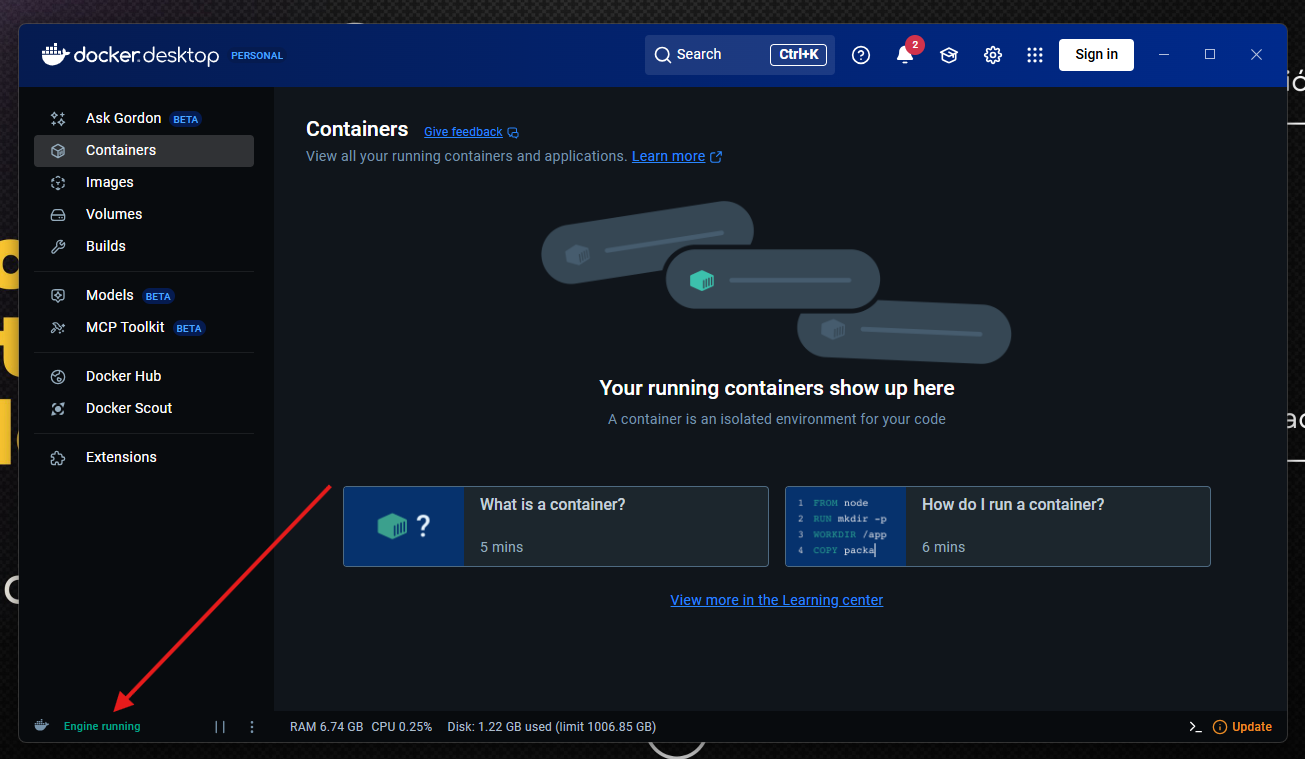
Ensure that Docker Engine is running. To do this, in the lower left corner of the screen, you will see a text indicating that Docker is running.
-
Download the zip file of the version you want to install from our release notes page.
-
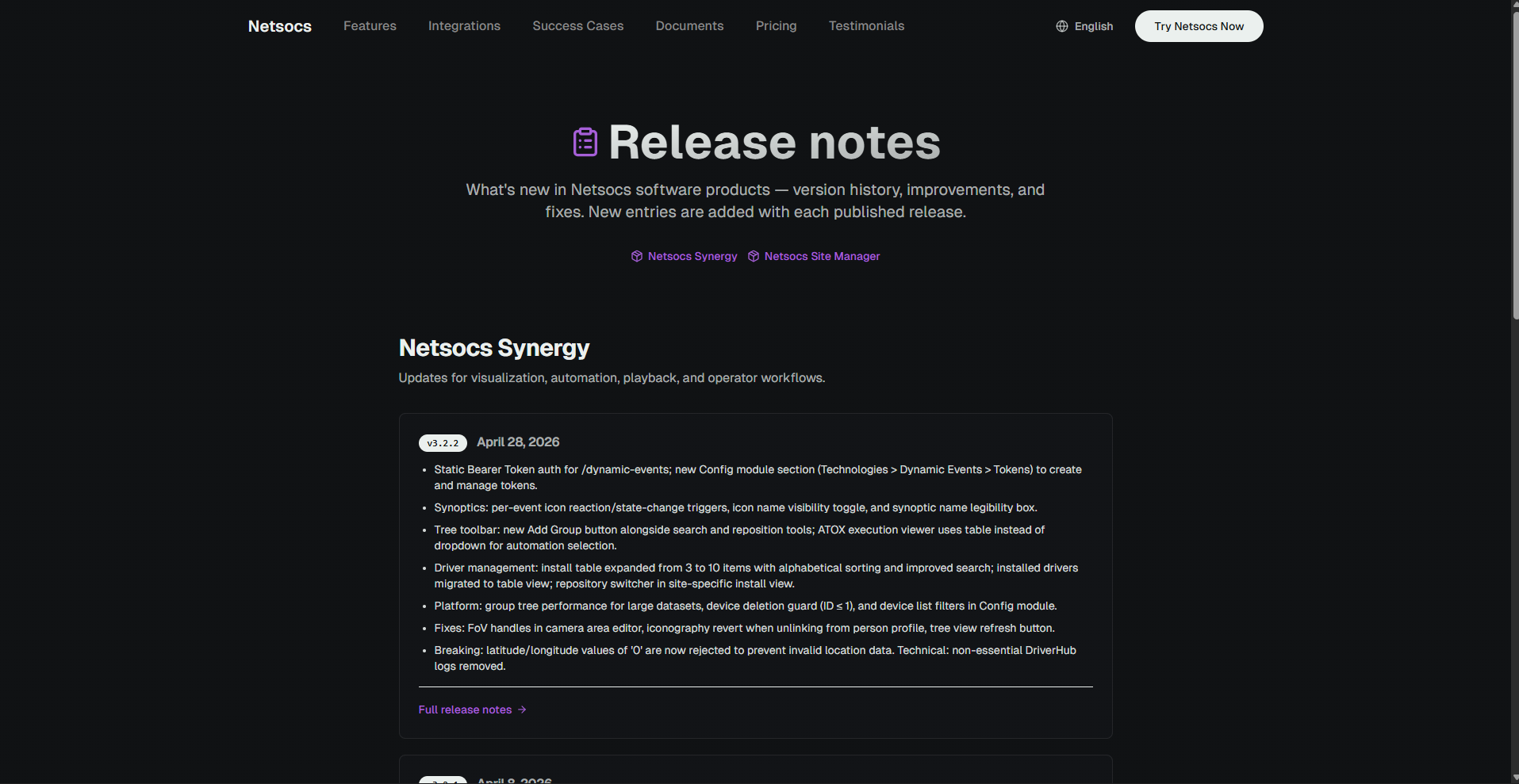
Go to https://netsocs.com/release-notes. There you will find the history of published versions.
-
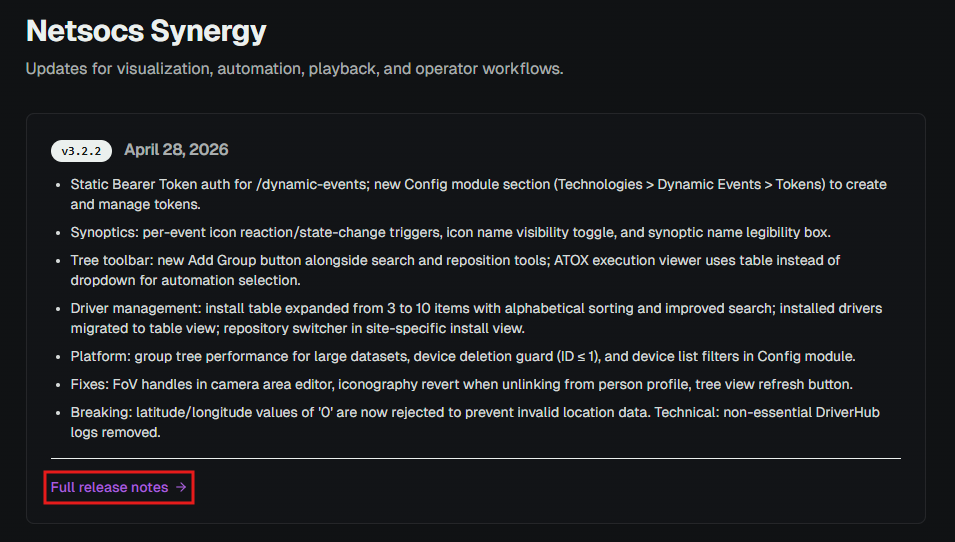
Locate the latest version and click Full release notes.
-
You will be redirected to
https://netsocs.com/release-notes/netsocs-synergy/$version. Click the Download button to download the zip file (e.g.,netsocs-3.2.2.zip).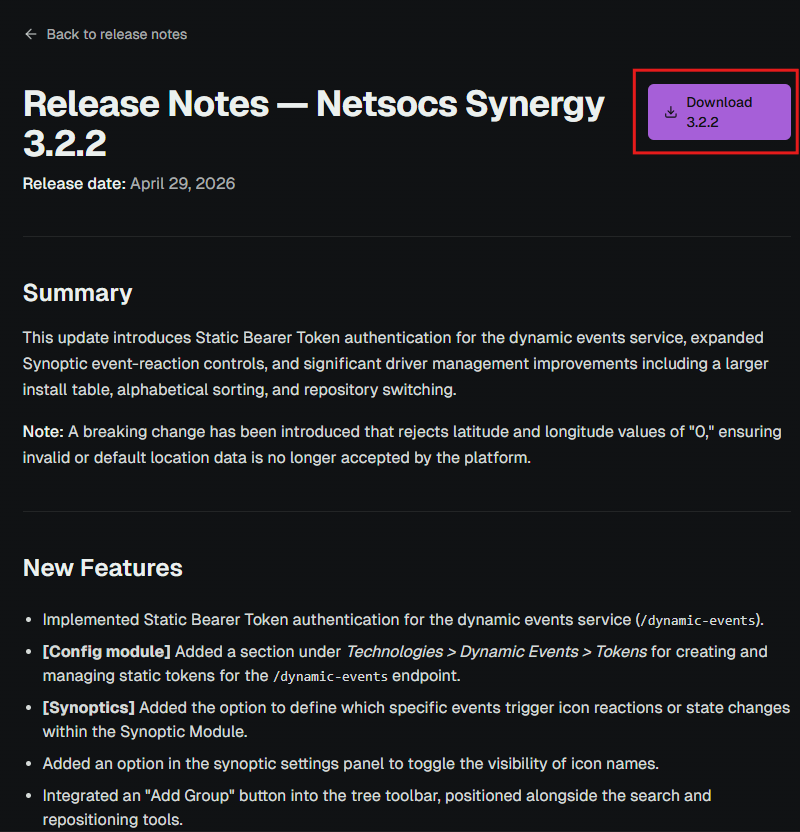
-
-
Once the file is downloaded, extract the folder containing the compressed file and open the file called
.env. This file contains the different configurations you can make for your installation. The minimum configuration is the IP address or domain name of your server. You can open the file with any text editor.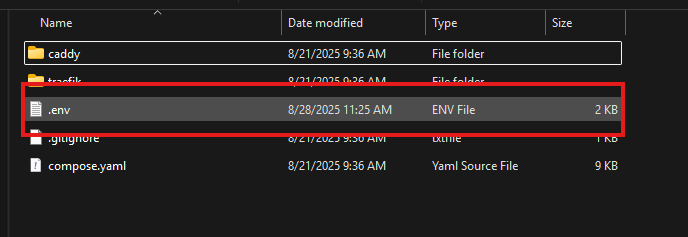
Help articles:
-
In the first line of the
.envfile, you can configure your server's domain name in theHTTP_HOSTNAMEvariable. The default value ishttps://192.168.1.100. Make sure to keep thehttps://at the beginning.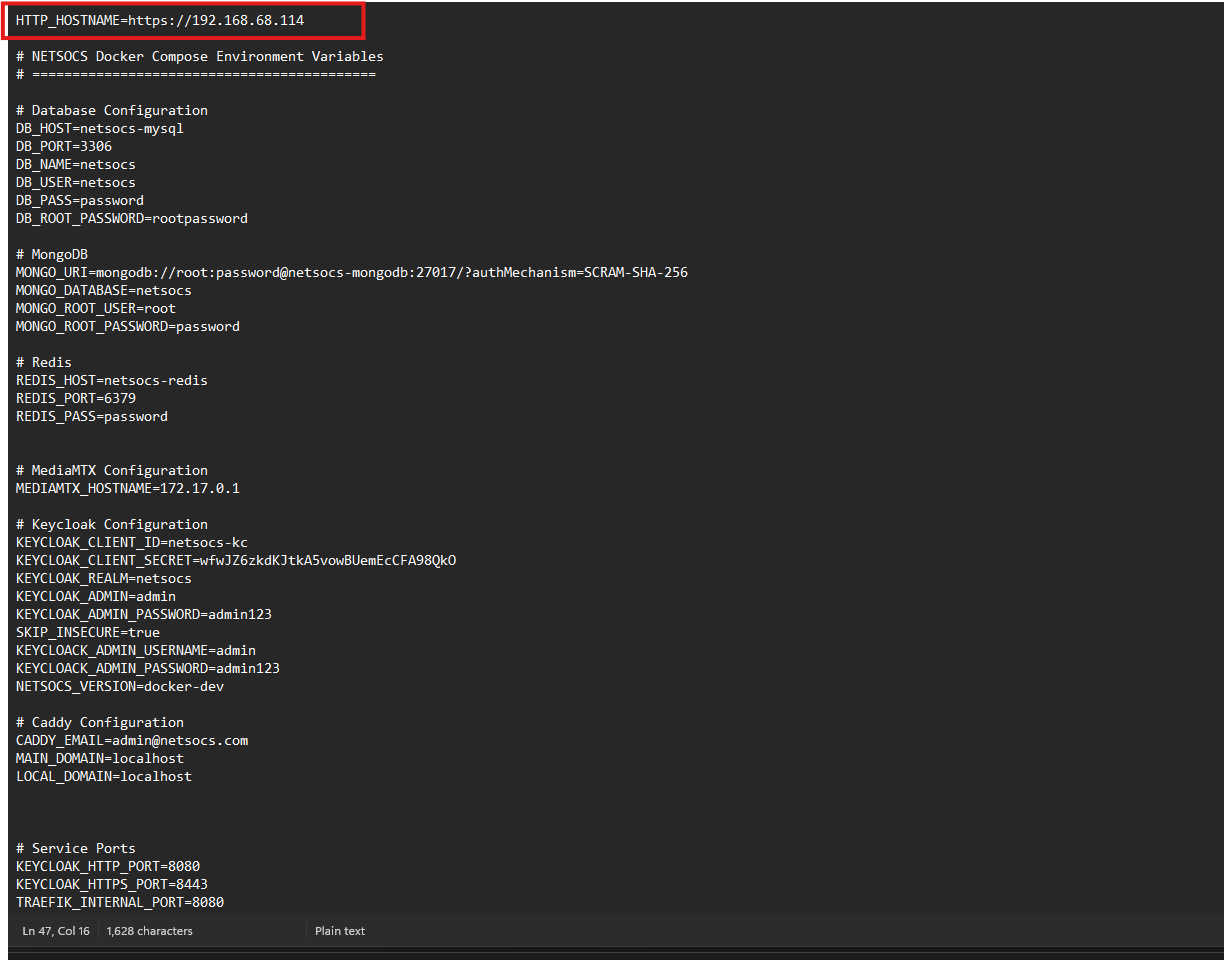
Do not use localhost or 127.0.0.1
It is important that you do not use
localhostor127.0.0.1as the value for theHTTP_HOSTNAMEvariable as Netsocs will not work correctly. -
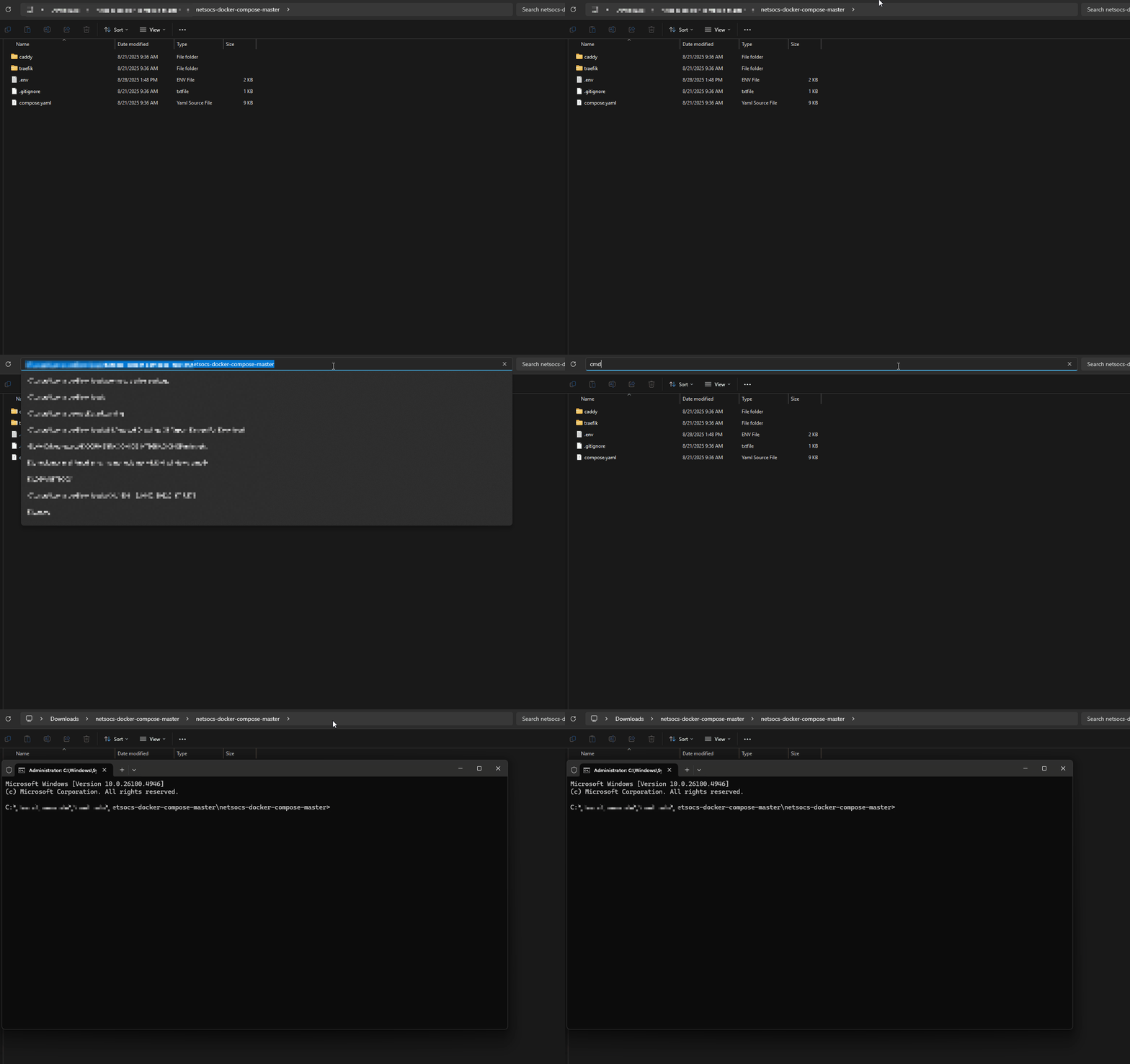
Open a terminal and navigate to the folder where you extracted the files. On Windows you can use PowerShell or Windows Terminal; on Linux and Mac, the system terminal.
-
Execute the command
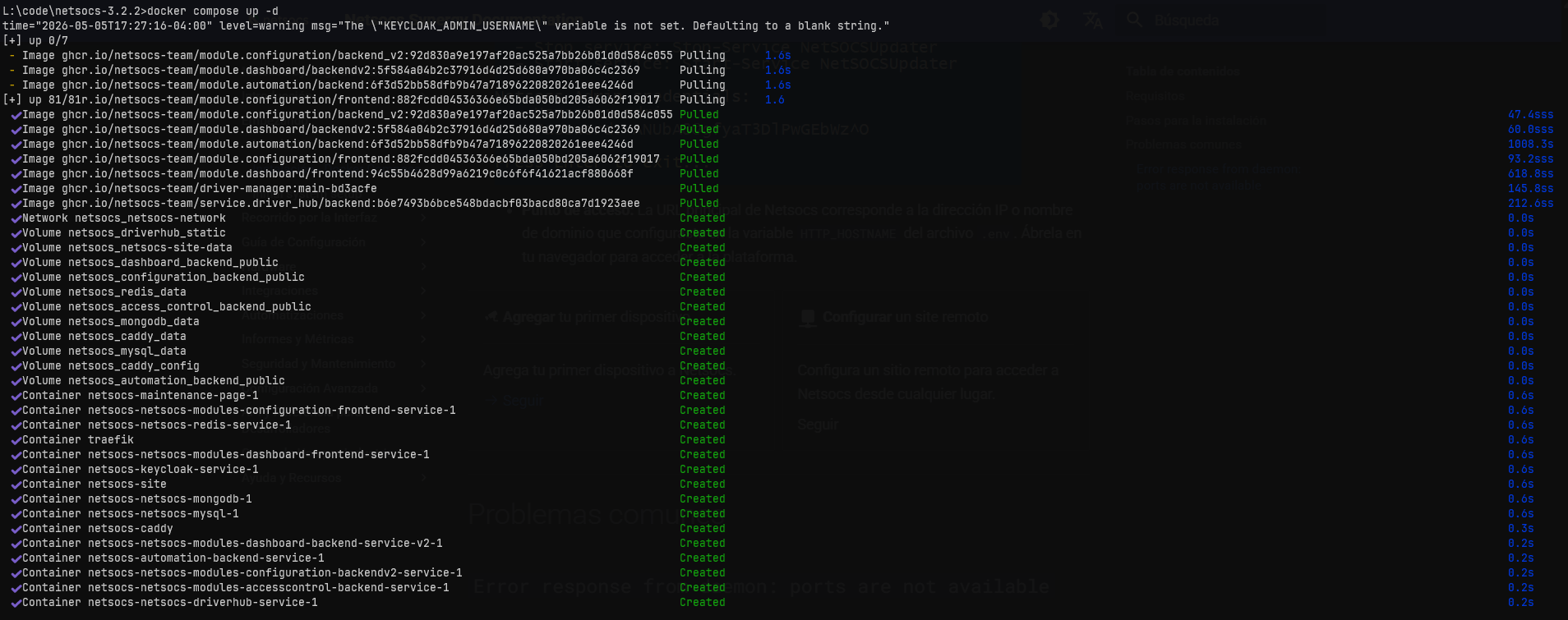
docker compose up -dand press Enter. This will start the Netsocs containers in the background.After a few minutes, you will be able to access the Netsocs interface from your web browser using the IP address or domain name you previously configured in the
.envfile.To monitor the status of the containers, you can use Docker Desktop. Go to the Containers tab, where you can check their status, restart them, view logs, and perform other management actions.
-
When the process is complete, you will see a message indicating that the containers have been started successfully.
- Access point: The main Netsocs URL corresponds to the IP address or domain name you configured in the
HTTP_HOSTNAMEvariable of the.envfile. Open it in your browser to access the platform.
- Access point: The main Netsocs URL corresponds to the IP address or domain name you configured in the
Common Issues
Error response from daemon: ports are not available
If when starting the containers, the following error appears:
Error response from daemon: ports are not available
This means that port 80 or 443 is already in use by another program. You must ensure that no other program is using these ports.