Documentation: Set Event Recognition Node
Overview
The Set Event Recognition Node is an action node that automatically assigns a recognition status to an event in the platform's log. Recognition is the classification or management that an operator normally applies manually to an event (for example: Recognized, False Alarm, In Progress, Closed).
This node allows you to automate event management: instead of an operator having to mark each event, the flow can assign the appropriate recognition based on logical rules, reducing the operational burden and keeping the event log organized.
When to use this node?
Use this node when you need to:
- Auto-recognize events that meet certain conditions (for example, marking as False Alarm events that an AI analysis discarded).
- Change the management status of an event as part of a response flow (marking In Progress when a protocol is initiated).
- Automatically close events resolved by the system itself.
- Maintain traceability and order in the Events / Logs module without manual intervention.
Node Configuration
The node has two configuration tabs at the top: Form and JSON Editor.
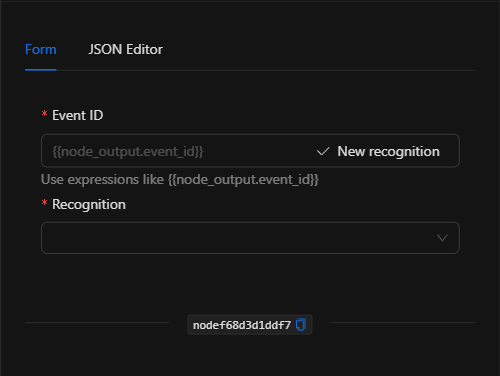
Form View
1. Event ID *Required
The identifier of the event to which the recognition will be applied. The usual approach is to reference it dynamically from a previous node using a template expression, for example {{trigger.event_id}} (the event that triggered the automation) or {{node_output.event_id}}.
The field also includes a New recognition button that allows you to create a new recognition type if needed.
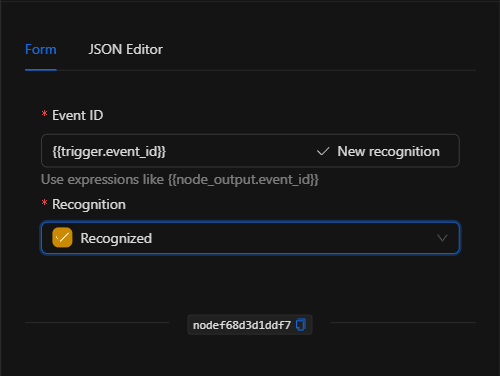
2. Recognition *Required
Select, from the dropdown, the type of recognition to apply. The available values depend on the installation's configuration; for example: Closed, Dismissed, False Alarm, Follow up, In progress, Pending, Recognized.
JSON Editor View
In the JSON Editor tab you can view and directly edit the node parameters:
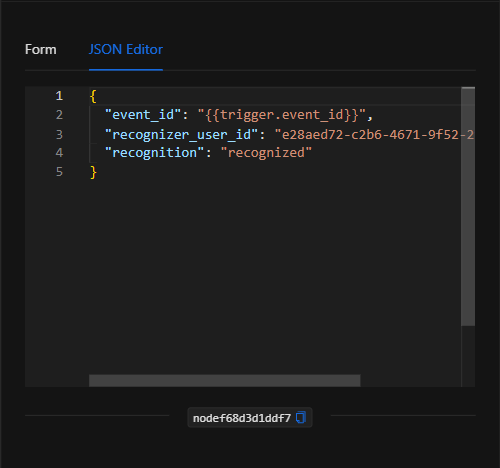
JSON Structure (Input Parameters)
The following shows the JSON structure generated when configuring the node:
{
  "event_id": "{{trigger.event_id}}",
  "recognizer_user_id": "e28aed72-c2b6-4671-9f52-21a7364fe9c8",
  "recognition": "recognized"
}
JSON Fields
| Field | Type | Description |
|---|---|---|
event_id |
string | ID of the event to recognize. Normally a template expression (e.g., {{trigger.event_id}}). |
recognizer_user_id |
string | ID of the user to whom the recognition is attributed. Automatically populated with the session user. |
recognition |
string | Identifier of the recognition type to apply (e.g., recognized, false_alarm, closed). |
Output: Where the node's data comes from
When the action runs successfully, the event is marked with the indicated recognition in the Events / Logs module. The node finishes marked as successful (green border); the effect is visible in the management of the corresponding event.
Usage Examples
Example 1: Automatically dismiss AI-validated false alarms
Use case: A flow analyzes with AI the image associated with a motion event. If the AI determines there are no people present (false alarm), the event is automatically marked as False Alarm.
- Event ID:
{{trigger.event_id}} - Recognition:
False Alarm
Configuration JSON:
{
  "event_id": "{{trigger.event_id}}",
  "recognition": "false_alarm"
}
Example 2: Mark an event as "In Progress" when a protocol starts
Use case: When a critical alarm is triggered and the automation initiates the response protocol (notifications, dashboard opening), the event is marked as In progress to reflect that it is being attended to.
- Recognition:
In progress
Validation and Errors
| Condition | Common cause / fix |
|---|---|
event_id missing or invalid |
Make sure to reference a valid event ID (for example, from the trigger or a previous node). |
recognition not selected |
Select a recognition type from the dropdown. |
| Event status does not change | Verify that the event_id corresponds to an existing event in the log. |
Best Practices
- Reference the event dynamically: Use
{{trigger.event_id}}or another expression so the node works with the actual event of each execution. - Consistency in statuses: Define a clear convention for which recognition to apply in each situation (dismissed, in progress, closed) to keep the log consistent.
- Combine with AI or conditions: The greatest value emerges when automating recognition based on the result of an analysis (AI, conditions), reducing the operator's manual workload.
- Name the node descriptively: Rename the node on the canvas (e.g., "Mark false alarm") to identify it in the flow.