Documentation: Video Popup Node
Overview
The Video Popup Node is an action node that, when executed, automatically opens a pop-up window with the live video from one or more selected camera channels, displaying it to operators in the Netsocs Synergy interface.
This node is key for event-response flows in control centers: when a relevant condition occurs (an intrusion detected by a sensor, a fire alarm, an unauthorized access, etc.), the flow can make the corresponding camera "jump" in front of the operator immediately, without them having to search for it manually, speeding up verification and decision-making.
When to use this node?
Use this node when you need to:
- Automatically display the relevant camera to operators when an event is triggered (for example, open the hallway camera where a motion sensor activated outside business hours).
- Speed up visual alarm verification in a monitoring center (SOC/control center), reducing response time.
- Associate multiple video channels with the same critical event (for example, simultaneously show the entrance and machinery area cameras when an emergency stop is detected on a production line).
- Reinforce industrial security protocols by linking IoT sensors with real-time visual supervision.
Node Configuration
The node has two configuration tabs at the top: Form and JSON Editor.
Form View
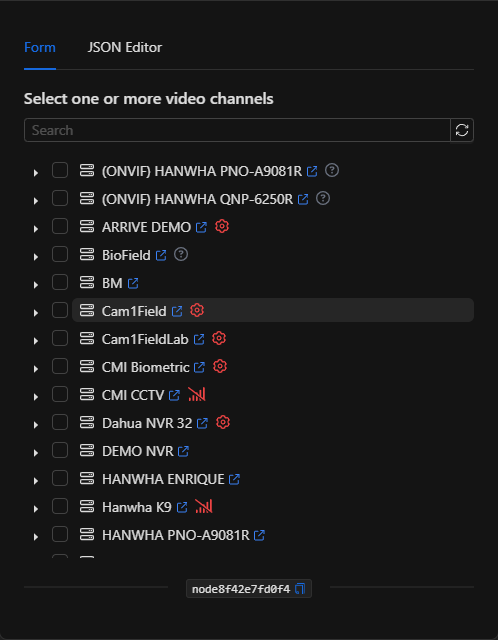
Select one or more video channels *Required
The form shows a device tree automatically filtered to show only video channels (video_channel).
- Use the
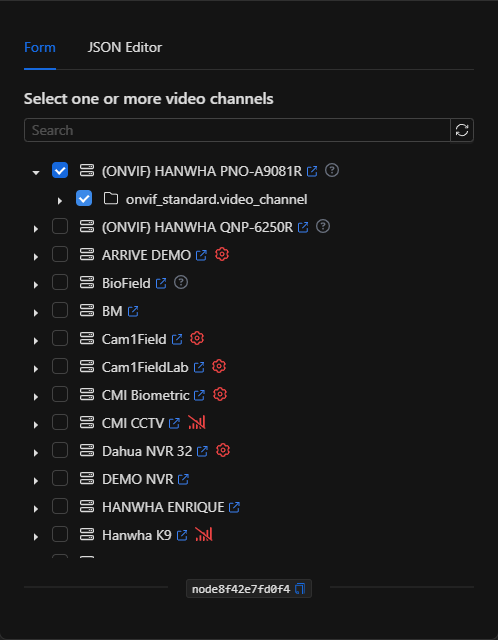
Searchfield to quickly locate a camera by name. - Expand the camera or NVR device by clicking the arrow (▸) to see its available video channels.
- Check the checkbox of each video channel you want to display in the pop-up window. You can select one or several channels.
JSON Editor View
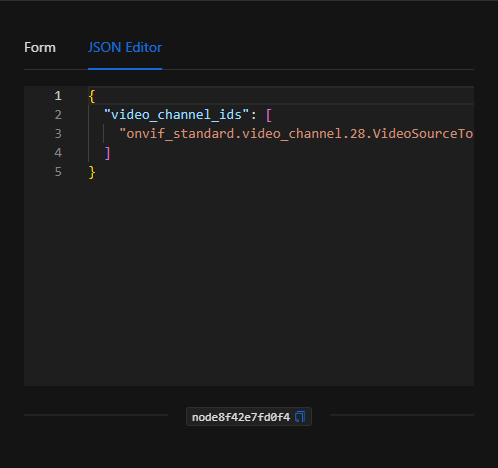
In the JSON Editor tab you can view and directly edit the node's video channel list. It is useful for quick configurations or to parameterize the list with dynamic expressions:
JSON Structure (Input Parameters)
Below is the JSON structure generated when configuring the node:
{
  "video_channel_ids": [
    "onvif_standard.video_channel.28.VideoSourceToken-0"
  ]
}
JSON Fields
| Field | Type | Description |
|---|---|---|
video_channel_ids |
array (string) | List of unique IDs of the video channels (video_channel) that will be shown in the pop-up window. Accepts one or more. |
Output: Where the node's data comes from
The Video Popup Node is an interface command-type action: its effect is to display the live video window to operators. Therefore, it does not expose a structured data payload in its output; when executed successfully, the node finishes marked as successful (green border) and the video window opens in the interface for the corresponding users.
NOTE: For the pop-up window to be visible, operators must have a Netsocs Synergy session open. This node is designed for active monitoring environments (control centers).
Usage Examples
Example 1: Visual verification upon out-of-hours intrusion
Use case: A perimeter motion sensor activates during the night at an industrial plant. The flow immediately opens the camera covering the affected sector for the control center operator to verify whether it is a real intrusion.
- Trigger: State Change of the motion sensor to
ACTIVE. - Action: Video pop-up with the camera channel covering that sector.
Configuration JSON:
{
  "video_channel_ids": [
    "onvif_standard.video_channel.28.VideoSourceToken-0"
  ]
}
Example 2: Multiple-camera supervision upon emergency stop on a production line
Use case: When an emergency stop button is activated on a production line, the entrance and machinery area cameras are simultaneously opened for supervisors to assess the situation.
- Trigger: Emergency stop event.
- Action: Video pop-up with two camera channels.
Configuration JSON:
{
  "video_channel_ids": [
    "onvif_standard.video_channel.28.VideoSourceToken-0",
    "onvif_standard.video_channel.31.VideoSourceToken-0"
  ]
}
Validation and Errors
| Condition / Common cause / fix | | :--- | :--- | | No channel selected | Select at least one video channel in the tree. Without channels, the node has nothing to display. | | The window does not appear | Make sure the operator has an active Netsocs Synergy session and that the video channel is online. | | The video does not load | Verify that the camera's driver/video engine is connected and streaming correctly. |
Best Practices
- Name the node descriptively: Change the node name on the canvas to something readable (e.g., "Show perimeter camera") to identify it within the flow.
- Associate the correct camera with the event: Design your automations so that the video channel that opens physically corresponds to the zone where the event triggering the flow occurs.
- Do not open too many channels at once: Opening too many windows simultaneously can overwhelm the operator's screen. Show only the cameras truly necessary for verification.
- Combine with notifications: Accompany the pop-up window with a notification node (Telegram, SMS, etc.) to also alert personnel who are not in front of the screen.