Documentation: Invite Meet Node
Overview
The Invite Meet Node is an action node that invites one or more users to a video call room on the platform, sending them a notification with a title and a message. It allows personnel to be quickly gathered in a virtual room as part of a response protocol.
In IoT and security environments, it is ideal for coordinating the response to a contingency: when a critical event occurs (fire, major intrusion, serious failure), the flow can automatically summon the responsible parties to a crisis room so they can make decisions together.
When to use this node?
Use this node when you need to:
- Automatically convene a crisis room in response to a critical event.
- Gather a response team (security, maintenance, supervision) in a video call without manual coordination.
- Escalate a situation to an immediate meeting when an alert warrants it.
- Notify specific users with an invitation that includes context (title and message).
Node Configuration
The node has two configuration tabs at the top: Form and JSON Editor.
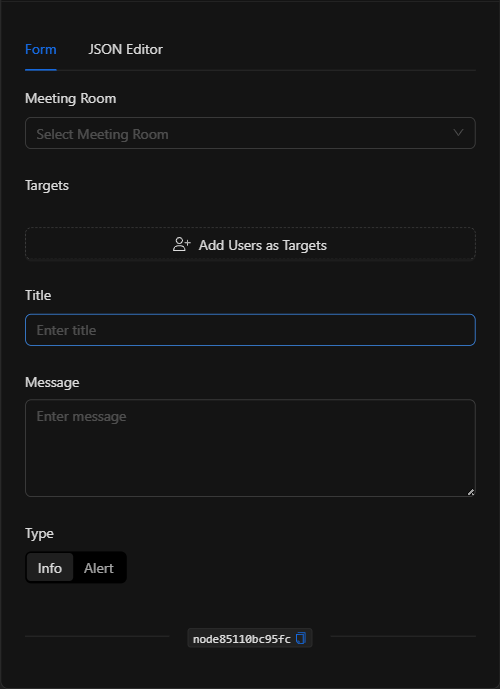
Form View
1. Meeting Room
Select, from the dropdown, the existing video call room to which the users will be invited.
2. Targets
Define the users who will receive the invitation. Click Add Users as Targets to open the Select Users as Targets modal and select the users. They are displayed as tags that can be removed individually.
3. Title
The title of the invitation / notification (e.g., Crisis room: fire alarm in Plant 2).
4. Message
The body of the invitation message. It is a text area that accepts template expressions to include event data.
5. Type
Defines the type/severity of the invitation via a selector with two options: - Info: Informational notification. - Alert: Alert notification (higher priority/visibility).
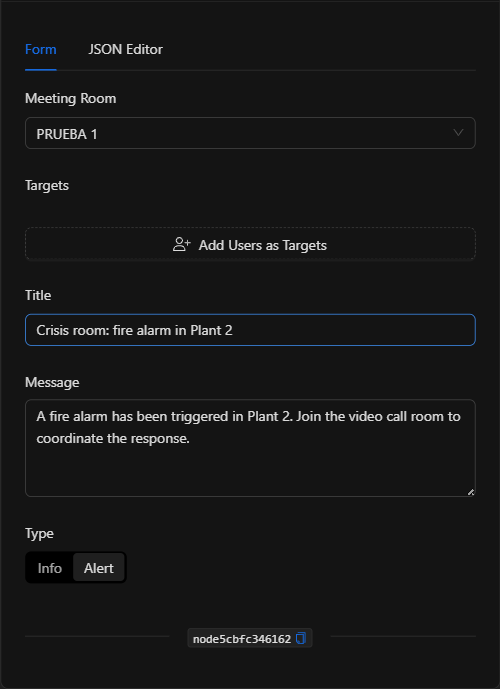
JSON Editor View
In the JSON Editor tab you can view and directly edit all invitation parameters:
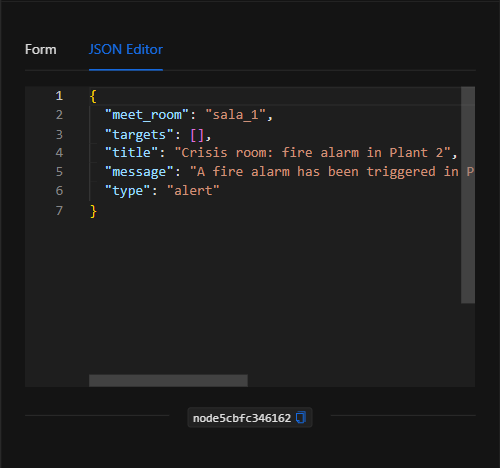
JSON Structure (Input Parameters)
The following shows the JSON structure generated when configuring the node:
{
  "meet_room": "sala_1",
  "targets": [],
  "title": "Crisis room: fire alarm in Plant 2",
  "message": "A fire alarm has been triggered in Plant 2. Join the video call room to coordinate the response.",
  "type": "alert"
}
JSON Fields
| Field | Type | Description |
|---|---|---|
meet_room |
string | ID of the video call room to which users are invited. |
targets |
array (string) | List of IDs of the invited users. |
title |
string | Title of the invitation / notification. |
message |
string | Body of the invitation message. |
type |
string | Notification type: info or alert. |
Output: Where the node's data comes from
When the action runs successfully, the node finishes marked as successful (green border). Its primary effect is sending the invitation to the target users, who will receive the notification to join the video call room.
NOTE: To receive and respond to the invitation in real time, the target users must have an active Netsocs Synergy session.
Usage Examples
Example 1: Convene a crisis room for a fire alarm
Use case: When the fire alarm is activated in a plant, the response team is automatically invited to a video call room to coordinate the evacuation.
- Meeting Room: Crisis room.
- Targets: Security and supervision team.
- Title:
Crisis room: fire alarm in Plant 2 - Type:
Alert
Configuration JSON:
{
  "meet_room": "sala_1",
  "targets": ["<user_id_1>", "<user_id_2>"],
  "title": "Crisis room: fire alarm in Plant 2",
  "message": "A fire alarm has been triggered in Plant 2. Join to coordinate the response.",
  "type": "alert"
}
Example 2: Informational meeting after a minor event
Use case: After a non-critical event that requires review, the supervisor is invited to a room with an info type notification.
- Type:
Info
Validation and Errors
| Condition | Common cause / fix |
|---|---|
| No rooms available | First create a video call room in the platform so it can be selected. |
| Invitation not received | Verify that the target users have an active Netsocs Synergy session. |
| No recipients | Add at least one user in Targets so that someone receives the invitation. |
Best Practices
- Reserve the
Alerttype for critical situations: UseAlertonly for situations requiring immediate attention, so as not to dilute its impact. - Messages with context: Include event data in the title and message (plant, sector, alarm type) so the team arrives at the meeting already informed.
- Define teams by scenario: Select the appropriate team as recipients for each type of contingency.
- Name the node descriptively: Rename the node on the canvas (e.g., "Convene crisis room") to identify it in the flow.