Documentation: Get Worked Hours Node
Overview
The Get Worked Hours Node is a query action node that calculates the hours worked by personnel based on entry and exit events recorded at access control checkpoints (readers, turnstiles, doors) within a specified date range.
It bridges access control and personnel management: by cross-referencing the access records from entry and exit objects, the node determines how long each employee remained on the premises and compares it against the expected shift duration, generating a worked-hours report useful for payroll, attendance tracking, or auditing.
When to use this node?
Use this node when you need to:
- Calculate worked hours for employees based on their accesses (entry/exit) at turnstiles or readers.
- Generate automatic attendance reports for a period (shift, day, week).
- Detect discrepancies between expected hours and hours actually worked.
- Feed downstream processes (payroll, absenteeism notifications, HR dashboards).
Node Configuration
The node has two configuration tabs at the top: Form and JSON Editor.
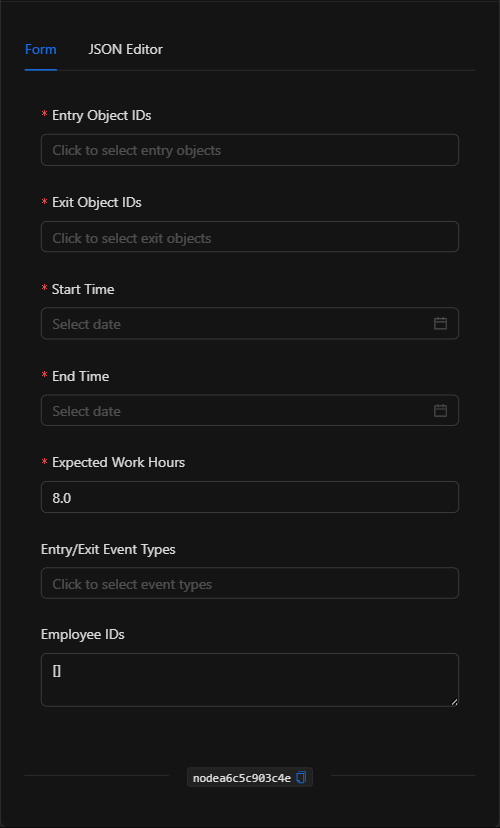
Form View
1. Entry Object IDs *Required
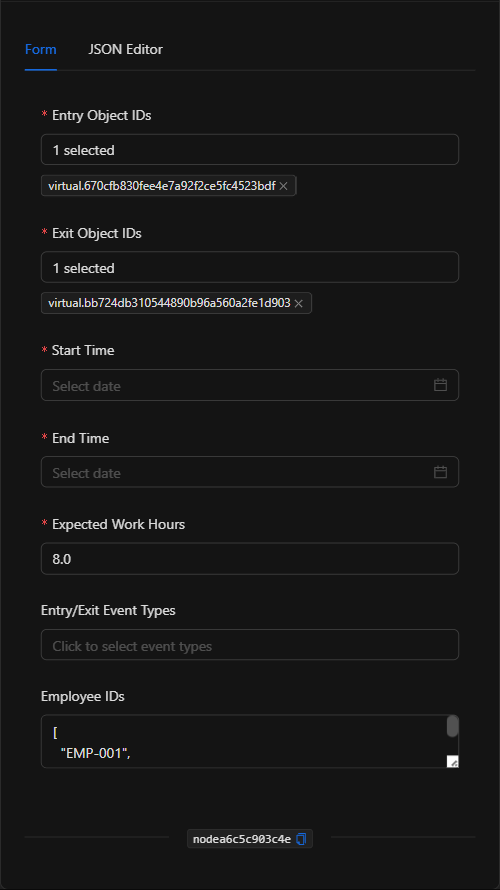
The access control objects that record entries (for example, the entry reader/turnstile). Click the field to open the object selector modal, then search for and select the objects.
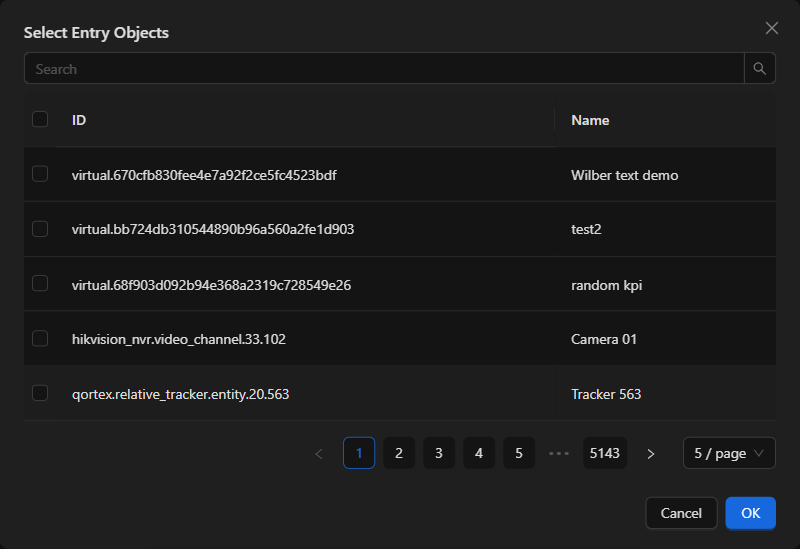
2. Exit Object IDs *Required
The access control objects that record exits (for example, the exit reader/turnstile). Selected the same way as the entry objects.
3. Start Time *Required
The start date and time of the period to evaluate (date and time selector).
4. End Time *Required
The end date and time of the period to evaluate.
5. Expected Work Hours *Required
The number of hours that personnel are expected to work in the shift (default 8). Used to compare against the hours actually worked.
6. Entry/Exit Event Types *Optional
Allows you to refine which event types are considered as entries/exits (via the event type selector). Useful when a single reader generates multiple event types.
7. Employee IDs *Optional
List (in JSON format) of employee identifiers to restrict the calculation to. If left empty, all employees with accesses in the period are considered.
JSON Editor View
In the JSON Editor tab you can view and directly edit the entire query:
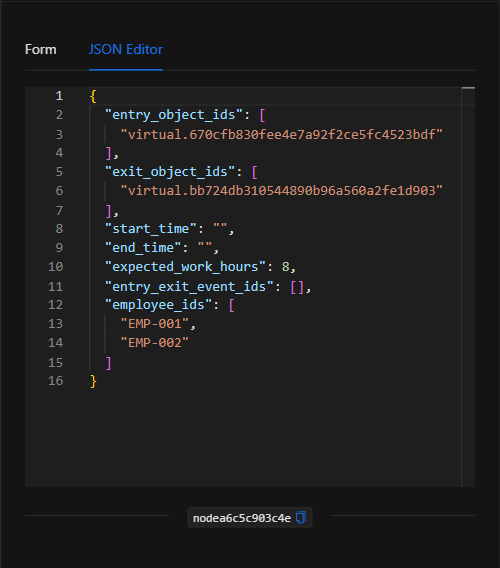
JSON Structure (Input Parameters)
The following shows the JSON structure generated when configuring the node:
{
  "entry_object_ids": [
    "virtual.670cfb830fee4e7a92f2ce5fc4523bdf"
  ],
  "exit_object_ids": [
    "virtual.bb724db310544890b96a560a2fe1d903"
  ],
  "start_time": "",
  "end_time": "",
  "expected_work_hours": 8,
  "entry_exit_event_ids": [],
  "employee_ids": [
    "EMP-001",
    "EMP-002"
  ]
}
JSON Fields
| Field | Type | Description |
|---|---|---|
entry_object_ids |
array (string) | IDs of the objects that record entries. |
exit_object_ids |
array (string) | IDs of the objects that record exits. |
start_time |
string | Start date/time of the period (ISO 8601 format). |
end_time |
string | End date/time of the period (ISO 8601 format). |
expected_work_hours |
number | Expected hours for the shift (default 8). |
entry_exit_event_ids |
array (string) | (Optional) Event types considered as entries/exits. |
employee_ids |
array (string) | (Optional) IDs of employees to restrict the calculation to. |
Output: Where the node's data comes from
When the query runs successfully, the node returns the worked-hours calculation per employee within the period, compared against the expected hours, in its Output. This output can be used in subsequent nodes to generate reports, write to spreadsheets, or notify of discrepancies.
To reference the result in subsequent nodes, use the node's key:
{{node_key}}
(Remember to replace node_key with the key automatically assigned to the node on the canvas.)
Usage Examples
Example 1: Daily worked-hours report
Use case: Every day at 23:00, calculate the hours worked by personnel between the plant's entry and exit turnstiles and compare them against an 8-hour shift.
- Entry Object IDs: Entry turnstile.
- Exit Object IDs: Exit turnstile.
- Expected Work Hours:
8 - Start/End Time: The current day.
Configuration JSON:
{
  "entry_object_ids": ["virtual.670cfb830fee4e7a92f2ce5fc4523bdf"],
  "exit_object_ids": ["virtual.bb724db310544890b96a560a2fe1d903"],
  "start_time": "2026-06-18T00:00:00Z",
  "end_time": "2026-06-18T23:59:59Z",
  "expected_work_hours": 8,
  "employee_ids": []
}
Example 2: Calculation for specific employees
Use case: Calculate hours for a subset of employees (for example, for a targeted audit).
- Employee IDs:
["EMP-001", "EMP-002"]
Validation and Errors
| Condition | Common cause / fix |
|---|---|
| No entry/exit objects | Select at least one entry object and one exit object; they are required for the calculation. |
| Empty result | There are no access events in the period, or the selected objects do not correspond to checkpoints with records. |
| Invalid date range | Make sure start_time is earlier than end_time. |
Best Practices
- Define entry and exit correctly: Correctly associate the entry and exit objects; an incorrect pairing produces erroneous calculations.
- Limit the period: Use reasonable date ranges (per shift or per day) to obtain clear results and good performance.
- Combine with reports: Chain the output with a Google Sheets/Excel node or a notification node to distribute the attendance report.
- Name the node descriptively: Rename the node on the canvas (e.g., "Morning shift worked hours") to identify it in the flow.