Update a driver on a site
This guide explains how to update a driver that is already installed on a site, starting from the "Install new driver" button in the Technologies section.
To install a driver for the first time, see Drivers.
Overview
Updating a driver follows this path:
Technologies (Device Type)
   └─ "Install new driver" button
        └─ "Add Integration" window  →  Sites list
             └─ pick an ONLINE site → "Install drivers"
                  └─ Driver list
                       └─ find the installed driver → Update button (⟳)
                            └─ wait for "Driver updated correctly"
NOTE Before you start, make sure that: the site is Online (update is disabled on offline sites), the driver is already installed on that site, and the driver exists in the configured driver repository (otherwise the Update button stays disabled).
Step 1: Open the Technologies section
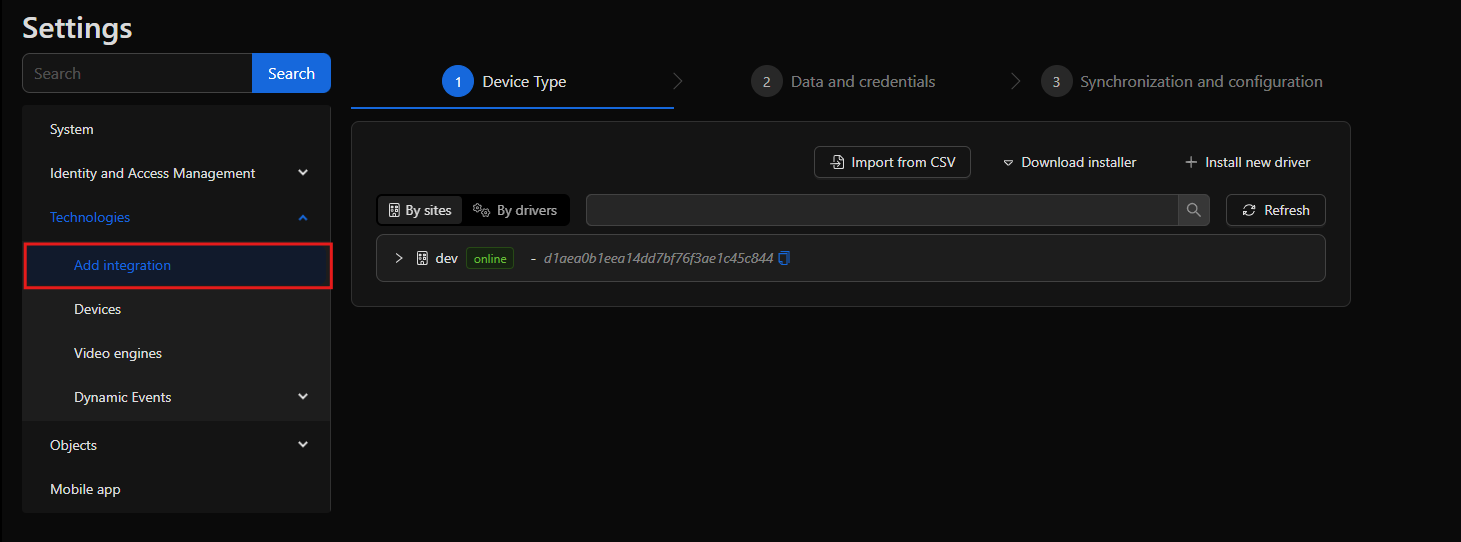
In the left panel, go to Settings and open the Technologies section. The first tab, Device Type, lists the integrations/drivers and shows a button bar in the top-right corner with three actions: Import from CSV, Download Driver Installer, and Install new driver.
Step 2: Click "Install new driver"
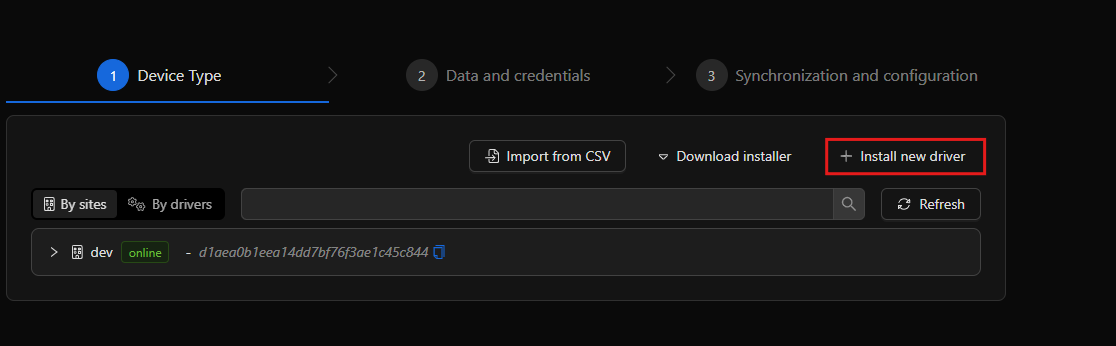
Click the Install new driver button in the top-right corner. This opens the "Add Integration" window, which starts by showing the Sites list.
Step 3: Choose the site
The window shows the Sites screen.
Pick the Online site you want to work on and click its "Install drivers" button.
NOTE The "Install drivers" button is disabled on Offline sites (tooltip: "This site must be online to install drivers"). It is only enabled on Online sites.

Step 4: Find the driver
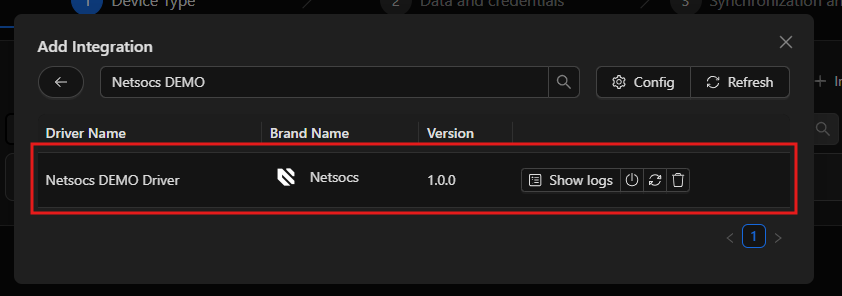
After clicking Install drivers, the driver list for that site opens. Use the search box (placeholder "Brand name or driver name") to filter the table, then locate the row of the already-installed driver you want to update. The Version column shows the version currently installed.
Step 5: Click the Update button
In the Actions column of an installed driver you will see a compact group of buttons:
| Icon | Action |
|---|---|
| 📄 list | Show logs |
| ⏻ power | Restart |
| ⟳ circular arrows | Update |
| 🗑 trash | Uninstall |
Click the Update button — the one with the circular arrows (⟳) icon. While it checks the repository for a matching version it briefly shows a loading spinner.
NOTE If the driver is not present in the configured repository, the Update button is disabled and its tooltip reads "Driver not available in repository".

Step 6: Wait for confirmation
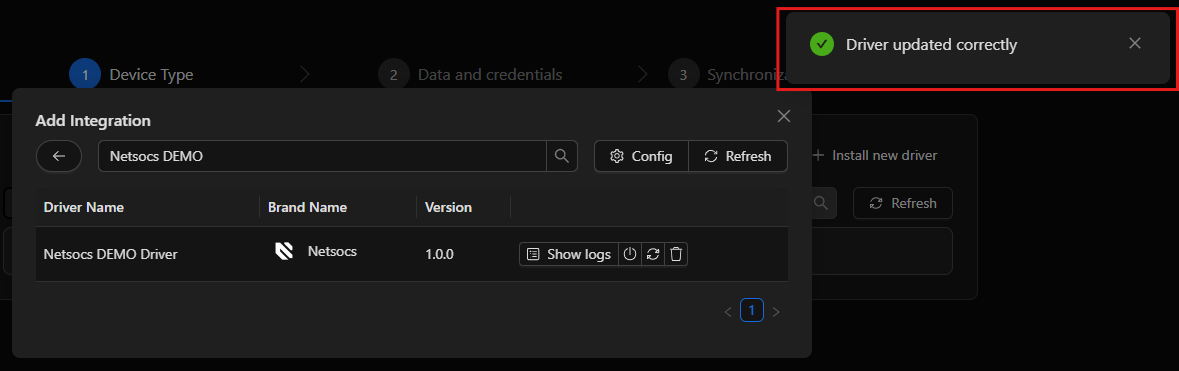
The update runs and a notification appears when it finishes:
- Success: a green notification "Driver updated correctly" with the driver name. The Version column then reflects the new version.
- Error: a red notification "Driver could not be updated" with the driver name.
Step 7: Verify the result
To confirm the driver is running on the new version, click Show logs (📄) to open the log panel and review the latest entries. If needed, click Restart (⏻) to restart the driver process.
Troubleshooting
| Symptom | Cause | What to do |
|---|---|---|
| "Install drivers" is disabled on a site | The site is Offline | Bring the site online, then retry. |
| Update button is disabled | The driver has no matching version in the repository | Open the Config panel, check the driver repository manifest URL, click Load (or Default URL), then retry. |
| The driver list is empty or shows "Could not load drivers from this URL." | The repository manifest URL is wrong or unreachable | In the Config panel set a valid manifest URL and click Load, or click Default URL. |
| Notification "Driver could not be updated" | The update process failed on the site | Check the driver via Show logs, then try Update again or Restart the driver. |
Quick reference
| Where | Label / Tooltip | Purpose |
|---|---|---|
| Device Type tab | Install new driver | Opens the Add Integration window. |
| Site card | Install drivers | Opens the driver list for that site (online sites only). |
| Driver list | Brand name or driver name | Filters the drivers table. |
| Actions column | Show logs (📄) | Opens the driver log panel. |
| Actions column | Restart (⏻) | Restarts the driver process. |
| Actions column | Update (⟳) | Updates the installed driver to the repository version. |
| Actions column | Uninstall (🗑) | Removes the driver from the site. |