Documentation: Execute Object Action Node
General Description
The Execute Object Action Node is an action node that allows you to send specific commands ("actions") directly and manually to one or several objects/devices through their respective controllers (drivers).
Unlike specialized action nodes (such as capturing an image or sending a message), this node acts as a generic and flexible interface. It is ideal for performing advanced operations that do not have their own dedicated node in the automation library.
When to Use This Node?
Use this node when you need to:
- Send manufacturer-specific commands to a device (for example, moving a PTZ camera to a preset position, activating a relay output, or starting a video clip download).
- Execute the same action on multiple objects or channels simultaneously.
- Control advanced hardware functions that are only exposed through driver action methods.
- Perform testing or debugging of actions by sending custom parameters (payload) directly to the device.
Node Configuration
The node has two configuration tabs at the top: Form and JSON Editor.
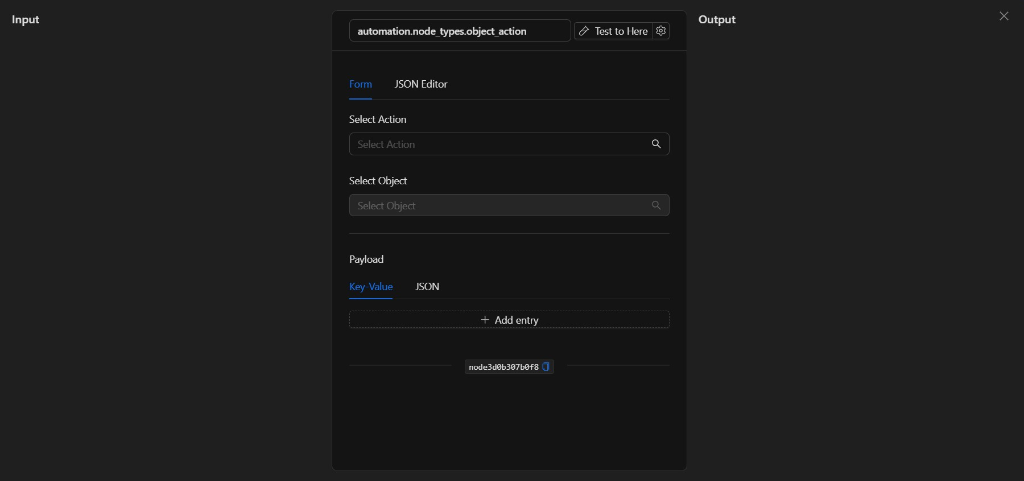
Form View
1. Select Action
This field allows you to search for and choose the action you want to send. Clicking on the magnifying glass or the text field will display a list categorized by the domains and brands of the drivers configured in the system (for example, onvif_standard.switch, hanwha_camera.video_channel.stream, etc.).
Note: The list shows the total number of domains and actions available in your current installation (for example: "Total: 29 domain(s), 137 action(s)").
2. Select Object
Allows you to search for and select the specific objects or devices that will execute the action. This node supports multi-selection, allowing you to apply the action to multiple devices at the same time.
In the interface, you will see labels for each selected object that you can easily remove by clicking the x (for example: Speaker audiooutput1, Siera Switch - relay_1, etc.).
3. Payload
The Payload panel defines additional parameters or data required for the action to execute correctly. Depending on the selected action, you can configure it in two ways:
- Key-Value: A structured list where you manually add a text field with the key (Key) and the value (Value) using the
+ Add entrybutton. - JSON: A text box to enter structured data directly in JSON format.
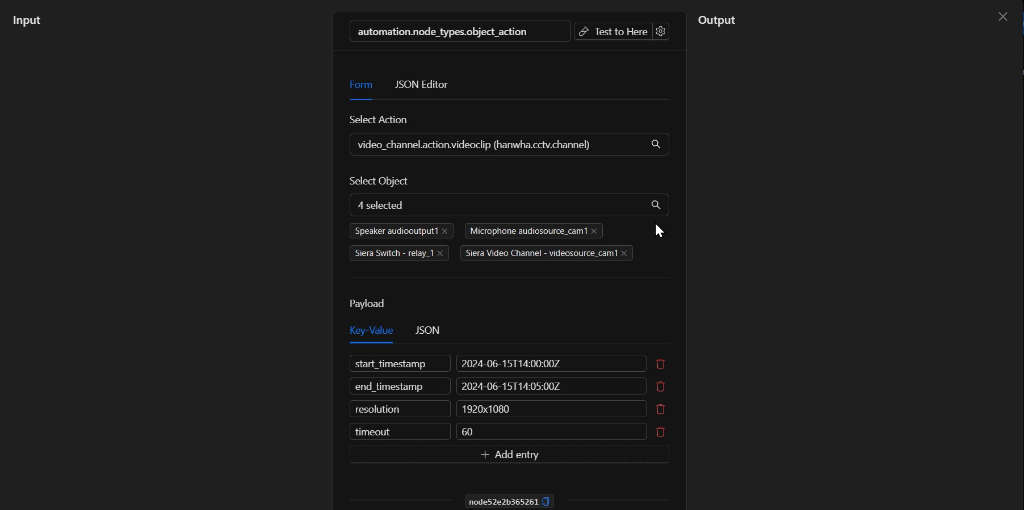
JSON Editor View
If you switch to the JSON Editor tab, you will see the structured representation of the node parameters in JSON format, where you can use template expressions to dynamically parameterize fields.
JSON Structure (Input parameters)
The following shows the actual configuration JSON schema in the JSON Editor tab when selecting, for example, the action to generate a video clip on multiple devices:
{
  "action": "video_channel.action.videoclip",
  "domain": "hanwha.cctv.channel",
  "objects_id": [
    "onvif_standard.microphone.27.audiosource_cam1",
    "onvif_standard.speaker.27.audiooutput1",
    "onvif_standard.switch.27.relay_1",
    "onvif_standard.video_channel.27.videosource_cam1"
  ],
  "payload": "{\n  \"start_timestamp\": \"2024-06-15T14:00:00Z\",\n  \"end_timestamp\": \"2024-06-15T14:05:00Z\",\n  \"resolution\": \"1920x1080\",\n  \"timeout\": 60\n}"
}
Required Fields
| Field | Type | Description |
|---|---|---|
action |
string | Unique identifier of the action supported by the driver (e.g., domain.action.name). |
domain |
string | The device's driver domain (e.g., hanwha.cctv.channel). |
objects_id |
array (strings) | List of unique identifiers (hardware IDs) of the objects selected to execute the action. |
payload |
string | Specific parameters required by the action represented as a serialized JSON string. |
Output: Where the Node Data Comes From
When the node finishes executing the action, the Output section of the node contains a property called response. This property holds an array with the detailed execution results for each of the selected objects.
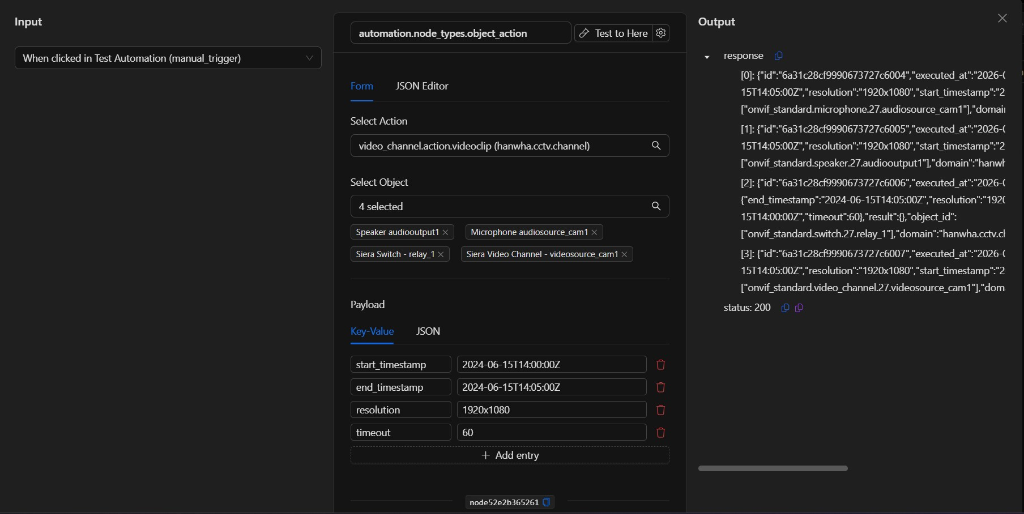
Output Fields (response)
Each element within the response array contains:
| Field | Type | Description |
|---|---|---|
id |
string | Unique execution ID of the command. |
executed_at |
string | Date and time the action was executed (RFC3339 format). |
payload |
object | The payload (parameters) sent to the device. |
domain |
string | The device's driver domain. |
action |
string | The specific action executed. |
object_id |
array (strings) | List of identifiers of the objects that executed the action. |
result |
object | Additional response data returned by the device or driver. |
status |
integer | HTTP status code of the execution response (e.g., 200 for success). |
Output Example
{
  "response": [
    {
      "id": "6a31bd77f9990673727c570a",
      "executed_at": "2026-06-16T21:17:43Z",
      "payload": {
        "end_timestamp": "2024-06-15T14:05:00Z",
        "resolution": "1920x1080",
        "start_timestamp": "2024-06-15T14:00:00Z",
        "timeout": 60
      },
      "domain": "hanwha.cctv.channel",
      "action": "video_channel.action.videoclip",
      "object_id": [
        "onvif_standard.video_channel.27.videosource_cam1"
      ],
      "result": {},
      "status": 200
    }
  ]
}
Using Output in Later Nodes
You can reference the execution responses using the node key (NodeKey). For example, to get the status of the first executed object:
{{node_key.response[0].status}}
{{node_key.response[0].id}}
(Replace node_key with the actual key of your node on the canvas).
Usage Examples
Example 1: Manual Activation of a Physical Output (Relay/Switch)
Use Case: Direct activation of a physical alarm output connected to an ONVIF switch.
- Action: onvif_standard.switch.turn_on
- Object: Select the corresponding switch.
- Payload: Requires no additional parameters (empty).
Example 2: Generate and Download a Video Clip from Multiple Cameras
Use Case: Request extraction of a 5-minute recorded video fragment on several cameras simultaneously for external storage.
- Action: video_channel.action.videoclip
- Objects: Select the desired video cameras.
- Payload (Key-Value):
- start_timestamp: 2024-06-15T14:00:00Z
- end_timestamp: 2024-06-15T14:05:00Z
- resolution: 1920x1080
- timeout: 60
Validation and Common Errors
When executing this node, the system validates that the involved drivers are active and connected.
| Condition / Error | Usual Cause / Solution |
|---|---|
| Empty list of actions/objects | The corresponding driver may be stopped or disconnected in the Drivers control panel. Make sure to check the connection status of the driver (e.g., driver.milestone or onvif_standard). |
| Status 400/500 in response | The payload parameters might be incorrect, incomplete, or incompatible with the command expected by the hardware. |
| Object not found | The object was deleted from the database or its hardware identifier changed. |
Best Practices
- Verify driver connectivity before deploying flows that use this node, as actions dynamically depend on real-time communication with devices.
- Configure appropriate timeouts (
timeout) in the payload if the action requires long processing times on the hardware (such as video clip generation). - Name the node clearly (e.g., "Generate Cameras Videoclip") to facilitate flow readability and referencing its variables in subsequent nodes.