Documentation: Get Snapshot Node
Overview
The Get Snapshot Node is an action node that requests, in real time, an image capture (snapshot) from a video channel (camera) and returns the URL of the generated image file.
It is one of the most useful nodes in security and IoT monitoring flows: it allows you to "freeze" the exact moment an event occurs (an intrusion, an alarm, a machine stop) to then attach that image to notifications, analyze it with AI, store it as evidence, or record it in a report.
When to use this node?
Use this node when you need to:
- Capture visual evidence at the instant an event is triggered (for example, take a photo from an access camera when a sensor detects a door opening outside business hours).
- Obtain an image to attach to a notification (Telegram, WhatsApp, Email) so personnel can immediately see what is happening.
- Generate an image to send to an AI model (for example, Analyze Image with AI nodes) that verifies whether there is a person, a vehicle, fire, etc.
- Store periodic captures as a backup or record in external storage (S3, Google Sheets with a link, etc.).
Node Configuration
The node has two configuration tabs at the top: Form and JSON Editor.
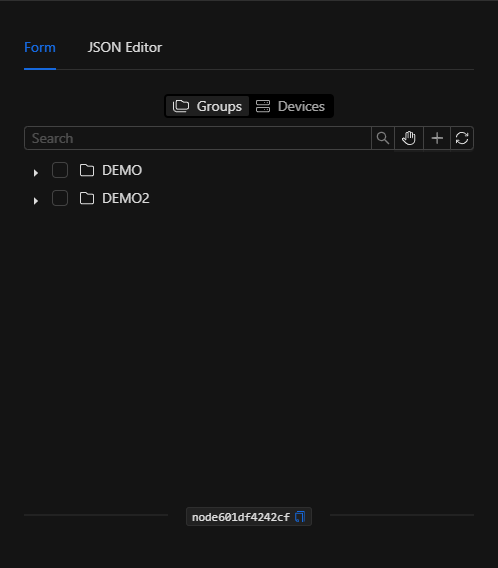
Form View
Select the video channel (Object) *Required
The form shows an object selector with two tabs at the top:
- Groups: Allows navigating objects organized by domains/groups.
- Devices: Allows navigating the list of physical devices. This is the usual view for locating cameras.
Steps:
- Click the
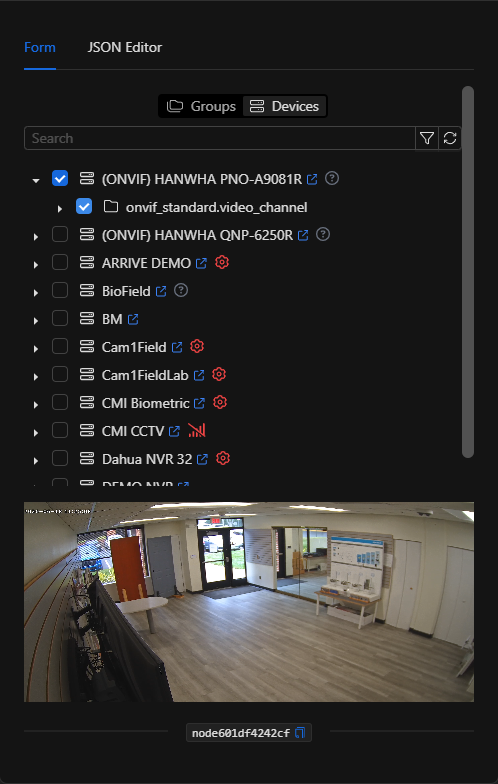
Devicestab. - Find and expand the desired camera (you can use the
Searchfield to filter by name). - Check the video channel (
video_channel) of the camera. The node works with a single video channel.
As soon as you select a channel, the node displays a live video preview below the tree, allowing you to visually confirm it is the correct camera:
JSON Editor View
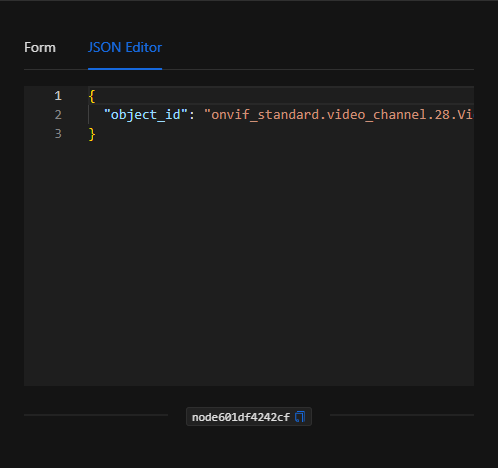
In the JSON Editor tab you can view and directly edit the video channel ID, useful for parameterizing it with dynamic expressions (for example, {{trigger.object_id}} to capture the camera that triggered the event):
JSON Structure (Input Parameters)
Below is the JSON structure generated when configuring the node:
{
  "object_id": "onvif_standard.video_channel.28.VideoSourceToken-0"
}
JSON Fields
| Field | Type | Description |
|---|---|---|
object_id |
string | Unique ID of the video channel (video_channel) from which the capture will be requested. Can be a fixed value or a template expression (e.g., {{trigger.object_id}}). |
Output: Where the node's data comes from
When the action executes successfully, the node returns in its Output the URL of the captured image file:
{
  "url": "http://netsocs-driverhub-service:3196/public/45cb1228-2e71-4b04-815d-36092f930d6e.jpg"
}
Output Fields
| Field | Type | Description |
|---|---|---|
url |
string | URL of the image file (snapshot) generated by the camera. |
Using the output in subsequent nodes
To reference the capture URL in subsequent nodes (for example, to attach it to a notification or send it to an AI node), use the node's key (node_key):
{{node_key.url}}
(Remember to replace node_key with the key automatically assigned to the node on the canvas.)
Special Case: Snapshot URL Access (Internal vs. Public Routing)
The URL returned in the url field uses the internal addressing of the Docker network of the installation: http://netsocs-driverhub-service:3196/public/<file>.jpg
This host (netsocs-driverhub-service:3196) is only accessible internally within the private container network, so an external user or their browser will not be able to view the image using that direct address.
To publicly view and access the image, you must replace the internal section with the public external routing path of your instance's domain (for example, https://demo02.netsocs.com/):
- Internal path (within Docker):
http://netsocs-driverhub-service:3196/public/ - Public path (user access):
https://<instance-domain>/api/netsocs/dh/public/
Therefore, the final public URL for the example would be: https://demo02.netsocs.com/api/netsocs/dh/public/45cb1228-2e71-4b04-815d-36092f930d6e.jpg
Usage Examples
Example 1: Capture evidence upon out-of-hours door opening
Use case: A door sensor detects an opening in the middle of the night. The flow captures an image from the camera covering that access point and attaches it to an alert sent to the security supervisor.
- Trigger: State change of the door sensor to
OPEN. - Action: Get Snapshot from the access camera.
- Subsequent use: The
{{get_snapshot_node.url}}field is used in a notification node (Telegram/WhatsApp/Email).
Configuration JSON:
{
  "object_id": "onvif_standard.video_channel.28.VideoSourceToken-0"
}
Example 2: Dynamic capture of the camera that triggers the event
Use case: In a generic automation that applies to multiple cameras, always capture the image from the camera that originated the event, without having to create a separate flow for each camera.
- Trigger: Motion detection event.
- Action: Get Snapshot using the trigger's dynamic ID.
Configuration JSON:
{
  "object_id": "{{trigger.object_id}}"
}
Validation and Errors
| Condition / Common cause / fix |
| :--- | :--- |
| object_id missing or empty | Select a valid video channel in the Devices tab or enter the "object_id" key in the JSON tab. |
| URL is not generated | Verify that the camera's driver/video engine is connected and streaming. An offline camera cannot deliver a snapshot. |
| The image is not viewable from the internet | Remember to convert the internal Docker URL to its public path (see the warning above). |
Best Practices
- Name the node descriptively: Change the node name on the canvas to something readable (e.g., "Main access snapshot") to easily use its
urlvariable in subsequent nodes. - Use dynamic IDs: In generic flows, assign the
object_idwith{{trigger.object_id}}to reuse the same automation across multiple cameras. - Chain with AI or notifications: The true value of the snapshot appears when combined with subsequent nodes: AI analysis, messaging delivery, or storage as evidence.
- Convert the URL for external use: If the image needs to be seen outside the internal network, remember to transform the internal URL to the public domain path.