Documentation: Set Text Node
Overview
The Set Text Node is an action node that writes Markdown-formatted text to a text-type object (text) on the platform. These text objects are used as text widgets in Dashboards, Synoptics, and Maps, so this node allows you to dynamically update informational content in the interface based on automation logic.
In IoT and control environments, it is ideal for maintaining live status panels: a banner displaying the latest alarm, a summary of plant conditions, or instructions for operators — all updated automatically when an event occurs.
When to use this node?
Use this node when you need to:
- Update a text widget on a dashboard or synoptic with dynamic information (latest alarm, current state, readings).
- Display a contextual message to operators that changes based on events.
- Keep a status banner or an operational summary always up to date.
- Present information with rich formatting (Markdown: headings, bold, lists, links) in the interface.
Node Configuration
The node has two configuration tabs at the top: Form and JSON Editor.
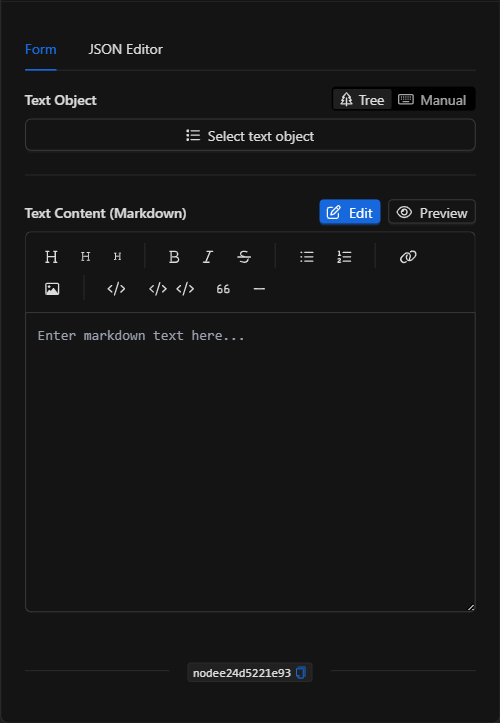
Form View
1. Text Object *Required
Defines the text-type object to be updated. It includes a selector with two modes (switchable in the upper-right corner):
- Tree: Opens an object selector filtered to text-type (
text) objects. ClickSelect text objectand choose the desired object. - Manual: Allows you to directly enter the object ID (or a template expression), useful for assigning it dynamically.
2. Text Content (Markdown) *Required
The text to be written to the object, in Markdown format. The editor includes:
- A toolbar for quickly applying formatting: headings (H1, H2, H3), bold, italic, ~~strikethrough~~, lists (bulleted and numbered), links, images, inline code, code blocks, blockquotes, and dividers.
- An
Edit/Previewtoggle to switch between editing the Markdown and previewing the rendered result.
The content supports template expressions, allowing you to build dynamic texts with flow data (for example, **Last alarm:** {{trigger.object_name}}).
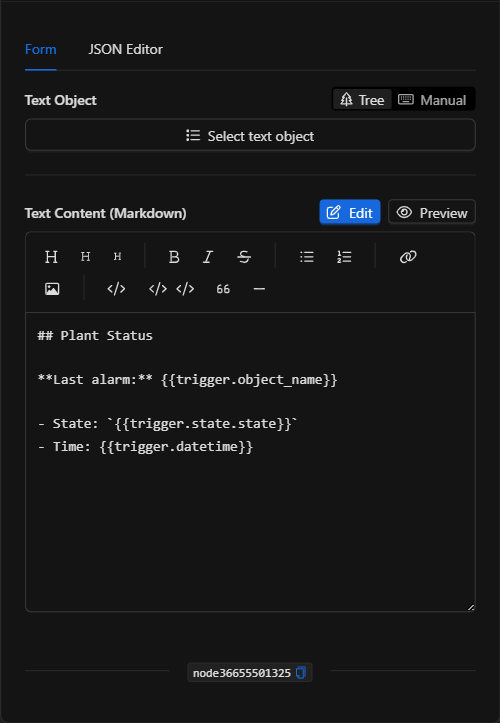
JSON Editor View
In the JSON Editor tab you can view and directly edit the target object and the text:
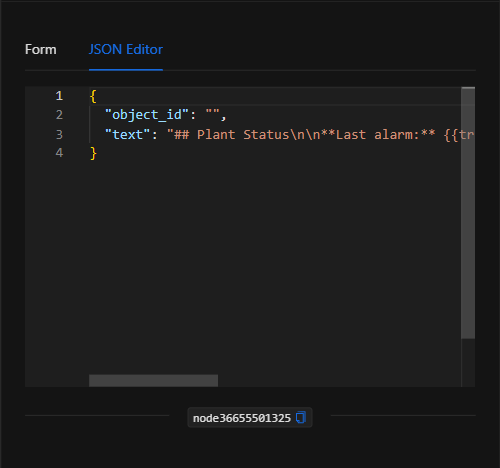
JSON Structure (Input Parameters)
Below is the JSON structure generated when configuring the node:
{
  "object_id": "",
  "text": "## Plant Status\n\n**Last alarm:** {{trigger.object_name}}\n\n- State: `{{trigger.state.state}}`\n- Time: {{trigger.datetime}}"
}
JSON Fields
| Field | Type | Description |
|---|---|---|
object_id |
string | ID of the text-type object to be updated. Can be fixed or a template expression. |
text |
string | The Markdown-formatted content to write. Supports template expressions. |
Output: Where the node's data comes from
When the action executes successfully, the text object is updated with the new content, which is reflected in real time in the Dashboards, Synoptics, or Maps where that object is represented as a text widget. The node finishes marked as successful (green border).
Usage Examples
Example 1: "Latest alarm" banner on a dashboard
Use case: Keep a text widget on the control center dashboard that always shows the latest recorded alarm, with its device, state, and time.
- Text Object: The banner's text object.
- Text Content:
## Plant Status

**Last alarm:** {{trigger.object_name}}

- State: `{{trigger.state.state}}`
- Time: {{trigger.datetime}}
Configuration JSON:
{
  "object_id": "<text_object_id>",
  "text": "## Plant Status\n\n**Last alarm:** {{trigger.object_name}}\n\n- State: `{{trigger.state.state}}`\n- Time: {{trigger.datetime}}"
}
Example 2: Operational instructions based on the event
Use case: Display a text with protocol instructions to operators according to the type of event detected.
- Text Content: Markdown with the protocol steps, built dynamically.
Validation and Errors
| Condition | Common cause / fix |
|---|---|
object_id missing |
Select (or enter) a valid text-type object. |
| The text does not update on the dashboard | Verify that the selected text object is the one represented in the dashboard/synoptic widget. |
| The formatting does not render correctly | Check the Markdown syntax using the Preview button before saving. |
Best Practices
- Preview before using: Use the Preview button to verify how the Markdown renders.
- Dynamic texts: Take advantage of template expressions so the content always reflects the most recent information from the flow.
- Keep dedicated text objects: Create specific text objects for each widget you want to update, to avoid accidentally overwriting content.
- Name the node descriptively: Change the node's name on the canvas (e.g. "Update status banner") to identify it in the flow.