Documentation: Microsoft Excel Node
Overview
The Microsoft Excel Node is an integration action node that allows you to read and write data in Microsoft Excel files hosted on OneDrive / SharePoint, through the Microsoft Graph API. It supports read, update, clear, and row-append operations on a spreadsheet.
In IoT environments, it is ideal for recording operational data in corporate Excel sheets (event logs, sensor readings, attendance reports) automatically, integrating the platform with the Microsoft 365 ecosystem.
When to use this node?
Use this node when you need to:
- Log events or readings in an Excel sheet (for example, adding a row every time an alarm triggers).
- Read data from a sheet to use in the flow's logic (thresholds, configuration lists).
- Update or clear ranges in a spreadsheet automatically.
- Integrate the platform with reports and logs managed in Microsoft 365 / OneDrive / SharePoint.
Node Configuration
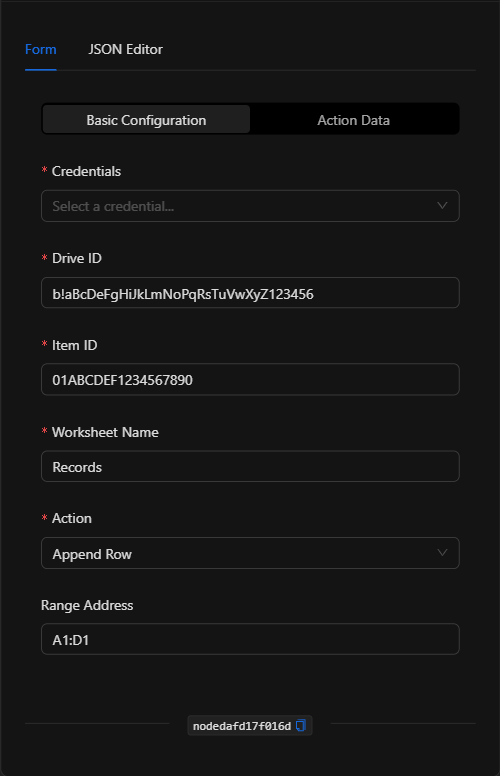
The node has two configuration tabs at the top: Form and JSON Editor. The form is organized into two selectable sections: Basic Configuration and Action Data.
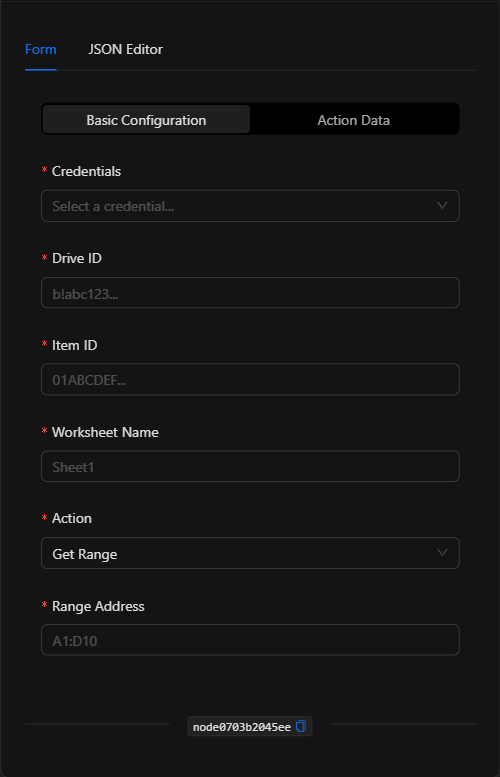
Section: Basic Configuration
1. Credentials *Required
Select the Microsoft Graph credential (which contains client_id, client_secret, and tenant_id) to authenticate access to the files. It is managed in a centralized and secure manner.
2. Drive ID *Required
The identifier of the drive (OneDrive/SharePoint) where the file is located (for example, b!abc123...).
3. Item ID *Required
The identifier of the Excel file within the drive (for example, 01ABCDEF...).
4. Worksheet Name *Required
The name of the worksheet to operate on (for example, Records).
5. Action *Required
The operation to perform. Options:
| Action | Value | Description |
|---|---|---|
| Get Range | get_range |
Reads the content of a cell range. |
| Update Range | update_range |
Writes/updates a range with a data matrix. |
| Clear Range | clear_range |
Clears the content of a range. |
| Append Row | append_row |
Adds a new row at the end of the table. |
6. Range Address
The cell range to operate on (for example, A1:D10). Required for get_range, update_range, and clear_range.
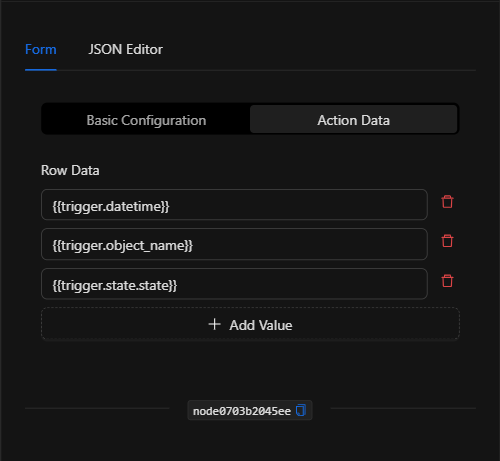
Section: Action Data
The content of this section depends on the selected action:
- Append Row: displays a Row Data list where you add the values for the new row (one per column) using the
Add Valuebutton. Each value supports template expressions. - Update Range: displays a Data (JSON matrix) field for entering a matrix of rows (for example,
[["Name","Age"],["Ana","30"]]). - Get Range / Clear Range: require no additional data.
JSON Editor View
In the JSON Editor tab you can view and directly edit the entire configuration:
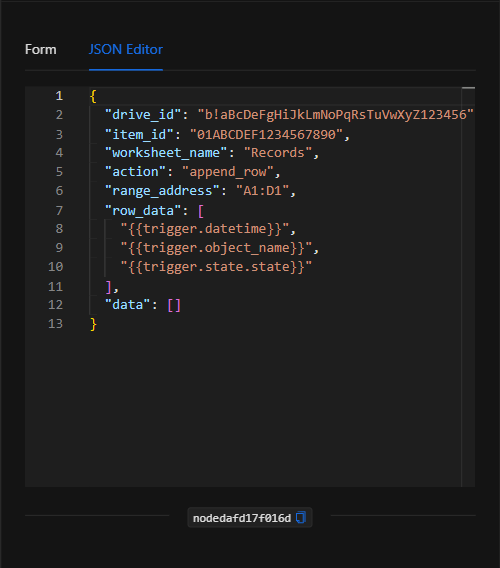
JSON Structure (Input Parameters)
Below is the JSON structure generated when configuring the node (append_row action):
{
  "drive_id": "b!aBcDeFgHiJkLmNoPqRsTuVwXyZ123456",
  "item_id": "01ABCDEF1234567890",
  "worksheet_name": "Records",
  "action": "append_row",
  "range_address": "A1:D1",
  "row_data": [
    "{{trigger.datetime}}",
    "{{trigger.object_name}}",
    "{{trigger.state.state}}"
  ],
  "data": []
}
JSON Fields
| Field | Type | Description |
|---|---|---|
drive_id |
string | ID of the drive (OneDrive/SharePoint). |
item_id |
string | ID of the Excel file. |
worksheet_name |
string | Name of the worksheet. |
action |
string | Operation: get_range, update_range, clear_range, append_row. |
range_address |
string | Cell range (e.g. A1:D10). Required for get/update/clear. |
row_data |
array (string) | Values of the row to add (for append_row). |
data |
array (array) | Row matrix for update_range (e.g. [["Name","Age"],["Ana","30"]]). |
credentials |
object | References to the Microsoft Graph credential (managed securely). |
Output: Where the node's data comes from
- For read actions (
get_range), the node returns in its Output the content of the read range, which can be used in subsequent nodes with{{node_key}}. - For write actions (
update_range,clear_range,append_row), the node confirms the operation when it executes successfully (green border).
Usage Examples
Example 1: Log each alarm in an Excel log
Use case: Every time an alarm triggers, a row is added to an Excel sheet with the date, device, and state.
- Action:
Append Row - Row Data:
{{trigger.datetime}},{{trigger.object_name}},{{trigger.state.state}}
Configuration JSON: (see structure above)
Example 2: Read a list of thresholds from Excel
Use case: Read a range with the temperature thresholds configured per plant to use in the flow's logic.
- Action:
Get Range - Range Address:
A1:B20
Validation and Errors
| Condition | Common cause / fix |
|---|---|
| Authentication error | The Microsoft Graph credential is incorrect or lacks permissions on the file. |
| File not found | Verify drive_id and item_id; they must correspond to an accessible Excel file. |
| Invalid range | Check the format of range_address (e.g. A1:D10) and that the sheet (worksheet_name) exists. |
Best Practices
- Use centralized credentials: Do not write client_id/secret in the node; select a securely managed Microsoft Graph credential.
- Append Row for logs: For incremental records (logs),
append_rowis the simplest and safest option. - Template expressions in values: Take advantage of template expressions in
row_datato record dynamic event data. - Name the node descriptively: Change the node's name on the canvas (e.g. "Log alarm to Excel") to identify it in the flow.