Documentation: Send Email (via SMTP) Node
Overview
The Send Email (via SMTP) Node is an action node that sends an email through an SMTP server directly from an automation flow. It allows you to define the recipient, sender, subject, message body, and optionally attach a document via a public URL.
It is the ideal channel for formal, traceable notifications in IoT environments: sending alerts to a maintenance team, automatic reports to a supervisor, or evidence (images/PDFs) when a critical event is triggered on the plant floor.
When to use this node?
Use this node when you need to:
- Notify by email maintenance, operations, or security personnel when an event occurs (for example, a critical temperature in a cold storage room).
- Send automatically generated reports or summaries from the flow.
- Attach evidence (a snapshot obtained with the Get Snapshot node, a report PDF, etc.) via its public URL.
- Integrate the platform with corporate workflows that depend on email.
Node Configuration
The node has two configuration tabs at the top: Form and JSON Editor.
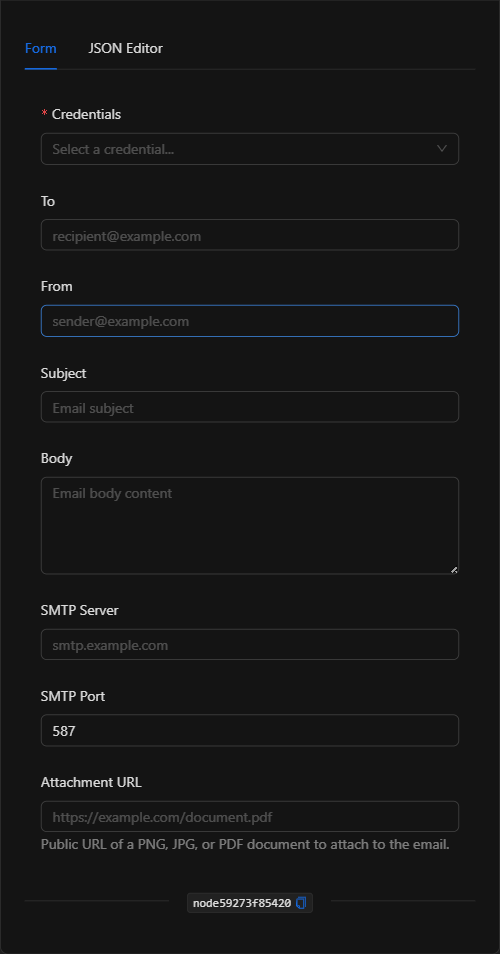
Form View
1. Credentials *Required
Select the SMTP credential to be used to authenticate against the mail server. Credentials are managed centrally and securely (the SMTP username and password are not written into the node, but rather referenced from the selected credential).
2. To
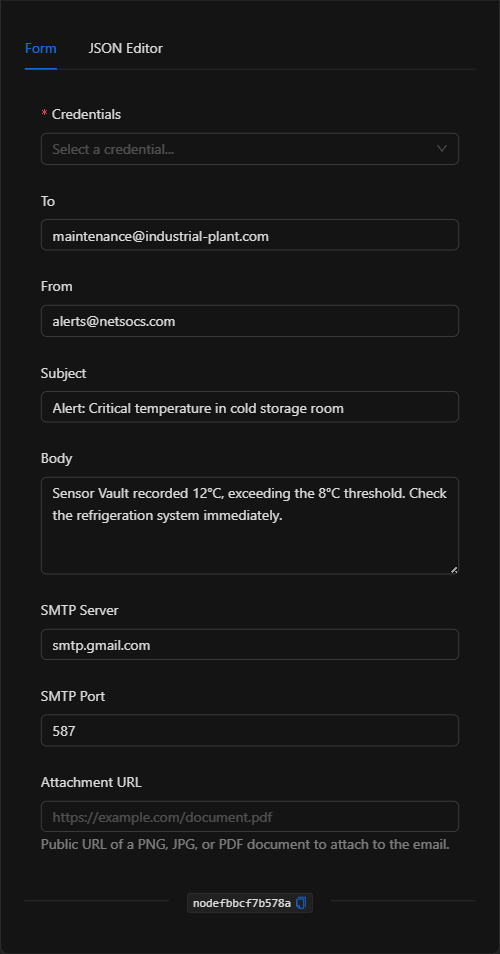
The recipient's email address (e.g., maintenance@industrial-plant.com). Supports template expressions.
3. From
The sender's email address (e.g., alertas@netsocs.com).
4. Subject
The email subject. Supports template expressions to include dynamic data.
5. Body
The message content. It is a text area that accepts template expressions for building dynamic messages with flow data.
6. SMTP Server
The SMTP server address (e.g., smtp.gmail.com).
7. SMTP Port
The SMTP server port. Default value: 587.
8. Attachment URL *Optional
Public URL of a PNG, JPG, or PDF document to attach to the email. Ideal for sending a snapshot or a report generated in the flow.
JSON Editor View
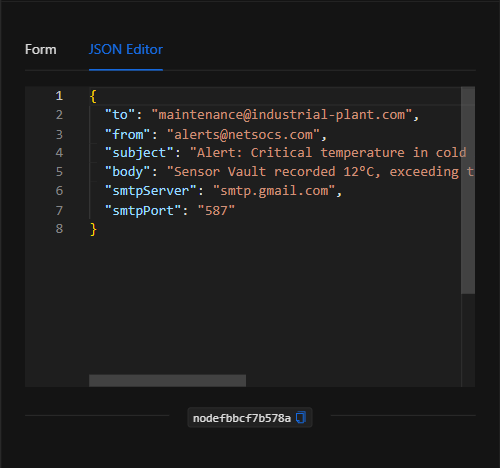
In the JSON Editor tab you can view and directly edit all email fields:
JSON Structure (Input Parameters)
The following shows the JSON structure generated when configuring the node:
{
  "to": "maintenance@industrial-plant.com",
  "from": "alerts@netsocs.com",
  "subject": "Alert: Critical temperature in cold storage room",
  "body": "Sensor Vault recorded 12°C, exceeding the 8°C threshold. Check the refrigeration system immediately.",
  "smtpServer": "smtp.gmail.com",
  "smtpPort": "587"
}
JSON Fields
| Field | Type | Description |
|---|---|---|
to |
string | Recipient email address. |
from |
string | Sender email address. |
subject |
string | Email subject. |
body |
string | Message body. |
smtpServer |
string | SMTP server address. |
smtpPort |
string | SMTP server port (default 587). |
attachmentUrl |
string | (Optional) Public URL of a PNG, JPG, or PDF to attach. |
smtpUser / smtpPassword |
string | References to the selected SMTP credential (managed securely, not in plain text). |
Output: Where the node's data comes from
When the email is sent successfully, the node finishes marked as successful (green border). Its primary effect is the delivery of the email to the SMTP server; in the event of an authentication or connection failure, the node will report the corresponding error.
Usage Examples
Example 1: Email alert for a critical temperature
Use case: When a cold storage room sensor exceeds the temperature threshold, an email is sent to the maintenance team with the reading details.
- To:
maintenance@industrial-plant.com - Subject:
Alert: Critical temperature in cold storage room - Body: Dynamic message with the sensor reading.
Configuration JSON:
{
  "to": "maintenance@industrial-plant.com",
  "from": "alerts@netsocs.com",
  "subject": "Alert: Critical temperature in cold storage room",
  "body": "Sensor {{trigger.object_name}} recorded {{trigger.state.state_additional_properties.temperature}}°C.",
  "smtpServer": "smtp.gmail.com",
  "smtpPort": "587"
}
Example 2: Report with attached evidence
Use case: Attach a camera snapshot (obtained with the Get Snapshot node) to the alert email.
- Attachment URL:
{{get_snapshot_node.url}}(converted to a public path).
Validation and Errors
| Condition / Common cause / fix |
| :--- | :--- |
| Authentication error | The SMTP credential is incorrect or lacks permissions. Verify the username, password, and that the server allows sending. |
| Cannot connect to server | Check smtpServer and smtpPort. Some servers use 465 (SSL) or 25. |
| Attachment not received | Make sure attachmentUrl is public and accessible from the internet (convert internal Docker URLs to their public domain path). |
Best Practices
- Use centralized credentials: Do not write the username/password into the node; select an SMTP credential managed securely.
- Dynamic messages: Use template expressions in the subject and body to include event data (object name, reading, date).
- Attach evidence with public URLs: If attaching a snapshot, remember to use the public domain path, not the internal Docker path.
- Name the node descriptively: Rename the node on the canvas (e.g., "Email to maintenance") to identify it in the flow.