Documentation: Image Sequence Node
Overview
The Image Sequence Node is an action node that captures several consecutive images (snapshots) from one or more video channels over a defined period of time, and composes them into a collage-style grid in a single output image.
Unlike the Get Snapshot node, which takes a single photo, this node allows you to reconstruct the temporal sequence of what happened in front of the camera (for example, the seconds before and after an alarm), delivering a mosaic-style summary view that is very useful as evidence or for AI analysis.
When to use this node?
Use this node when you need to:
- Capture the temporal evolution of an event, not just a single instant (for example, see the sequence of how a person approaches a restricted area).
- Generate a collage-style image that shows multiple frames in a single image, easy to attach to a notification or report.
- Produce a visual set of frames to send to an AI model that analyzes motion or changes between frames.
- Document as evidence the sequence of an industrial incident (for example, the seconds around an emergency stop on a production line).
Node Configuration
The node has two configuration tabs at the top: Form and JSON Editor.
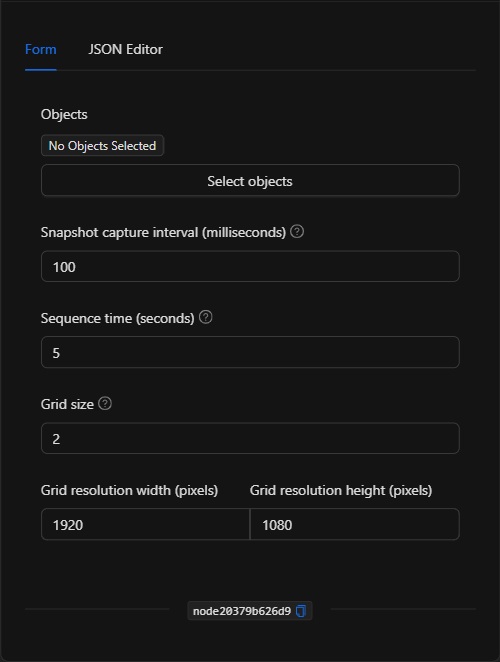
Form View
1. Objects *Required
Allows you to select one or more video channels from which snapshots will be taken.
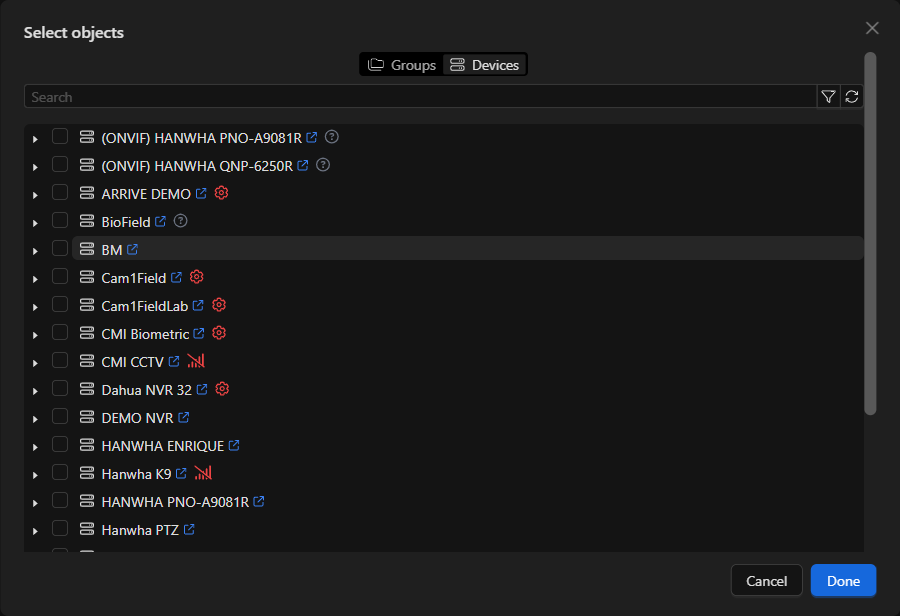
- Click the Select objects button to open the selector modal.
- Navigate through the Devices tab, expand the camera or NVR, and check the desired video channel(s).
- Confirm with Done. Selected objects are displayed as tags that you can remove individually.
2. Snapshot capture interval *milliseconds
Defines the time in milliseconds between each individual capture. A smaller value generates more frames (smoother sequence); a larger value generates fewer, more spaced-out frames. Minimum value: 100.
3. Sequence time *seconds
Defines the total duration in seconds during which images will be captured. For example, with an interval of 100 ms and a sequence time of 5 seconds, the node will take captures for 5 seconds.
4. Grid size
Defines the dimensions of the output mosaic, in a square shape. The value is the side of the grid:
- 2 = 2x2 grid (4 cells)
- 3 = 3x3 grid (9 cells)
- 4 = 4x4 grid (16 cells)
5. Grid resolution width / height *pixels
Defines the width and height in pixels of the final composed image (for example, 1920 x 1080).
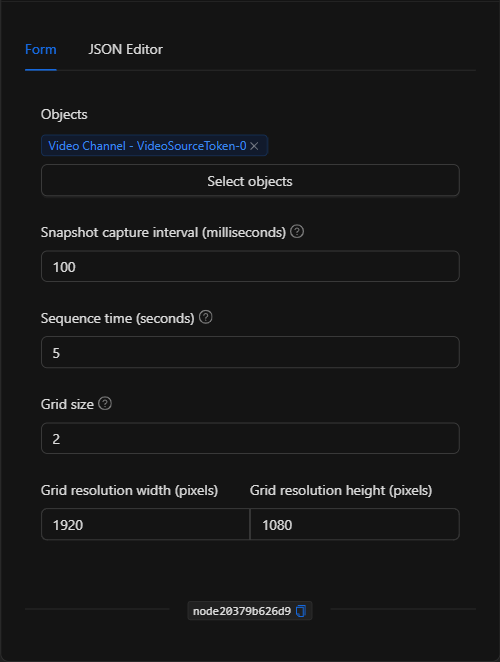
JSON Editor View
In the JSON Editor tab you can view and directly edit all node parameters:
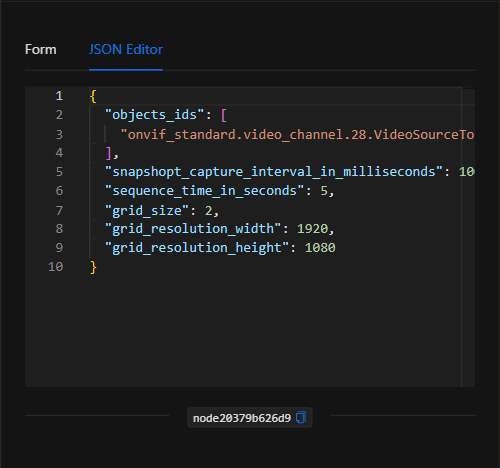
JSON Structure (Input Parameters)
Below is the JSON structure generated when configuring the node:
{
  "objects_ids": [
    "onvif_standard.video_channel.28.VideoSourceToken-0"
  ],
  "snapshopt_capture_interval_in_milliseconds": 100,
  "sequence_time_in_seconds": 5,
  "grid_size": 2,
  "grid_resolution_width": 1920,
  "grid_resolution_height": 1080
}
JSON Fields
| Field | Type | Description |
|---|---|---|
objects_ids |
array (string) | List of video channel IDs (video_channel) from which snapshots will be taken. |
snapshopt_capture_interval_in_milliseconds |
number | Interval in milliseconds between each capture. Minimum 100. |
sequence_time_in_seconds |
number | Total duration in seconds of the sequence capture. |
grid_size |
number | Side of the output grid (e.g., 2 = 2x2, 3 = 3x3). |
grid_resolution_width |
number | Width in pixels of the final composed image. |
grid_resolution_height |
number | Height in pixels of the final composed image. |
NOTE: The field name
snapshopt_capture_interval_in_millisecondscontains a typo inherited from the system (snapshoptinstead ofsnapshot). If you edit the node from the JSON Editor tab, you must write it exactly as shown for the node to recognize it.
Output: Where the node's data comes from
When the action executes successfully, the node generates the composed image (mosaic) with the sequence of captures and returns in its Output the URL of the resulting image file:
{
  "url": "http://netsocs-driverhub-service:3196/public/seq-45cb1228-2e71-4b04-815d-36092f930d6e.jpg"
}
Using the output in subsequent nodes
To reference the composed image URL in subsequent nodes (for example, to attach it to a notification or send it to an AI node), use the node's key (node_key):
{{node_key.url}}
(Remember to replace node_key with the key automatically assigned to the node on the canvas.)
Special Case: URL Access (Internal vs. Public Routing)
As with the Get Snapshot node, the returned URL uses the internal Docker network addressing (http://netsocs-driverhub-service:3196/public/), which is only accessible within the private container network.
To view the image publicly, replace the internal path with the public path of your instance's domain:
- Internal path (within Docker):
http://netsocs-driverhub-service:3196/public/ - Public path (user access):
https://<instance-domain>/api/netsocs/dh/public/
Usage Examples
Example 1: Sequence evidence upon emergency stop
Use case: When an emergency stop is activated on a production line, a 5-second sequence is captured from the machinery area camera and a 2x2 mosaic is generated and attached to the notification sent to the supervisor.
- Trigger: Emergency stop event.
- Objects: Video channel of the machinery area camera.
- Sequence time:
5seconds | Interval:100ms | Grid size:2. - Subsequent use:
{{image_sequence_node.url}}in a notification node.
Configuration JSON:
{
  "objects_ids": [
    "onvif_standard.video_channel.28.VideoSourceToken-0"
  ],
  "snapshopt_capture_interval_in_milliseconds": 100,
  "sequence_time_in_seconds": 5,
  "grid_size": 2,
  "grid_resolution_width": 1920,
  "grid_resolution_height": 1080
}
Example 2: Higher-detail mosaic for AI analysis
Use case: Upon a motion detection event in a warehouse, a longer sequence with more frames (3x3 grid) is captured and sent to an AI analysis node that determines whether there is human activity.
- Objects: Video channel of the warehouse camera.
- Sequence time:
9seconds | Interval:500ms | Grid size:3.
Configuration JSON:
{
  "objects_ids": [
    "onvif_standard.video_channel.28.VideoSourceToken-0"
  ],
  "snapshopt_capture_interval_in_milliseconds": 500,
  "sequence_time_in_seconds": 9,
  "grid_size": 3,
  "grid_resolution_width": 1920,
  "grid_resolution_height": 1080
}
Validation and Errors
| Condition / Common cause / fix |
| :--- | :--- |
| No object selected | Open the selector with Select objects and check at least one video channel. |
| The image is not generated | Verify that the driver/video engine of the camera(s) is connected and streaming. |
| Too few or too many frames | Adjust the ratio between the interval (ms) and the sequence time (s) according to the desired number of frames. |
| The image is not viewable from the internet | Remember to convert the internal Docker URL to its public path (see the warning above). |
Best Practices
- Balance interval and duration: Calculate how many frames you need (
total_time / interval) and adjust thegrid_sizeso the grid accommodates them properly. - Name the node descriptively: Change the node name on the canvas (e.g., "Machinery zone sequence") to easily use its
urlvariable. - Combine with AI or notifications: Take advantage of the mosaic by attaching it to alerts or sending it to image analysis nodes with AI.
- Mind the resolution: Very high resolutions generate heavier images. Adjust
grid_resolution_width/heightaccording to the use case (evidence, messaging, analysis).