Person Types
A Person Type is a label that classifies the people registered in the Access Control module (for example: Employee, Visitor, Supplier, VIP or Blocklist).
Each type is made up of two attributes:
| Attribute | Description |
|---|---|
| Name | Text that identifies the type. It is required and is the value shown on each person's record. |
| Color | Hexadecimal color used to paint the type's label in tables and listings. |
INFO The person type is only a visual and filtering classification. It does not grant or restrict permissions by itself: permissions are defined in Access Levels and Access Groups.
How to reach the screen
In the side menu, with the Navigation view active, expand Access Control and select Person Types.
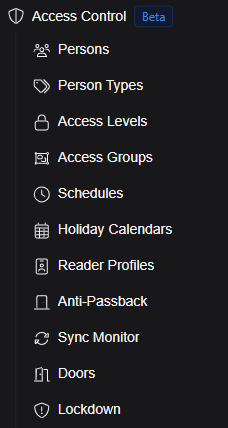
The direct route is /access-control-2/person-types.
The person type list
The screen shows a table with all existing types.
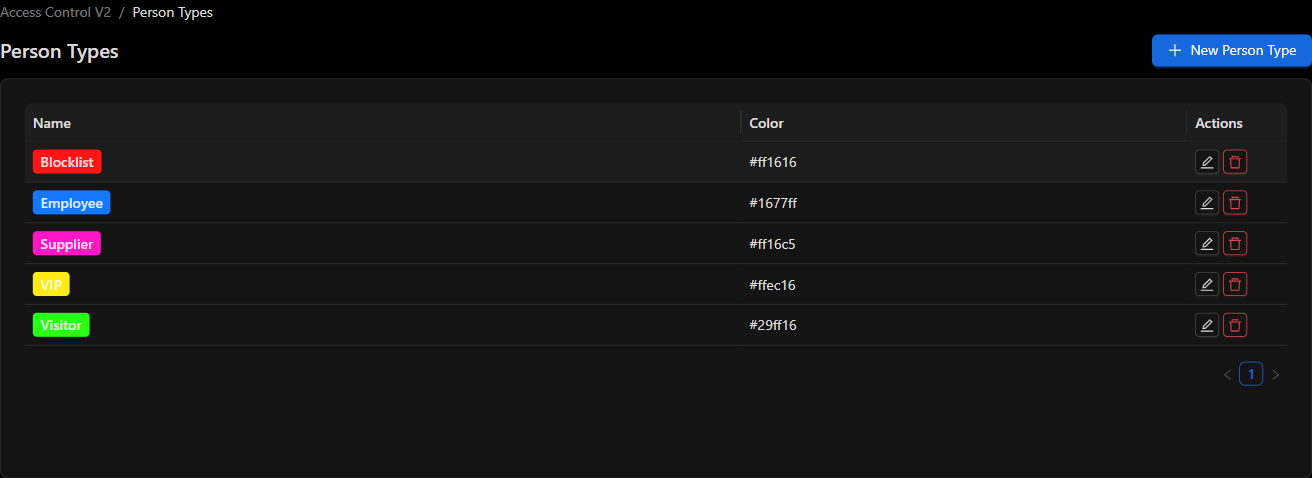
| Column | Content |
|---|---|
| Name | Name of the type, displayed as a label painted with its assigned color. |
| Color | Hexadecimal value of the color (for example #1677ff). |
| Actions | Buttons to edit (✏️) and delete (🗑️) the type. |
Types are sorted alphabetically by name and the listing is paginated.
Step 1: Create a person type
- Click the
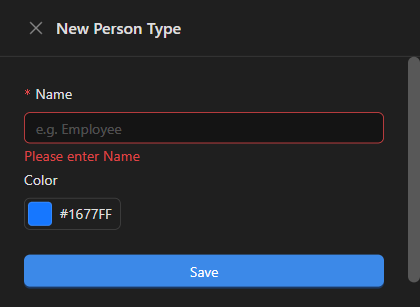
+ New Person Typebutton, in the upper right corner. - A side panel will open with the New Person Type form.
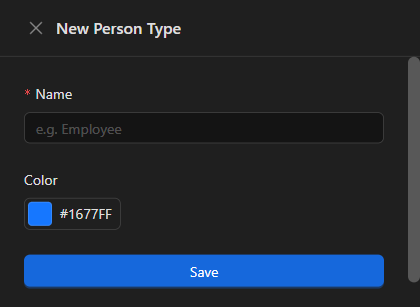
- Type the Name of the type (for example,
Contractor). - Choose the Color. Click on the color box to open the picker.
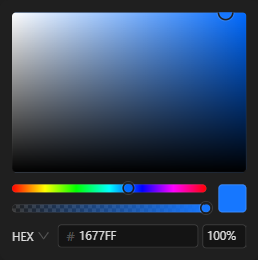
You can pick the shade with the gradient and the hue/opacity bars, or type the HEX value directly (for example 7C3AED). The default color is #1677FF.
- Click Save. The new type will appear immediately in the table, in its alphabetical position.
NOTE The Name field is required. If you try to save without filling it in, the form will show the message "Please enter Name" and will not submit the data.
Step 2: Edit a person type
- On the row of the type you want to modify, click the edit button (✏️) in the Actions column.
- The Edit Person Type panel will open with the current name and color preloaded.
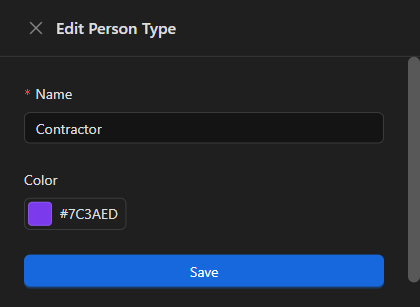
- Modify the Name, the Color, or both.
- Click Save to confirm the changes.
Color changes are reflected in every label of that type (for example, in the Type column of the Persons listing).
Step 3: Delete a person type
- On the corresponding row, click the delete button (🗑️).
- The confirmation message "Delete this person type?" will appear.
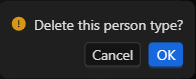
- Click OK to delete it or Cancel to cancel the operation.
NOTE Before deleting a type, check that no person is using it. Review the Persons listing filtering by that type and reassign the affected people.
Where person types are used
The types created on this screen feed the Persons module:
- They are assigned to each person and shown as a color label in the Type column of the listing.
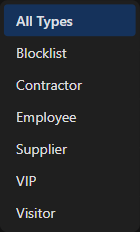
- They are available in the All Types dropdown filter, which narrows the listing to a single type.
- They can also be used when importing people from a CSV file. See the guide to importing people from a CSV file.
Best practices
- Use short, descriptive names. The label is displayed inside a table, so long names reduce readability.
- Assign colors with contrast. Choose shades that are clearly distinguishable from each other so an operator can identify the type at a glance, without reading the text.
- Reserve alert colors. It is advisable to use red only for risk types, such as
Blocklist, and leave the rest of the palette for operational types. - Keep the catalog small. A limited number of types (employee, visitor, supplier, contractor) is usually enough; fine granularity belongs to Access Levels.