Documentation: Dispatch Event Node
Overview
The Dispatch Event Node is an action node that generates and registers a custom event within the Netsocs Synergy platform. The dispatched event is recorded in the Events / Logs module, associated with one or more objects, and can include images, video clips, and additional metadata.
This node is fundamental for building chained flows and custom business logic in IoT environments: it allows creating synthetic events (for example, "Temperature threshold exceeded" or "Anomaly detected by AI") that can then be viewed by operators, used as evidence, or trigger other automations that listen for that event type via the Event trigger node.
When to use this node?
Use this node when you need to:
- Generate a custom event based on a condition calculated in the flow (for example, dispatch a "Temperature Alert" event when multiple sensors exceed a threshold).
- Chain automations: dispatch an event that serves as a trigger for another flow (producer/consumer event pattern).
- Record evidence associated with objects, attaching images (snapshots) or video clips to the event.
- Enrich the event log with custom metadata (
event_additional_properties) for reports or auditing.
Node Configuration
The node has two configuration tabs at the top: Form and JSON Editor.
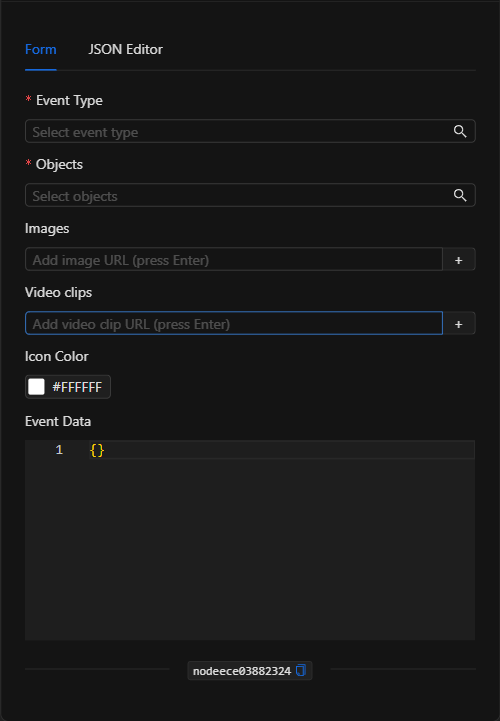
Form View
1. Event Type *Required
Defines what type of event will be dispatched. Click the field to open the Select Event Type modal, which shows a tree with all platform domains and their available event types (for example, Alarm, Malfunction, Security, etc.).
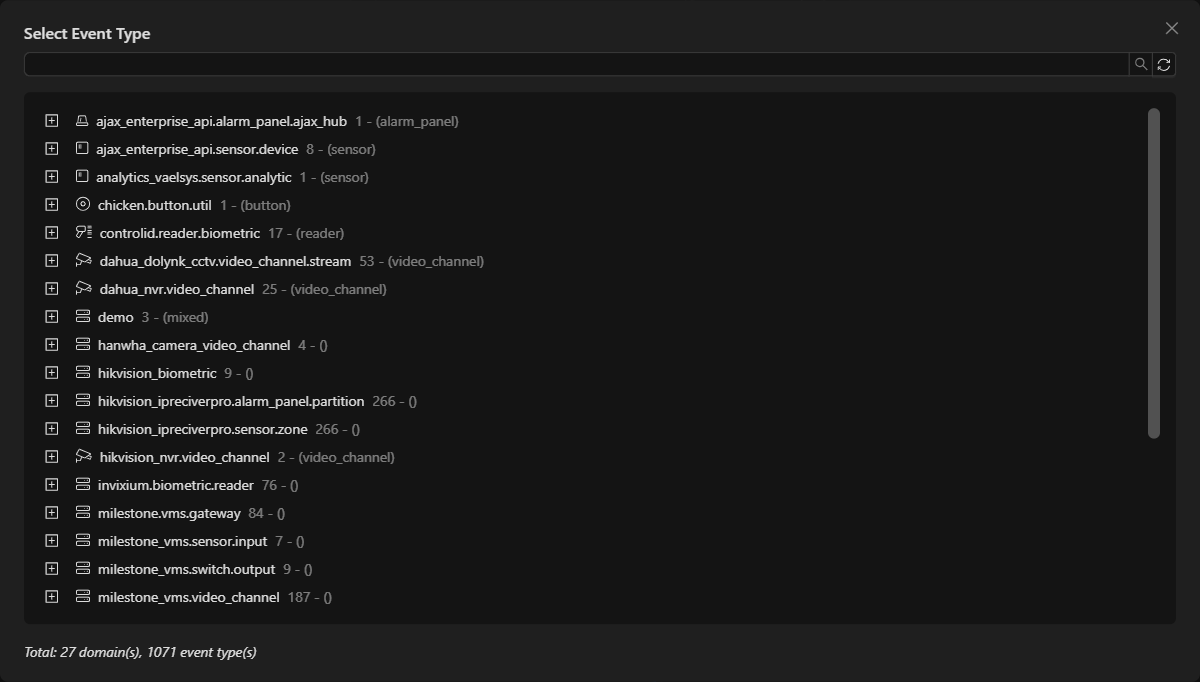
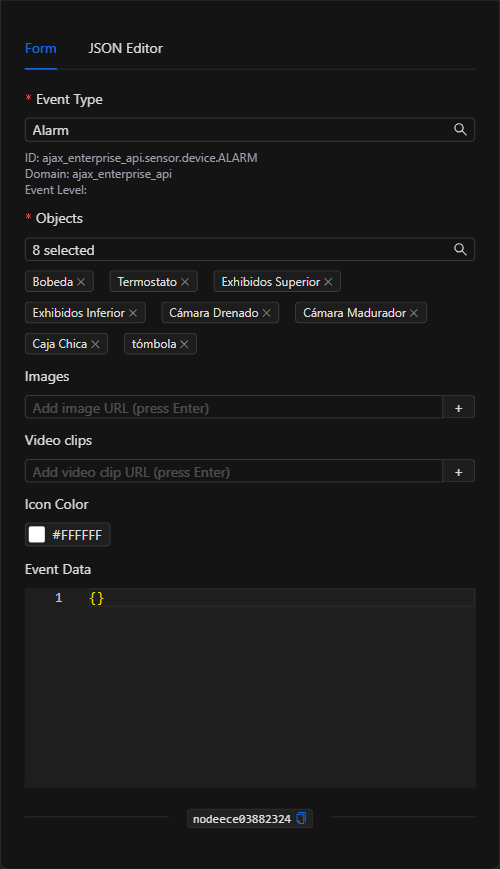
When a type is selected, the form displays its ID, domain, and event level below the field.
2. Objects *Required
Defines the objects to which the event will be related (rels field). Click the field to open the Select Objects modal and check one or more objects (sensors, cameras, panels, etc.). Selected objects are displayed as tags that you can remove individually.
3. Images *Optional
List of image URLs you want to attach to the event (for example, the URL of a snapshot obtained with the Get Snapshot node). Type the URL and press Enter (or the + button) to add it.
4. Video Clips *Optional
List of video clip URLs associated with the event. Works the same as the images field.
5. Icon Color *Optional
Color selector (hexadecimal) that defines the color with which the event's icon will be displayed in the interface. It is stored internally within event_additional_properties.icon_color.
6. Event Data *Optional
JSON code editor where you can define arbitrary additional properties for the event (event_additional_properties). Useful for including telemetry or context (for example, { "temperature": 12, "threshold": 8 }).
JSON Editor View
In the JSON Editor tab you can view and directly edit the full structure of the event to be dispatched:
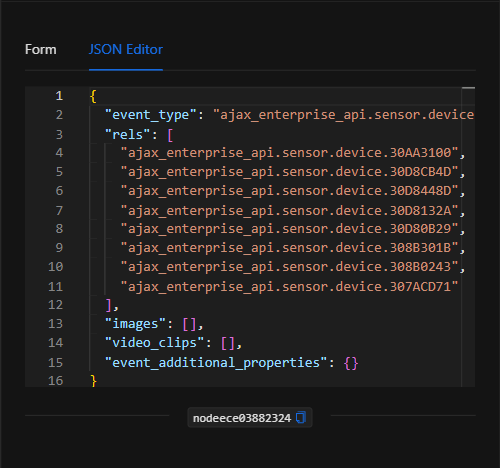
JSON Structure (Input Parameters)
Below is the JSON structure generated when configuring the node:
{
  "event_type": "ajax_enterprise_api.sensor.device.ALARM",
  "rels": [
    "ajax_enterprise_api.sensor.device.30AA3100",
    "ajax_enterprise_api.sensor.device.30D8CB4D"
  ],
  "images": [],
  "video_clips": [],
  "event_additional_properties": {}
}
JSON Fields
| Field | Type | Description |
|---|---|---|
event_type |
string | ID of the event type to dispatch (e.g., ajax_enterprise_api.sensor.device.ALARM). |
rels |
array (string) | List of IDs of the objects related to the event (relations). Required. |
images |
array (string) | List of URLs of images attached to the event. |
video_clips |
array (string) | List of URLs of video clips attached to the event. |
event_additional_properties |
object | Object with custom event metadata. Can include icon_color (hex color of the icon) and any other free-form property. |
Output: Where the node's data comes from
The Dispatch Event Node's primary effect is registering the event in the platform's Events / Logs module. Once executed successfully (green border), the new event becomes available to:
- Be viewed in the Events / Logs module, in Dashboards, or in Synoptics.
- Trigger other automations that use the Event trigger node configured for that
event_type.
TIP: This node is the counterpart of the Event trigger node. You can use it to build decoupled automation architectures: a "producer" automation dispatches the event and one or more "consumer" automations react to it.
Usage Examples
Example 1: Synthetic temperature alert event in a cold storage room
Use case: In a refrigerated warehouse with multiple sensors, when the flow's logic detects that the temperature exceeded the safe threshold, an alarm event is dispatched associated with the affected sensors, attaching a snapshot and reading metadata.
- Event Type:
Alarm(from the sensor's domain). - Objects (rels): Sensors of the cold storage room (Vault, Thermostat, etc.).
- Images: URL of the snapshot obtained by a prior Get Snapshot node (
{{get_snapshot_node.url}}). - Event Data:
{ "temperature": 12, "threshold": 8 }.
Configuration JSON:
{
  "event_type": "ajax_enterprise_api.sensor.device.ALARM",
  "rels": [
    "ajax_enterprise_api.sensor.device.30AA3100"
  ],
  "images": [
    "https://demo02.netsocs.com/api/netsocs/dh/public/snapshot.jpg"
  ],
  "video_clips": [],
  "event_additional_properties": {
    "temperature": 12,
    "threshold": 8,
    "icon_color": "#ff0000"
  }
}
Example 2: Chaining automations via an event
Use case: An AI analysis automation detects an anomaly and dispatches a custom event. A second automation, triggered by the Event node for that type, handles notifying personnel and arming the alarm.
- Event Type: An event type that the second automation listens for.
- Objects (rels): The object on which the anomaly was detected.
Configuration JSON:
{
  "event_type": "netsocs.analitics.ANOMALY_DETECTED",
  "rels": [
    "onvif_standard.video_channel.28.VideoSourceToken-0"
  ],
  "images": [],
  "video_clips": [],
  "event_additional_properties": {
    "confidence": 0.92,
    "icon_color": "#ffae00"
  }
}
Validation and Errors
| Condition / Common cause / fix |
| :--- | :--- |
| event_type missing | Select an event type in the Select Event Type modal. It is required. |
| rels empty | Select at least one related object in the Select Objects modal. It is required. |
| event_additional_properties invalid | If you edit the Event Data field manually, make sure it is valid JSON. |
| The event does not trigger another automation | Verify that the consumer automation uses the Event node configured with exactly the same event_type. |
Best Practices
- Consistency between event_type and objects: Ensure that the event type and related objects belong to coherent domains so the event is interpretable across the platform's modules.
- Attach evidence: Combine this node with Get Snapshot or Image Sequence to attach real images from the moment of the event.
- Use metadata: Take advantage of
event_additional_propertiesto include context (thresholds, readings, confidence levels) that enriches the log and reports. - Decoupled design: Use the producer/consumer pattern (Dispatch Event → Event trigger) to keep your automations modular and reusable.