Sounds and events
In a monitoring center the operator cannot watch the screen 100% of the shift. That is why the platform alerts with audio: when an important event comes in, it makes a sound. And while it sounds, someone has to deal with it.
This chapter explains where that sound comes from, how it is configured and — above all — what it means when it sounds and what it means when it stops.
The basic rule: the sound lives in the event type
Audio is not configured on the dashboard or on the log widget. It is configured on the event type.
That has a direct consequence: if you attach a sound to Person Detection, every person detection will sound, no matter which camera it comes from, and at every station that has the log open. The sound is a property of the alert type, not of a camera or a dashboard.
Where it is configured
In the sidebar, go to Settings → Objects → Events. That is the catalog of every event type the installation knows about:
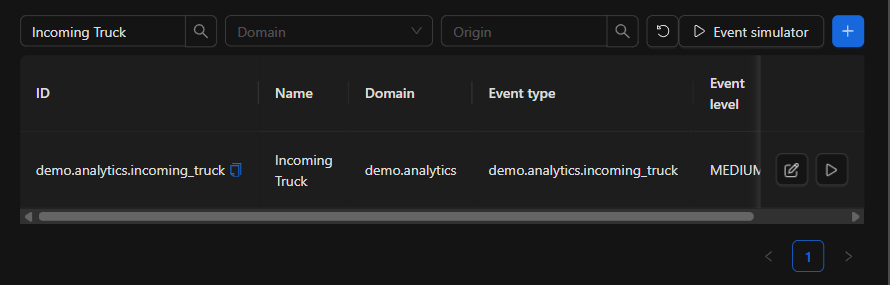
You can search by name and filter by Domain and Origin. Each row has two buttons on the right: edit (pencil) and simulate (▷).
Opening the pencil brings up the event type record:
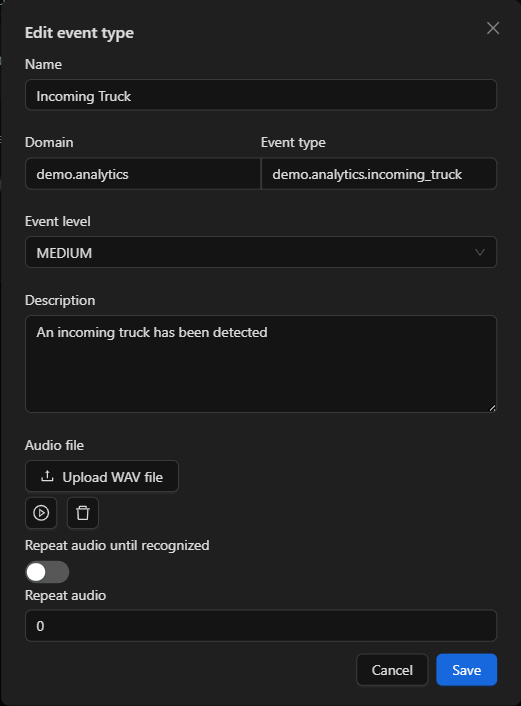
The part that matters here is Audio file and the two controls below it.
Uploading the sound
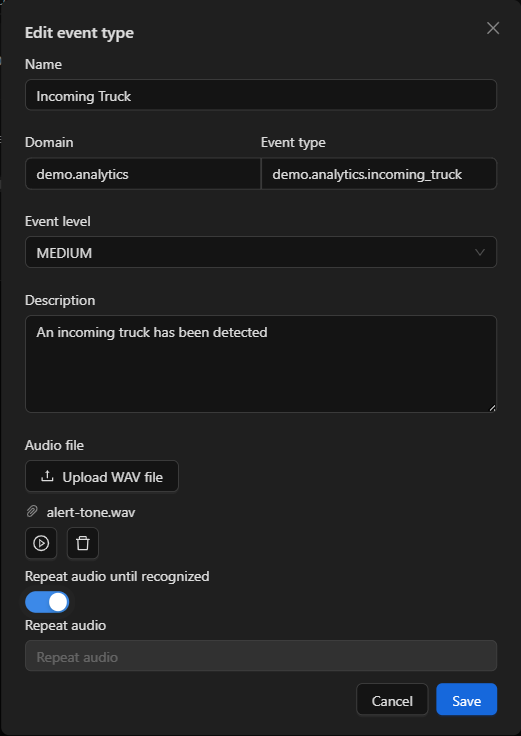
- Click Upload WAV file and choose the file.
- Once uploaded, the file name appears with two buttons: play (to listen to it right there, without waiting for an event) and delete.
- Click Save.
IMPORTANT: Only
.wavfiles are accepted. Any other format is rejected when you select it. Use a short, distinctive sound — one or two seconds: it will play many times per shift, and a long one overlaps with the next event.
How many times it sounds
Below the file there are two controls that define how insistent the alert is. They are mutually exclusive, and both stay disabled while no audio is loaded:
| Control | What it does | When to use it |
|---|---|---|
| Repeat audio | Plays the sound that many times and stops | Informational alerts: the operator finds out, but there is nothing to act on immediately |
| Repeat audio until recognized | Repeats the sound every 4 seconds until someone recognizes the event | Alarms that cannot be left unattended |
Turning on the indefinite repeat switch disables the numeric field: it is one or the other.
NOTE: This behavior is verified on the platform. With indefinite repeat enabled and an unrecognized event, the sound repeated every 4 seconds continuously until the event was handled.
What the operator sees and hears
When an event of a type with configured audio comes in, its row appears in the log and the file plays:

The colored dot on the left corresponds to the event level defined in its record, and lets you tell severity at a glance without reading the name.
There is only one correct way to silence the alarm: recognize the event in the Recognition column, choosing the appropriate state (In progress, Closed, False Alarm…). That does two things at once:
- It stops the sound from repeating.
- It records who handled the event and how, which is what later feeds the shift indicators.
TIP: At a station with several operators, silence is information: it means someone has already taken that event. So recognize as soon as you start working on it — with In progress — rather than at the end; that way the rest of the team knows it is covered.
An event that already has a recognition does not sound again, even if you keep the log open or reload the page.
Testing the sound without waiting for a real event
You do not have to wait for a camera to detect something to check that the alert works. In the event type catalog, the ▷ button on each row opens the Event simulator:
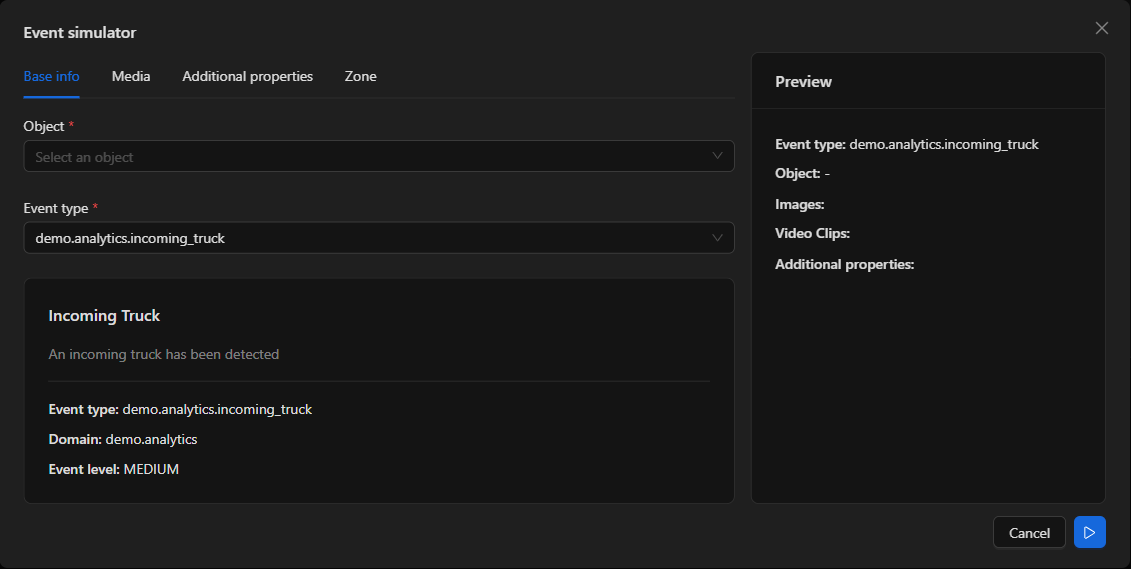
Choose the object the event will be associated with — it is required — review the preview on the right and send it with the blue button. The event enters the system like any other: it appears in the logs and triggers its sound. This is the recommended way to validate the audio configuration before a shift starts.
When nothing sounds
| Symptom | Usual cause |
|---|---|
| No event ever sounds | The event type has no audio file loaded |
| A type has audio configured but nothing is heard | The file no longer exists on the server: playback fails silently and only leaves an error in the browser console. Upload it again from the event type record and check it with the play button |
| It sounds at one station but not another | The sound is played by the browser that has the dashboard open: check the machine's volume and that the tab is not muted |
| The sound will not stop | The event is still unrecognized and the type is set to repeat until recognized |
| It sounds too often | There are too many types with audio, or the audio is longer than the interval between events. Reserve sound for what requires action |
IMPORTANT: The missing-file case is real and silent: the event type record still shows the audio as configured even when the file is gone from the server, and the operator gets no on-screen warning. If the sound stopped without anyone changing the configuration, that is the first thing to rule out using the play button on the record.
Previous: Filtering the event log · Next: Dashboard carousel