Handling an event end to end
The previous chapters explain each tool separately. This one puts them together into the complete procedure, as it happens at the station: from the alert sounding to the event being recorded as handled.
It is meant to be read before the shift — or printed and left in sight at the workstation — not consulted in the middle of an incident.
Step 1 · Hear it and locate it
The alert sounds and a new row appears in the log.
If the event flow is heavy, pause the log before trying to read anything: the table stops moving and the counter tells you how many events pile up while you work. Nothing is lost.
With the event in front of you, look at three things: what it is (event name), where it comes from (objects column) and when it happened (date and time).
Details in Filtering the event log and Sounds and events.
Step 2 · Identify what it is about
If the name and the object are not enough, open the event detail from the actions button on the row:
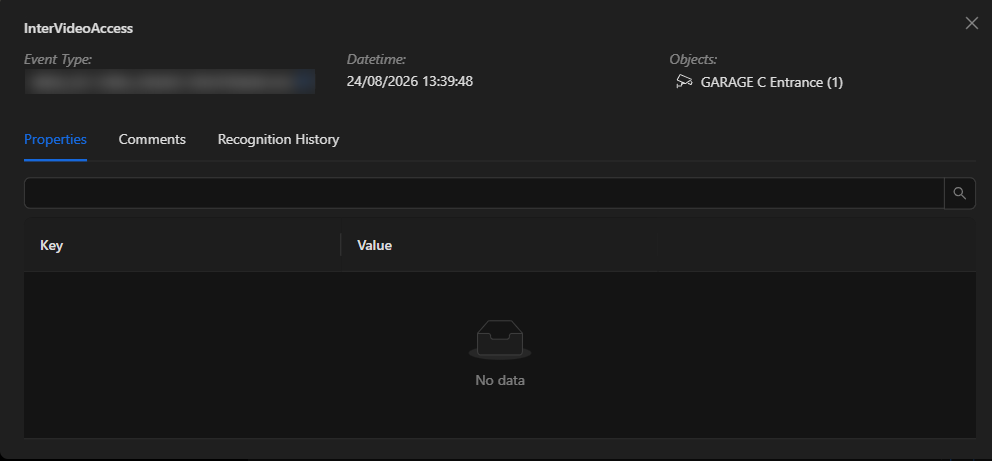
There you find the exact time, the related objects and three tabs:
- Properties: the data the device published along with the event — plate number, temperature, zone, whatever the alert type carries.
- Comments: the notes the team has left about this event.
- Recognition History: who handled it, when, and with which state.
The history tab answers the most frequent question during a shift handover: "has anyone looked at this already?".
Step 3 · See what is happening right now
Before reviewing the past, look at the present: drag the camera for that area from the tree into a free slot on the dashboard. If your station already has a layout with that camera, just look at it.
If the camera is motorized and you need to cover another angle, use the PTZ control over the image or its control window.
Details in Viewing live cameras.
Step 4 · Review the recording
What explains an event is almost never the exact instant, but the seconds before it.
- Click Playback.
- Adjust the timeline scale to close in on the period.
- Click a few seconds before the event time and play.
If the fragment has evidentiary value, mark it with right-click and drag, and download it. The file is produced as a job on the downloads page.
Details in Reviewing recorded video.
Step 5 · Recognize and close
This is the step most often forgotten and the only one that leaves a record.
In the Recognition column of the row, choose the appropriate state:
| State | When to use it |
|---|---|
| In progress | As soon as you start working on it. It tells the rest of the team it is taken |
| Closed | It was handled and needs no further action |
| False Alarm | It did not correspond to a real occurrence |
| Dismissed | It does not warrant attention |
| Follow up | It is left pending for the next shift or for another area |
Recognizing does three things at once: it silences the audible alarm, marks the event as handled for the rest of the team, and records who did it and when.
TIP: Recognize with In progress when you start, not when you finish. At a station with several operators, the state is the only signal that someone is already on that event; if you wait until the end, two people work the same event and a third assumes nobody did.
If the event needs context — what was done, who was notified — write it in the Comments tab. That is what whoever reviews the incident next week is going to read.
Summary for the station
| # | Action | Where |
|---|---|---|
| 1 | Pause the log so you can read | Pause live events button |
| 2 | Read what, where from and when | The event row |
| 3 | Open the detail if you need it | The row's actions button |
| 4 | Watch the camera live | Drag from the tree, or the station's layout |
| 5 | Review the preceding seconds | Playback mode |
| 6 | Download the clip if it has to be documented | Right-click and drag on the timeline |
| 7 | Recognize the event | Recognition column |
| 8 | Leave a note if it adds context | Comments tab |
| 9 | Resume the log | Resume live events button |
Common mistakes
| Mistake | Why it is a problem |
|---|---|
| Using Clear Events to "clean up" what was handled | It only empties the table on screen; the event is still unrecognized and, for the rest of the team, still pending |
| Recognizing in bulk at the end of the shift | The real response time is lost and, meanwhile, nobody knows what is taken |
| Muting the machine instead of recognizing | The alarm goes quiet, but the event stays unattended and unrecorded |
| Investigating without pausing the log | The row scrolls out of sight and you start over |
| Leaving the camera in HD on every panel | It eats the bandwidth of the whole wall; raise it only on the one you are investigating |
Previous: Reviewing recorded video · Back to the manual index