Documentation: Analyze Image with AI Node
Overview
The Analyze Image with AI Node is a universal action node for AI-powered image analysis. Unlike provider-specific nodes (GPT, Claude, Gemini, etc.), this node lets you choose from multiple models and providers from a single point, using a searchable model selector (OpenRouter-style), and offers advanced controls such as temperature, maximum tokens, and a structured output schema (JSON).
In IoT and security environments, this is the most flexible option for analyzing camera images with AI, allowing you to switch models without changing nodes and enforcing structured outputs for easy integration into flow logic.
When to use this node?
Use this node when you need to:
- Analyze images with AI while being able to choose the model/provider flexibly.
- Obtain a structured output (JSON) defined by a schema, for processing in downstream nodes.
- Adjust advanced parameters (temperature, maximum tokens) depending on the use case.
- Centralize image analysis without being tied to a single provider.
Node Configuration
The form is organized into three selectable sections: Model, Prompt, and Advanced. It also includes the JSON Editor tab.
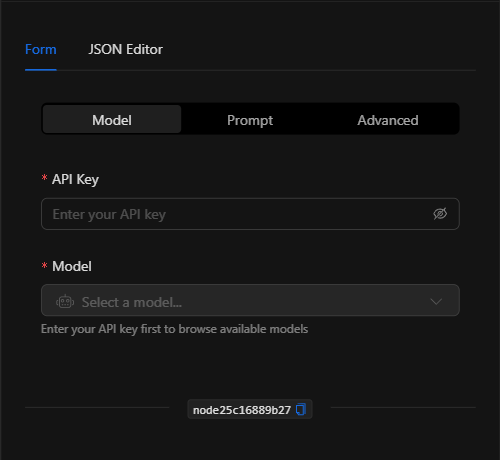
Section: Model
1. API Key *Required
The provider's API key (protected field). Once entered, it enables the model browser.
2. Model *Required
A searchable model selector (Select a model...) that lets you browse available models by name or provider. Each model is identified by an ID in the format provider/model (e.g., openai/gpt-4o).
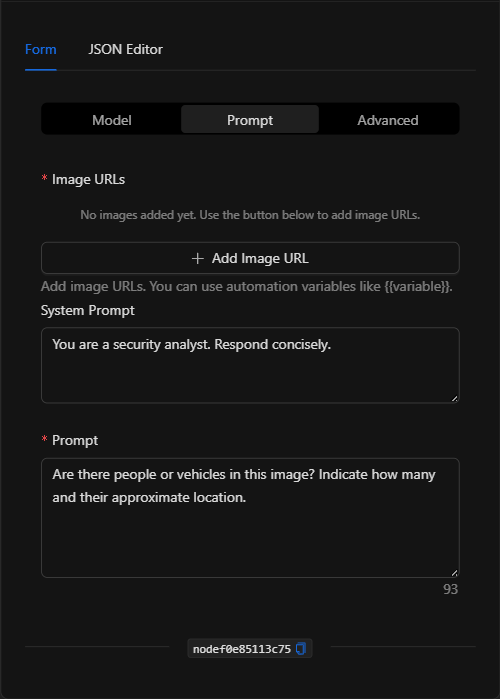
Section: Prompt
3. Image URLs *Required
List of URLs of the images to analyze. Supports automation variables such as {{get_snapshot_node.url}}.
4. System Prompt *Optional
System instructions for the model (defines role/behavior, e.g., "You are a security analyst. Respond concisely.").
5. Prompt *Required
The specific instruction or question about the image.
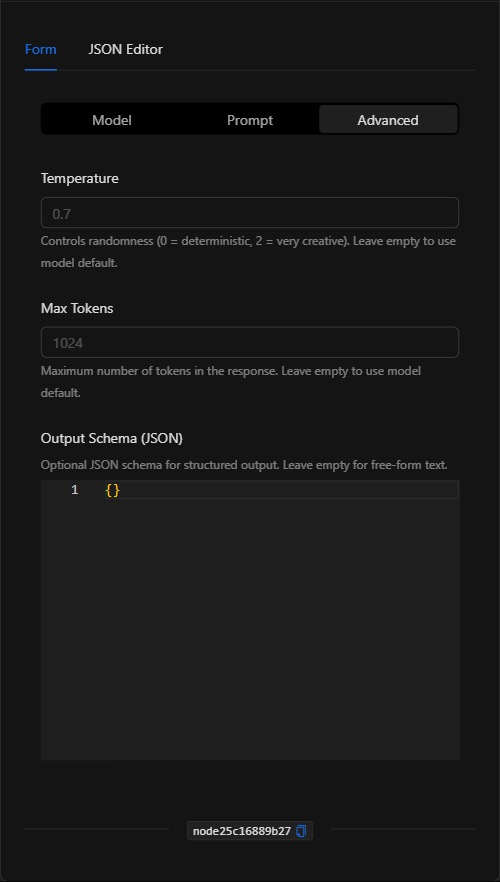
Section: Advanced
- Temperature: Controls the creativity/randomness of the response (0 to 2; default ~
0.7). - Max Tokens: Maximum token limit for the response.
- Output Schema (JSON): Defines a JSON schema to enforce a structured output, ideal for programmatically processing the result.
JSON Editor View
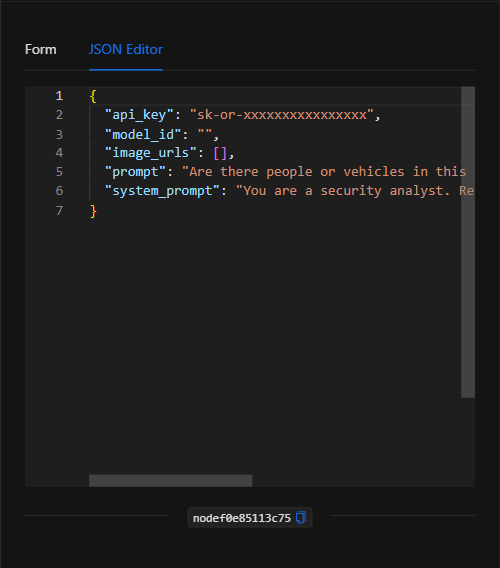
JSON Structure (Input Parameters)
{
  "api_key": "sk-or-xxxxxxxxxxxxxxxx",
  "model_id": "openai/gpt-4o",
  "image_urls": [
    "{{get_snapshot_node.url}}"
  ],
  "prompt": "Are there people or vehicles in this image? Indicate how many and their approximate location.",
  "system_prompt": "You are a security analyst. Respond concisely."
}
JSON Fields
| Field | Type | Description |
|---|---|---|
api_key |
string | Provider API key. |
model_id |
string | Model ID (provider/model, e.g. openai/gpt-4o). |
image_urls |
array (string) | URLs of the images to analyze. |
prompt |
string | The instruction/question about the image. |
system_prompt |
string | (Optional) System instructions. |
temperature |
number | (Optional, Advanced) Response creativity (0–2). |
max_tokens |
number | (Optional, Advanced) Response token limit. |
output_schema |
object | (Optional, Advanced) JSON schema to enforce structured output. |
Output: Where the node's data comes from
The analysis result is available in the node's output and can be used in downstream nodes with {{node_key}}. If an Output Schema was defined, the output will follow that JSON structure, making it easy to use in conditions and other actions.
Usage Examples
Example 1: Alarm verification with structured output
Use case: Analyze a camera snapshot and obtain a JSON with { personas: n, vehiculos: n, sospechoso: bool } to decide whether to escalate the alarm.
- Model:
openai/gpt-4o(or another of your choice) - Image URLs:
{{get_snapshot_node.url}} - System Prompt:
You are a security analyst. Respond concisely. - Prompt:
Are there people or vehicles in this image? Indicate how many and their approximate location. - Output Schema: a JSON schema with the desired fields.
(see JSON structure above)
Validation and Errors
| Condition | Common cause / fix |
|---|---|
| Cannot browse models | Enter a valid API Key first to enable the model browser. |
| Authentication error | The API Key is invalid or lacks balance/permissions for the chosen model. |
| URLs not working | Make sure the image URLs are publicly accessible. |
| Output is not JSON | Define an Output Schema and/or instruct the model in the prompt to respond in JSON. |
Best Practices
- Enforce structured output: Use Output Schema when you plan to process the result in conditions or downstream actions.
- Choose the model for the task: Powerful models for complex analysis; lighter ones for simple tasks and lower cost.
- Clear System Prompt: Define the model's role to get consistent responses.
- Chain with snapshot capture: Typical pattern: Get snapshot → Analyze Image with AI → condition/notification.