Pause events
Pause events lets you stop seeing, or discard, the alerts of one or more cameras, or of an event type, for a while. When the time is up, the alerts come back on their own. It is meant for planned moments that trigger alerts for no reason, such as a merchandise delivery in the middle of the night.
Hide or discard
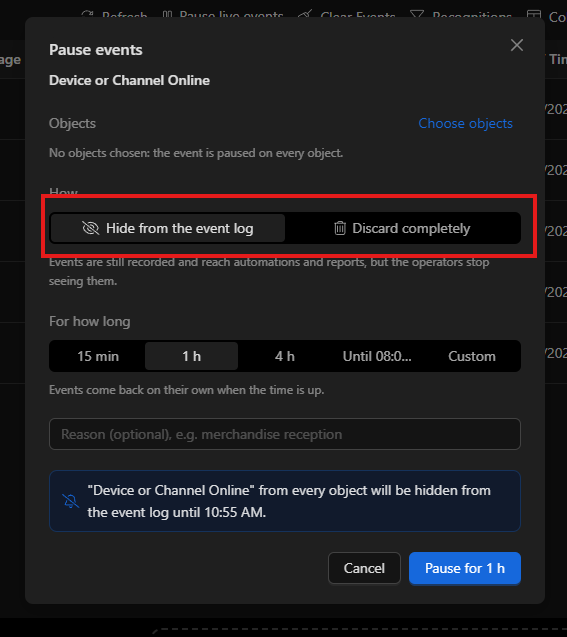
Every pause uses one of two modes:
| Mode | What happens to the event | Operators see it | Reaches automations and reports | Is recorded |
|---|---|---|---|---|
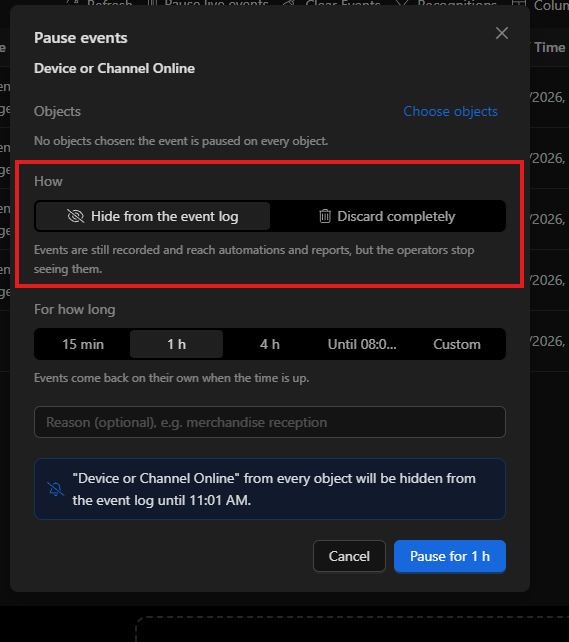
| Hide from the event log (default) | It is stored, but hidden | No | Yes | Yes |
| Discard completely | It is dropped as it arrives | No | No | No |
- Use Hide if you want a record of what happened, or if an automation depends on those events.
- Use Discard only if the events are of no use while the pause lasts. In this mode the confirm button turns red.
Who can pause
Pausing requires the Pause events permission, found under Administration → Policies → Event log → Events.
- The system-operator role already has it. Other roles must be granted it.
- Without the permission, "Pause events..." does not show in the menus. The Paused events center can still be opened, but read-only.
- The permission also controls the usual permanent bypass, set in the Bypass tab of the event type.
Pause from an alert
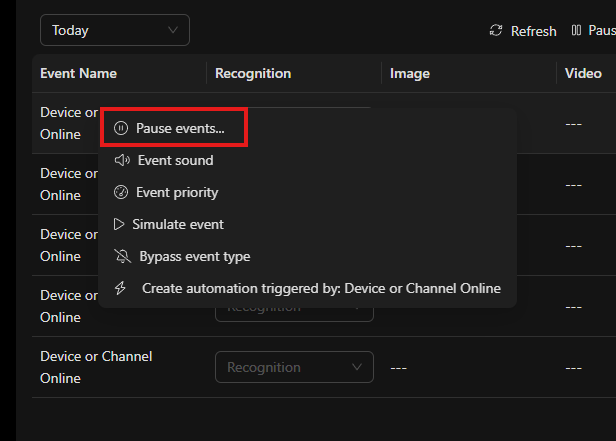
- In the event log, right-click the event name. You can also right-click a camera or object: in the object tree, on a synoptic or on the video.
- Choose Pause events.... It is the first option of the menu.
- In the dialog that opens, review or change:
- Objects: which cameras are paused. The next section explains it. (red box)
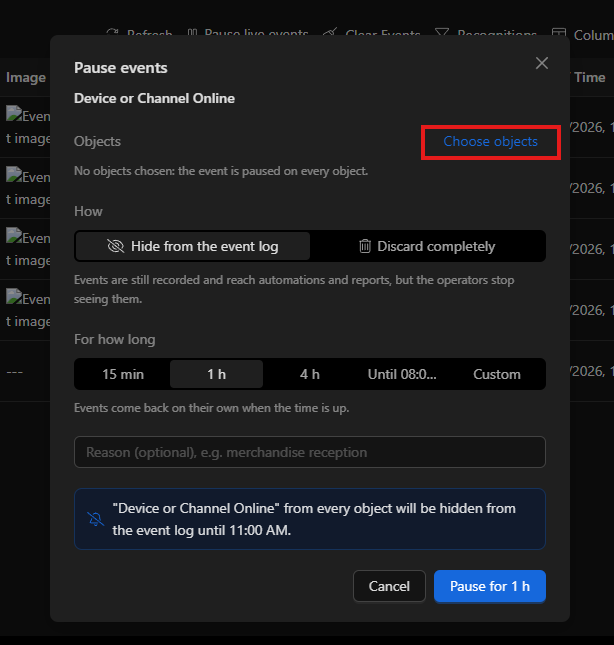
- What to pause: only this event, or every event of those cameras.
- How: Hide or Discard.
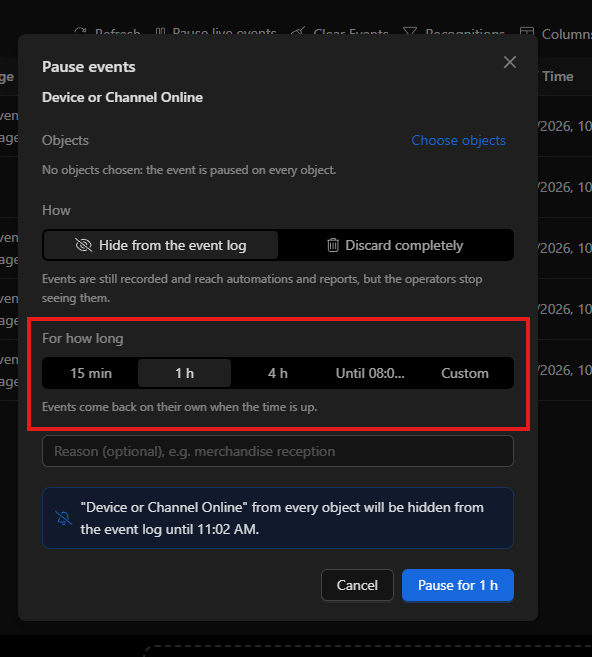
- For how long.
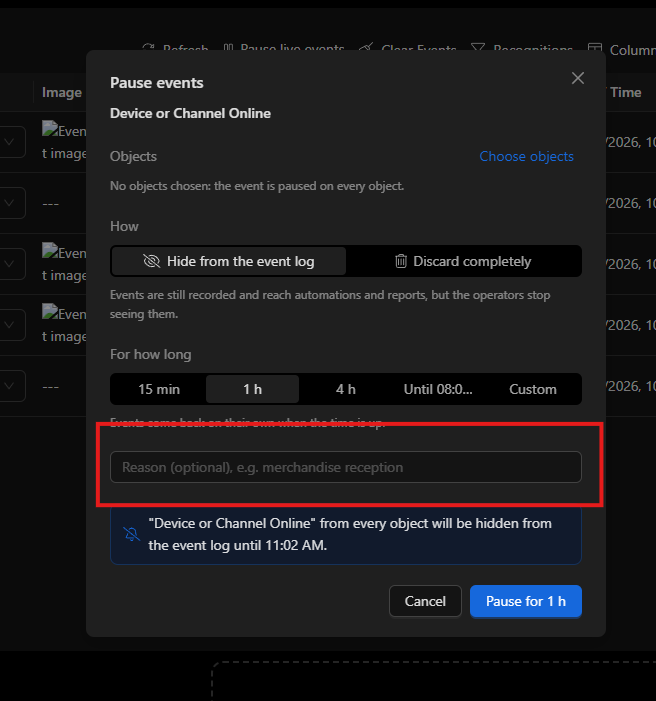
- Reason (optional), for example "Merchandise delivery".
- Read the summary sentence: it says exactly what is paused and until when. For example: "Motion" from Dock camera and Storage camera will be hidden from the event log until 08:00.
- Click the confirm button. Its text says what will happen: Pause for 1 h or Pause until 08:00.
One camera, several or all
The dialog starts with the cameras of the alert or object you clicked, but they can be changed:
- Add cameras: click Add or remove objects and check the ones to add in the tree. Click Done to close the tree.
- Remove a camera: click the x on its tag.
- Remove them all: if the pause was opened from an event, the event is paused on every object. The dialog says so.
- Start from scratch: from the Paused events center, with the Pause events... button. The dialog opens on the object tree so you can pick the cameras.
When opened from an event, you also choose what to pause:
| Option | What is paused | Example |
|---|---|---|
| Only this event, on these objects (default) | Only that event type, only on the chosen cameras. Their other events keep arriving. | Pause "Motion" on the dock camera, but keep receiving "Tampering". |
| Every event of these objects | Everything those cameras generate, as if they were switched off. | Pause the dock camera entirely. |
| This event, on every object | That event type on any camera. | Pause "Motion" in the whole store. |
When opened from a camera, every event of the chosen cameras is always paused.
Adding or removing cameras keeps the "what to pause" option you already chose.
How long it lasts
| Option | Lasts |
|---|---|
| 15 min, 1 h, 4 h | That long, counted from when you confirm. |
| Until 08:00 | Until the next time the clock shows 08:00. Confirmed at 03:00, it ends at 08:00 the same day; confirmed at 09:00, at 08:00 the next day. |
| Custom | The amount you choose, in seconds, minutes or hours. |
- The maximum is 30 days. Beyond that, the dialog says so and does not let you confirm.
- When the time is up, the events come back on their own. Nothing needs to be done.
Undo
After you confirm, the Events paused notice appears with an Undo button, available for 10 seconds. If you use it, the pause ends at once.
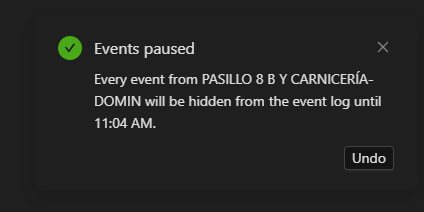
After those 10 seconds, use Resume now in the Paused events center.
Paused events center
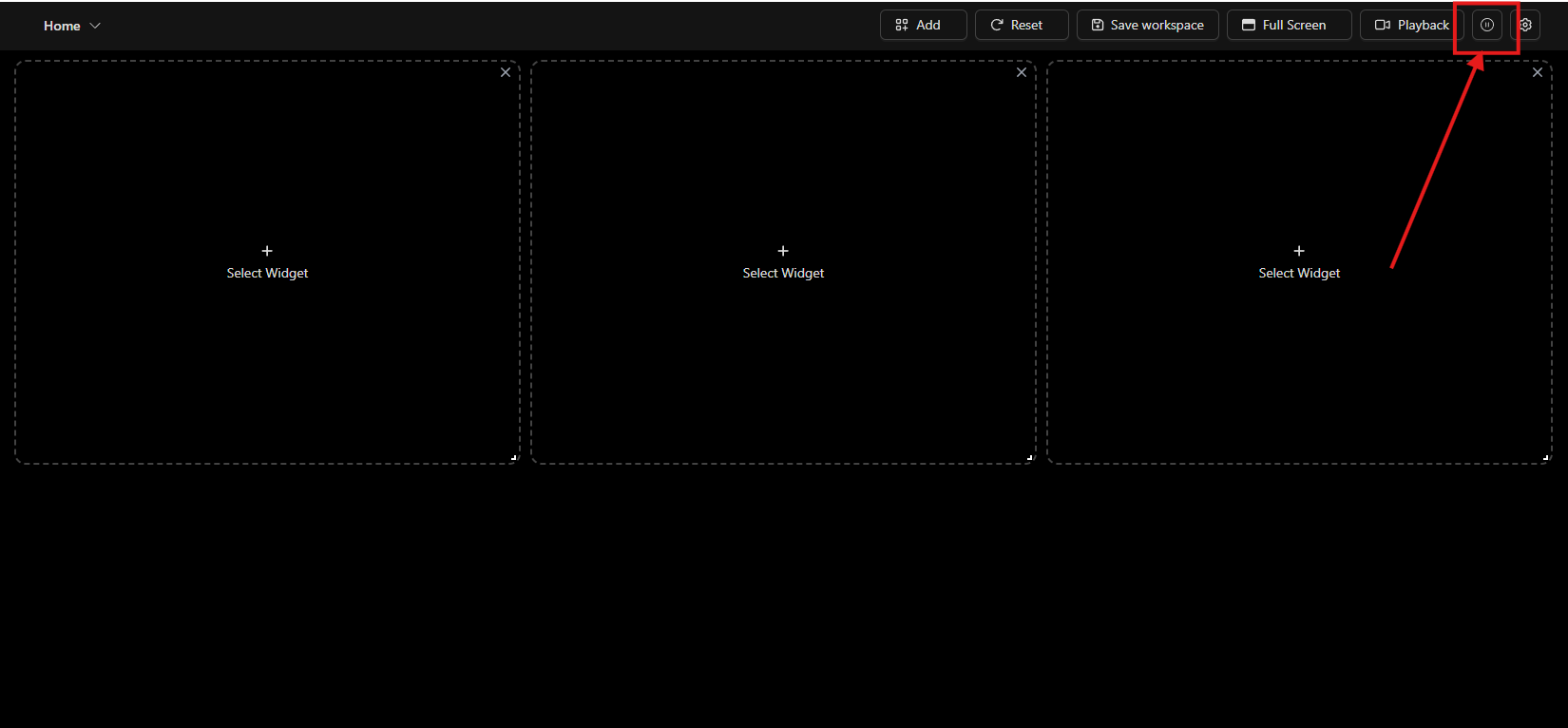
To open it, click the pause icon button in the dashboard's top bar. The number on the button is how many pauses are running. It also opens when you click any pause badge.
Tabs:
- Active: the pauses running now.
- Scheduled: the ones that have not started yet.
- History: the ones that ended, with who resumed them and when.
Views:
- By object: one list per camera, with its paused events.
- By event: one list per event type, with the cameras where it is paused.
In both views, what applies to "every object" or "every event" comes first, because it is the widest pause.
Each pause shows:
- what is paused;
- whether it is Hidden or Discarded;
- the time left, with a bar that empties and turns yellow when little is left;
- who paused it and why.
Actions:
| Button | What it does |
|---|---|
| +15 min / +1 h | Extends the pause. |
| Resume now | Ends the pause at once. It stays in the History. |
| Cancel (in Scheduled) | Cancels a pause that has not started yet. |
| Resume selected (n) | Check several pauses with their box and resume them together. |
| Resume all | Resumes every pause of the tab. Asks for confirmation. |
| Pause events... | Creates a new pause, picking the cameras from scratch. |
If there are permanent pauses, a yellow notice at the top says how many: those events do not come back on their own.
Badges and notices
Badges: a small pause icon marks what is paused. Hovering it shows until when the pause lasts; clicking it opens the center. It appears:
- next to the event name, in the event log;
- in the event type tree;
- in the object tree, next to each paused camera.
Expiry notices: sent to users with the Pause events permission.
- 5 minutes before the end: "Events resume in 5 minutes", with the buttons View (opens the center) and Extend 1 h.
- At the end: "Events resumed".
- Pauses of 10 minutes or less only notify at the end.
Permanent bypass
In the event type settings (right-click the event → Bypass event type, or the Bypass tab):
- Top, Temporary pauses: the running pauses of that event, with their time left, and the Pause for a while... button.
- Bottom, Permanent bypass: the usual mode. It applies to every object and never ends on its own: it stays until someone changes it back.
Use the permanent bypass only for events you never care about. For everything else, prefer a pause with a time limit.
Example: night merchandise delivery
In a store, the truck arrives between 04:00 and 06:00, and the dock camera analytics raise "Intrusion" alerts all the time.
- At 04:00 the first alert arrives. Right-click "Intrusion" → Pause events...
- Objects: Dock camera is already there. Add or remove objects adds Storage camera.
- What to pause: Only this event, on these objects.
- How: Hide from the event log, so there is a record.
- For how long: Until 08:00.
- Reason: "Merchandise delivery".
- Confirm with Pause until 08:00.
If the truck finishes early, resume from the center with Resume now. If it runs late, the notice arrives at 07:55 and the pause can be extended by 1 h from there.
FAQ
Are paused events lost? With Hide, no: they are recorded and reach automations and reports. With Discard, yes: nothing is recorded.
I paused with Hide and the automation still sent the alert. That is expected: Hide only hides the events from the operators. If the alerts come from an automation, use Discard while the pause lasts.
Do other operators see my pauses? Yes. Everyone sees the same pauses in the center, with who created them and why. Every change is audited.
What if two pauses overlap? The event is paused if either covers it. If one hides and the other discards, Discard wins.
I closed the notice and could not undo. Find the pause in the center and use Resume now.
I made changes in the center and another screen does not show them. Other screens refresh every 30 seconds.
I do not see "Pause events...". You lack the Pause events permission. Ask an administrator for it.