Documentation: Generate Image with AI Node
Overview
The Generate Image with AI Node is a node from the AI Models family that creates an image from a text description (prompt) using an image-generation model via OpenRouter. The node's output is a URL where the generated image can be viewed, ready to be used in subsequent nodes.
In IoT and industrial environments it is useful for automatically generating visual material: illustrations for incident reports, signage or warning graphics, or supporting images for notifications, without depending on a designer.
When to use this node?
Use this node when you need to:
- Generate a descriptive or illustrative image from text within a flow.
- Create supporting visual material for reports, notifications, or dashboards.
- Produce signage or graphics dynamically based on the context of an event.
Node Configuration
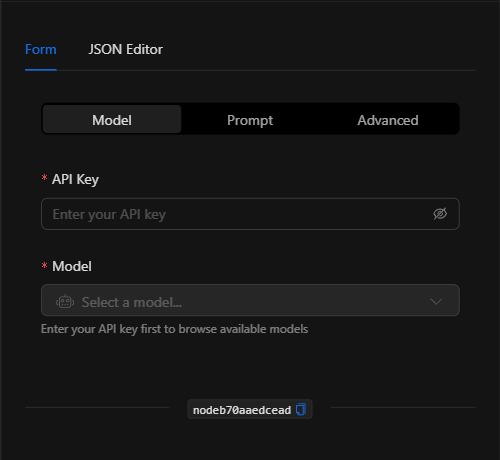
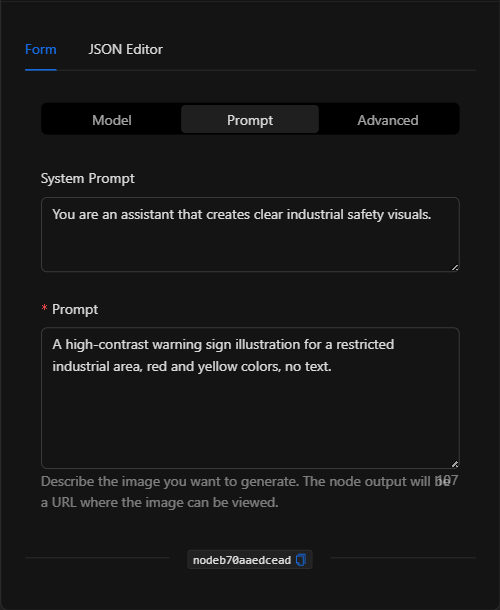
The form is organized into three selectable sections: Model, Prompt, and Advanced. It also has the JSON Editor tab.
Section: Model
1. API Key *Required
The OpenRouter credential that authenticates calls to the model. It is managed in a centralized and secure way (the key is not written in the node, but referenced from the selected credential).
2. Model *Required
The image-generation model to use. Clicking the selector opens a search panel with available models (filtered to those that produce images), along with their provider, context, and price.
Section: Prompt
1. System Prompt
Optional system instructions for the model (define the role or general style).
2. Prompt *Required
The description of the image to be generated. The more specific, the better the result. The node's output will be a URL where the image can be viewed.
Section: Advanced
- Temperature: controls creative variance (0 = deterministic, 2 = very creative). Leave empty to use the default value.
- Max Tokens: maximum token budget for the model's response. Leave empty to use the default value.
JSON Editor View
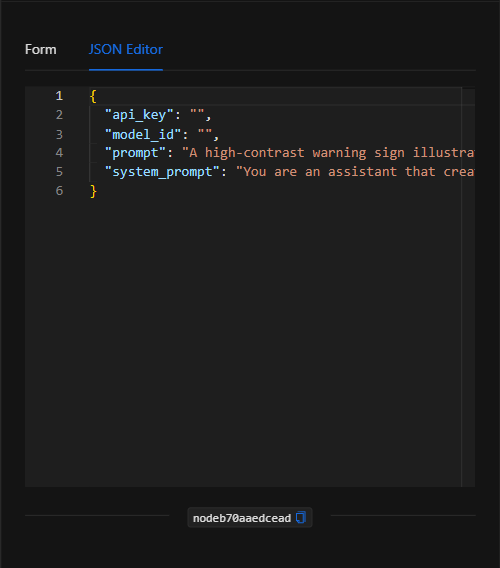
JSON Structure (Input Parameters)
{
  "api_key": "",
  "model_id": "",
  "prompt": "A high-contrast warning sign illustration for a restricted industrial area, red and yellow colors, no text.",
  "system_prompt": "You are an assistant that creates clear industrial safety visuals."
}
JSON Fields
| Field | Type | Description |
|---|---|---|
api_key |
string | Reference to the OpenRouter credential (managed securely). |
model_id |
string | ID of the selected image-generation model. |
prompt |
string | Description of the image to generate. |
system_prompt |
string | (Optional) System instructions for the model. |
temperature |
number | (Advanced) Creative variance (0–2). |
max_tokens |
number | (Advanced) Maximum token budget. |
Output: Where the node's data comes from
The node returns a URL where the generated image can be viewed. This output can be used in subsequent nodes with {{node_key}} (for example, to attach it to an email, display it in a notification, or save it).
Usage Examples
Example 1: Generate a warning sign for a restricted area
Use case: When unauthorized access is detected, a warning sign illustration is generated to include in the incident report or notification.
- Prompt:
A high-contrast warning sign illustration for a restricted industrial area, red and yellow colors, no text. - System Prompt:
You are an assistant that creates clear industrial safety visuals.
(see JSON structure above)
Example 2: Supporting image for a report
Use case: Generate an illustrative image of the type of equipment involved in an incident to enrich an automatic report.
- Prompt:
A clean technical illustration of an industrial water pump, isometric view, neutral background.
Validation and Errors
| Condition | Common cause / fix |
|---|---|
api_key is required |
The OpenRouter credential was not selected. Select or create a valid credential. |
| Image is not generated | Verify that the selected model supports image generation and that the credential has balance/permissions. |
| Unexpected result | Refine the prompt with more detail (style, colors, composition). |
Best Practices
- Use centralized credentials: do not write the API Key in the node; select an OpenRouter credential managed securely.
- Specific prompts: describe style, colors, and composition to obtain consistent results.
- Choose the right model: compare context and price in the model selector according to your needs.
- Reuse the output URL: chain the output with notifications, emails, or reports to make use of the generated image.