Documentation: Compare Images with AI Node
Overview
The Compare Images with AI Node is an action node that uses artificial intelligence to compare a set of reference images against a set of current images and determine whether there are matches, changes, or relevant differences. Like the Analyze Image with AI node, it allows you to choose the model/provider flexibly.
In IoT and security environments, it is ideal for detecting visual changes: comparing the "normal" state of an area (reference image) with its current state to detect missing or appearing objects, changes on a production line, intrusions, or for visual quality control.
When to use this node?
Use this node when you need to:
- Detect changes between a reference image (normal state) and the current image from a camera.
- Perform visual quality control by comparing a product/scene against a reference image.
- Identify objects that are missing or have appeared in a monitored area.
- Validate matches against a configurable pass threshold.
Node Configuration
The form is organized into three selectable sections: Model, Images, and Advanced. It also includes the JSON Editor tab.
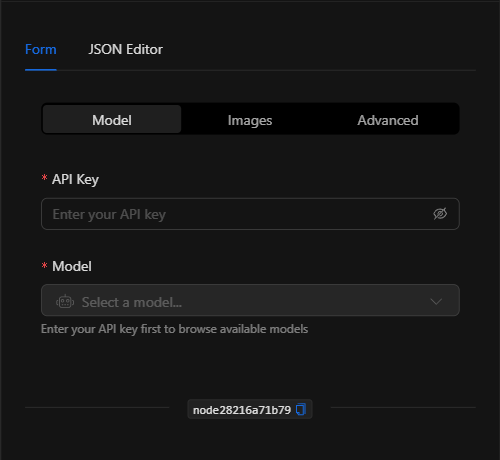
Section: Model
1. API Key *Required
The provider's API key (protected field). Enables the model browser.
2. Model *Required
Searchable model selector by name or provider (IDs in the format provider/model).
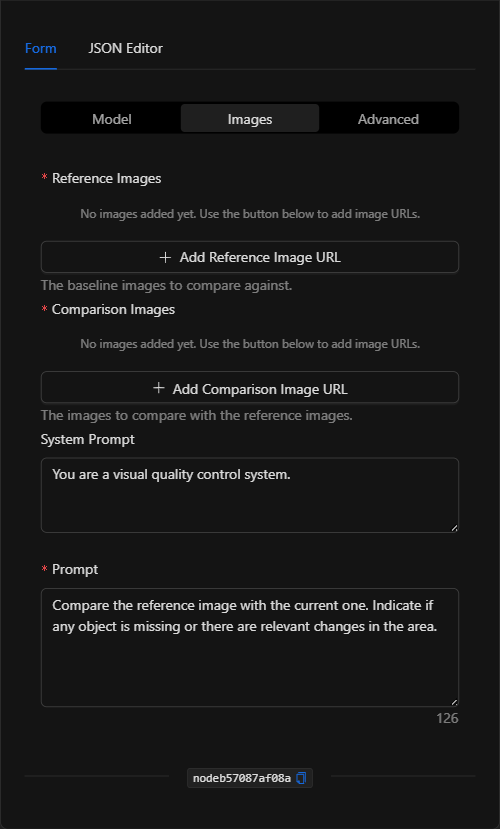
Section: Images
3. Reference Images *Required
The base images (normal/reference state) against which the comparison is made. Supports automation variables.
4. Comparison Images *Required
The current images to evaluate (e.g., the recent camera snapshot, {{get_snapshot_node.url}}).
5. System Prompt *Optional
System instructions for the model (defines role/behavior).
6. Prompt *Required
Describes what to compare and what constitutes a match (e.g., "Indicate if any object is missing or there are relevant changes in the area").
Section: Advanced
- Pass Threshold: Value (default
0.5) that defines the threshold above which a match is considered to exist. - Temperature: Creativity/randomness of the response (0 to 2).
- Max Tokens: Maximum token limit for the response.
JSON Editor View
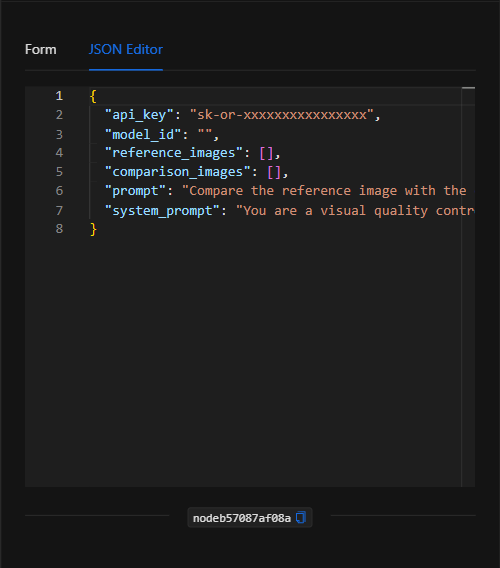
JSON Structure (Input Parameters)
{
  "api_key": "sk-or-xxxxxxxxxxxxxxxx",
  "model_id": "openai/gpt-4o",
  "reference_images": [
    "https://demo02.netsocs.com/.../referencia.jpg"
  ],
  "comparison_images": [
    "{{get_snapshot_node.url}}"
  ],
  "prompt": "Compare the reference image with the current one. Indicate if any object is missing or there are relevant changes in the area.",
  "system_prompt": "You are a visual quality control system."
}
JSON Fields
| Field | Type | Description |
|---|---|---|
api_key |
string | Provider API key. |
model_id |
string | Model ID (provider/model). |
reference_images |
array (string) | URLs of the reference (base) images. |
comparison_images |
array (string) | URLs of the current images to compare. |
prompt |
string | What to compare and what constitutes a match. |
system_prompt |
string | (Optional) System instructions. |
pass_threshold |
number | (Optional, Advanced) Pass threshold (default 0.5). |
temperature |
number | (Optional, Advanced) Response creativity (0–2). |
max_tokens |
number | (Optional, Advanced) Token limit. |
Output: Where the node's data comes from
The comparison result (including whether there is a match according to the threshold, and the model's explanation) is available in the node's output and can be used in downstream nodes with {{node_key}} to make decisions (e.g., escalate an alert if a change is detected).
Usage Examples
Example 1: Detection of a missing object in an area
Use case: Compare the reference image of a shelf/warehouse with the current snapshot to detect if any material is missing.
- Reference Images: Reference image of the complete area.
- Comparison Images:
{{get_snapshot_node.url}} - Prompt:
Compare the reference image with the current one. Indicate if any object is missing or there are relevant changes in the area.
(see JSON structure above)
Example 2: Visual quality control
Use case: Compare a product on the production line with a reference image to validate it meets the standard, using a pass threshold.
- Pass Threshold:
0.7
Validation and Errors
| Condition | Common cause / fix |
|---|---|
| Missing images | You must provide at least one reference image and one comparison image. |
| Authentication error | The API Key is invalid or lacks permissions for the chosen model. |
| URLs not working | Make sure the image URLs are publicly accessible. |
Best Practices
- Stable reference images: Use consistent reference images (same camera, angle, and lighting) for reliable comparisons.
- Define the match clearly: In the prompt, describe precisely which changes matter and which should be ignored.
- Adjust the threshold: Calibrate
pass_thresholdaccording to the desired sensitivity. - Chain with snapshot capture: Typical pattern: Get snapshot → Compare Images with AI → condition/notification.