Documentation: Generate PDF Node
Overview
The Generate PDF Node is an action node that builds a PDF document from a block-based model (header, content, and footer) defined visually. It allows generating reports with text, tables, lists, images, dividers, QR/barcodes, and page breaks, with control over page size, orientation, margins, and font.
In IoT and industrial environments it is ideal for producing automatic reports: incident records, maintenance work orders, event summaries, or shift reports, generated on the fly with flow data and delivered as a file or attachment.
When to use this node?
Use this node when you need to:
- Generate a PDF report as part of an automation (incident, maintenance, shift).
- Compose documents with rich structure (headings, paragraphs, tables, lists, images) using flow data.
- Produce a PDF to attach to an email, save to disk, or reuse its content in other nodes.
Node Configuration
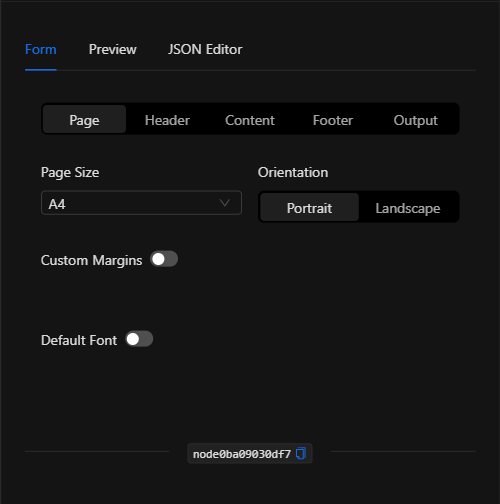
The form is organized into five selectable sections: Page, Header, Content, Footer, and Output. It also has the Preview and JSON Editor tabs.
Section: Page
Defines the document format:
- Page Size: page size (
A4,A3,A5,A6,Letter,Legal,Tabloid). - Orientation: orientation (
Portrait/Landscape). - Custom Margins: custom margins in mm (optional).
- Default Font: default font for the document (family, size, color, bold/italic) (optional).
Sections: Header / Content / Footer
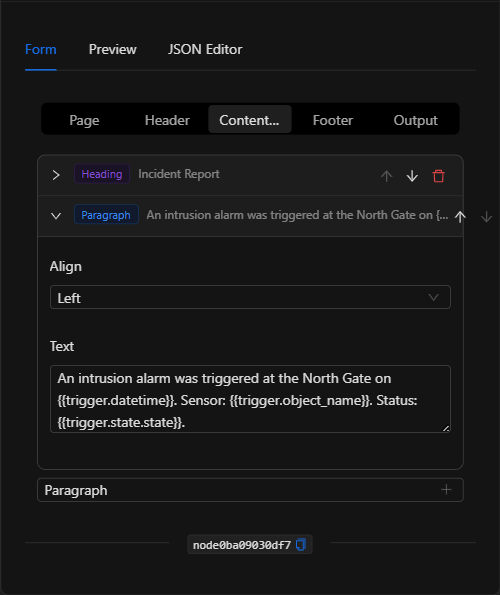
Block editors for the document's header, body, and footer. Use Add block... to add blocks of different types, which can be reordered and edited:
- Paragraph, Heading (H1–H6), Image (image by URL/base64), Table, List (ordered/unordered), Divider, Spacer, Columns, Page Break, QR Code, and Barcode.
Block text supports variable interpolation ({{variable}}) to insert flow data.
Section: Output
Defines how the PDF is delivered:
- Output Format:
Base64(output includespdf_base64),File(saved as a file), orBoth. - File Name / Directory Path: file name and path (when the format is File or Both). The name supports interpolation (for example,
report-{{id}}.pdf).
Preview View
The Preview tab shows an approximate representation of the document (size, orientation, and blocks) to validate the design before generating it.
JSON Editor View
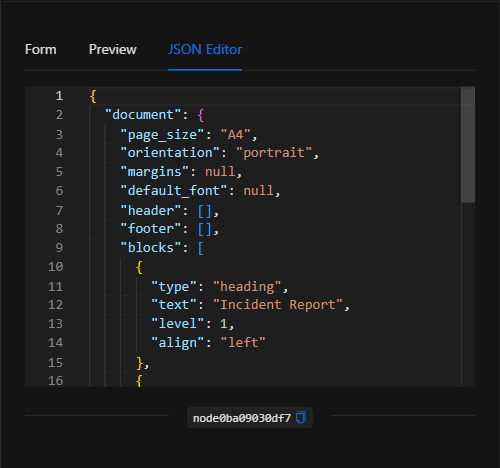
JSON Structure (Input Parameters)
{
  "document": {
    "page_size": "A4",
    "orientation": "portrait",
    "margins": null,
    "default_font": null,
    "header": [],
    "footer": [],
    "blocks": [
      { "type": "heading", "text": "Incident Report", "level": 1, "align": "left" },
      { "type": "paragraph", "text": "An intrusion alarm was triggered at the North Gate on {{trigger.datetime}}. Sensor: {{trigger.object_name}}. Status: {{trigger.state.state}}.", "align": "left" }
    ]
  },
  "output_format": "base64",
  "file_name": "",
  "file_path": ""
}
JSON Fields
| Field | Type | Description |
|---|---|---|
document |
object | Document model (page, font, margins, and header/content/footer blocks). |
document.page_size |
string | Page size (A4, Letter, etc.). |
document.orientation |
string | portrait or landscape. |
document.blocks |
array | Body blocks of the document (each with its type and fields). |
output_format |
string | base64, file, or both. |
file_name |
string | File name (when applicable). Supports interpolation. |
file_path |
string | Server directory where the file is saved (when applicable). |
Output: Where the node's data comes from
With output_format: base64, the output includes the PDF as pdf_base64, ready to be used in subsequent nodes (for example, converting it to a file with [[base64-to-file]] or attaching it to an email). With file or both, the PDF is saved as a file at the specified path.
Usage Examples
Example 1: Intrusion incident record
Use case: When an intrusion alarm triggers, a PDF is generated with the incident title and a paragraph containing the event data, to attach to the notification email.
- Page:
A4,Portrait - Content: a Heading block (
Incident Report) and a Paragraph block with flow data. - Output Format:
Base64
(see JSON structure above)
Example 2: Maintenance work order with table
Use case: Generate a maintenance work order with a table of completed tasks and save it as a file.
- Content: Table block with the tasks.
- Output Format:
File· File Name:maintenance-{{trigger.object_id}}.pdf
Validation and Errors
| Condition | Common cause / fix |
|---|---|
| PDF comes out empty | Add at least one content block in the Content section. |
| File is not saved | With File/Both format, verify that File Name and Directory Path are valid and accessible on the server. |
| Variables not replaced | Check that {{variable}} expressions correspond to data available in the flow. |
Best Practices
- Structure with blocks: combine headings, paragraphs, and tables for readable reports; use the preview to validate the result.
- Dynamic data: take advantage of
{{variable}}interpolation to insert the date, object, and event state. - Choose the right output format: use
base64to attach/chain andfilewhen you need to persist the document. - Chain with other nodes: combine with [[base64-to-file]] or with Send Email to deliver the generated report.